Partner Program settings
Enable partner applications in admin, route notifications, and publish the storefront application button from Shopify Theme Editor.
When to use this page
- You want to accept partner applications from the public storefront.
- You need to change the application alert email, test the application CTA, or review current intake behavior.
Before you start
- Decide whether you want to accept applications directly from new partners.
Success looks like
- Allow Partner Applications is set to the intended state in admin.
- The notification email route is correct for the team reviewing requests.
- The Partner Apply Button and Partner Application Modal are published in the active theme.
- A test application reaches Pending Requests successfully.
Where to find it
Merchant sidebar → Settings page → Partner Program
Steps
Step 1.
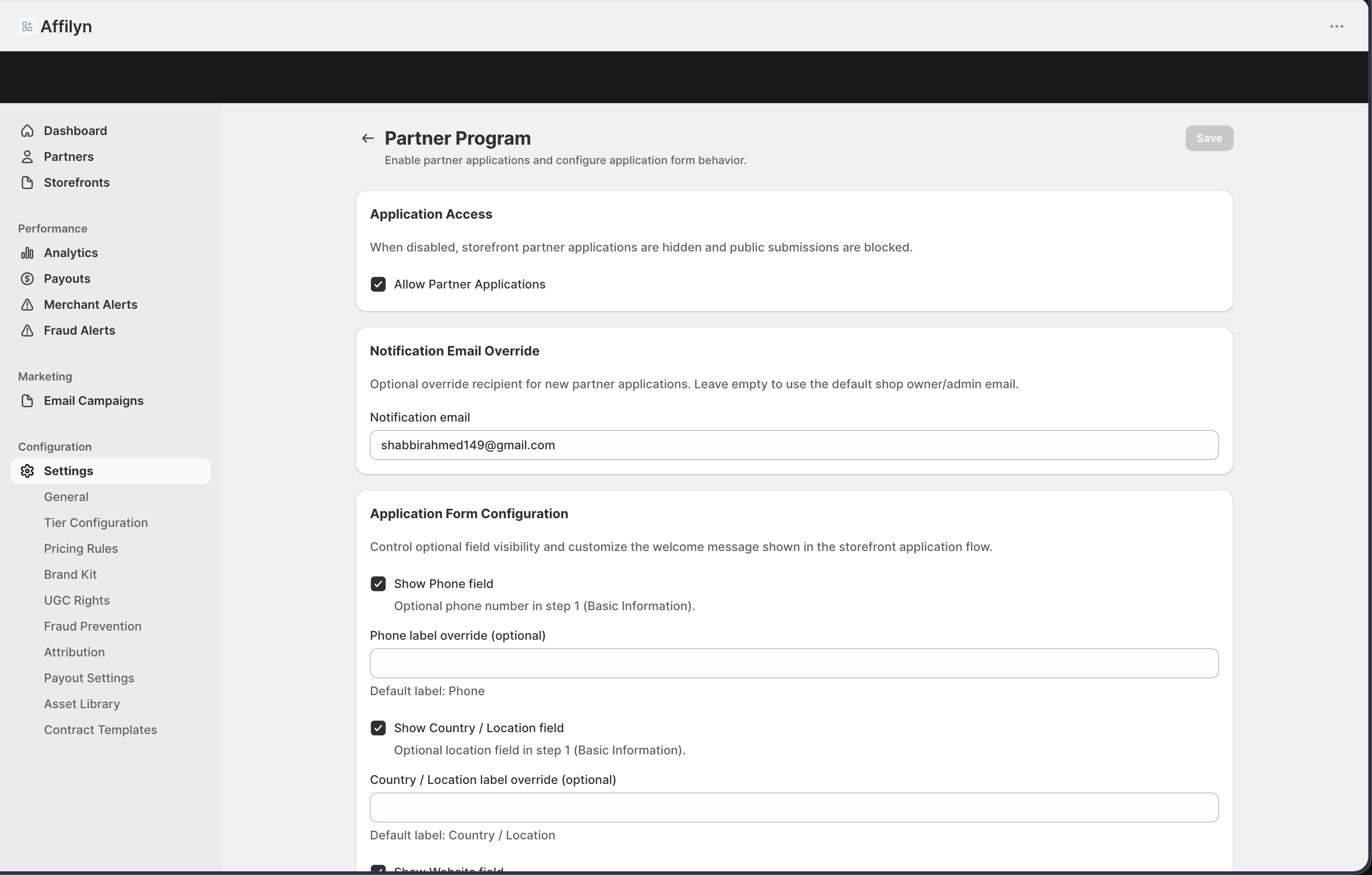
Open Settings, then select Partner Program.
Step 2.
In Application Access, turn on Allow Partner Applications if you want to accept public submissions.
Step 3.
In Notification Email Override, enter Notification email if new application alerts should go to a team inbox instead of the default shop owner or admin email.
Step 4.
In Application Form Configuration, review each Show ... field toggle, add any label overrides, and update Custom welcome message (optional) if needed.
Step 5.
Save the page.
Step 6.
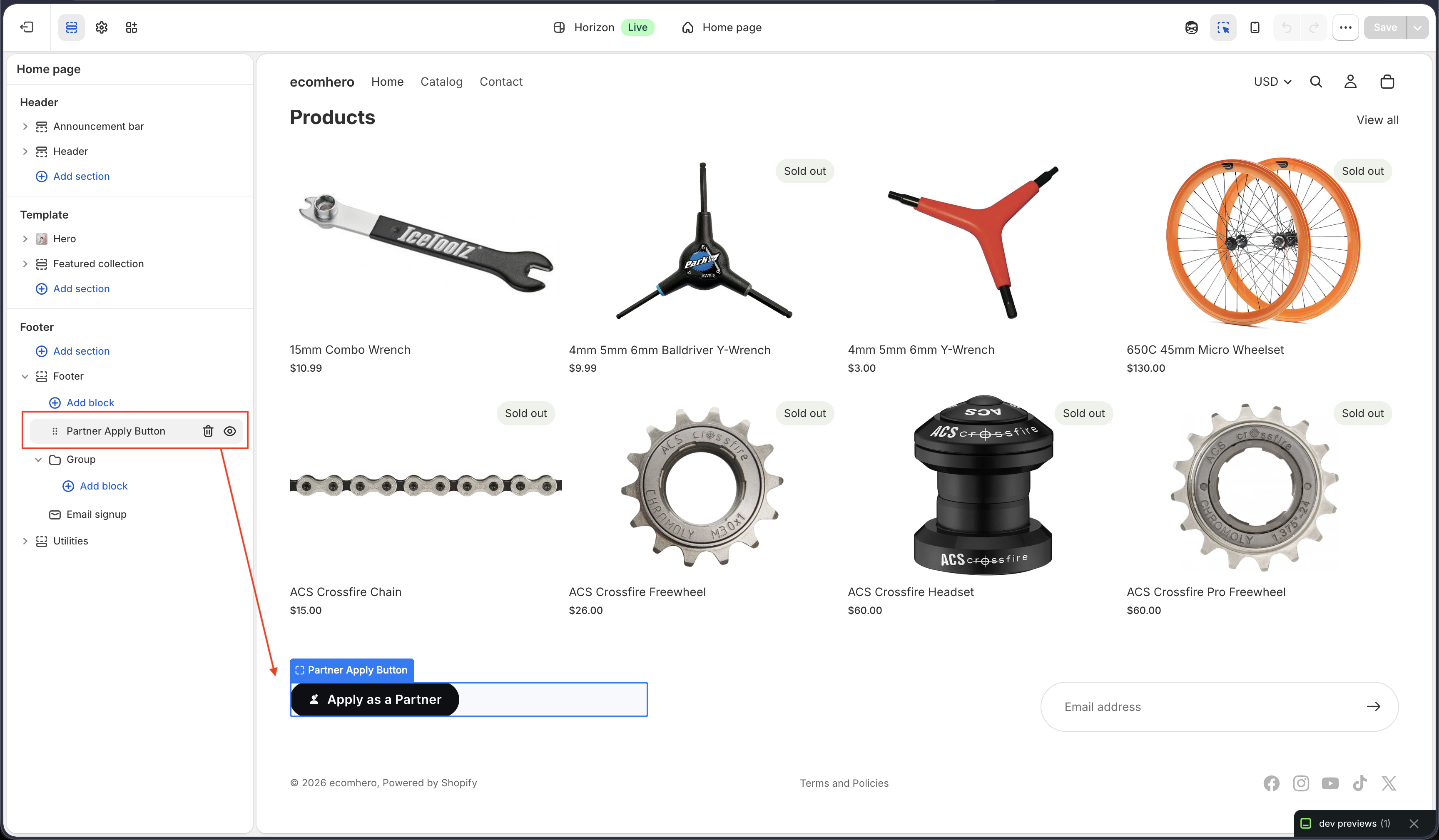
Open Online Store → Edit theme, add the Partner Apply Button app block to the storefront section where you want the CTA to appear, and save or publish the theme change.
Step 7.
In App embeds, enable Partner Application Modal so the storefront modal is available and the reCAPTCHA site key setting can be used.
Settings explained
- Application Access contains Allow Partner Applications. When it is off, the backend blocks public submissions. It does not automatically remove an existing storefront button from your theme.
- Notification Email Override lets you send new application alerts to a shared inbox instead of the default shop owner or admin address.
- Application Form Configuration stores optional-field visibility, field label overrides, and Custom welcome message (optional) for the partner-application feature set.
- Reset Form Config restores the application form configuration to its default admin values.
Show the button in your store
- Open the Shopify Theme Editor for the theme you want to publish.
- Add the Partner Apply Button app block to the page or section where visitors should see the call to action.
- Open App embeds and enable Partner Application Modal.
- Save the theme, then preview or publish it.
The storefront button is a theme app extension. Turning on Allow Partner Applications enables submissions, but the button appears only after you place the Partner Apply Button block in the theme.
Customize the button and modal
- Partner Apply Button exposes these storefront controls: Button text, Button style, Button color source, Custom button color, Button size, Show icon, Modal title, and Success message.
- Partner Application Modal exposes Modal title, Success message, and reCAPTCHA site key.
- Keep Partner Application Modal enabled even if the button appears to work without it. The modal embed is the visible configuration point for reCAPTCHA site key.
Test the flow
- Preview the storefront after saving both the admin settings and Theme Editor changes.
- Click the Partner Apply Button on the storefront.
- Complete the multi-step modal and submit a test application with a unique email address.
- Confirm the storefront shows the success state.
- Return to Partners → Pending Requests and verify the new application appears in the queue.
Current behavior and limits
- The storefront modal currently uses its built-in multi-step form and default field structure.
- The admin optional-field visibility toggles, label overrides, and Custom welcome message (optional) do not currently reconfigure the storefront modal.
- If you close applications later, remove or hide the Partner Apply Button in Theme Editor as well. Otherwise visitors may still see the button even though submissions are blocked.
Example
A merchant turns on Allow Partner Applications, routes notifications to a recruiting inbox, leaves the admin form defaults in place, publishes Partner Apply Button in the theme header, enables Partner Application Modal, and then submits a test request to confirm the application lands in Pending Requests.
Tips and limits
- Use Notification Email Override when more than one teammate reviews applications.
- Preview the storefront after every Theme Editor change so you can confirm the button placement and modal copy.
- If a visitor reports that applications are closed, check both Allow Partner Applications and whether the correct theme changes were published.
Current behavior
- The admin page stores application access, notification routing, and form configuration values.
- The storefront application modal currently uses its built-in multi-step structure and the live theme placement controls.
Limitations
- Admin label overrides, optional field toggles, and custom welcome message settings do not currently reshape the storefront modal fields.
- Turning off applications in admin does not remove an already published storefront button from the theme.