
Review applications
Process partner applications that arrive from the storefront application flow with filters, review states, social checks, and approval actions.
Before you start
- Turn on Allow partner applications in Settings → Application Settings if you want public intake.
- Publish the Partner Apply Button and enable Partner Application Modal in Shopify Theme Editor if you want applications to come from the storefront.
Where to find it
Merchant sidebar → Partners → Pending Requests
Steps
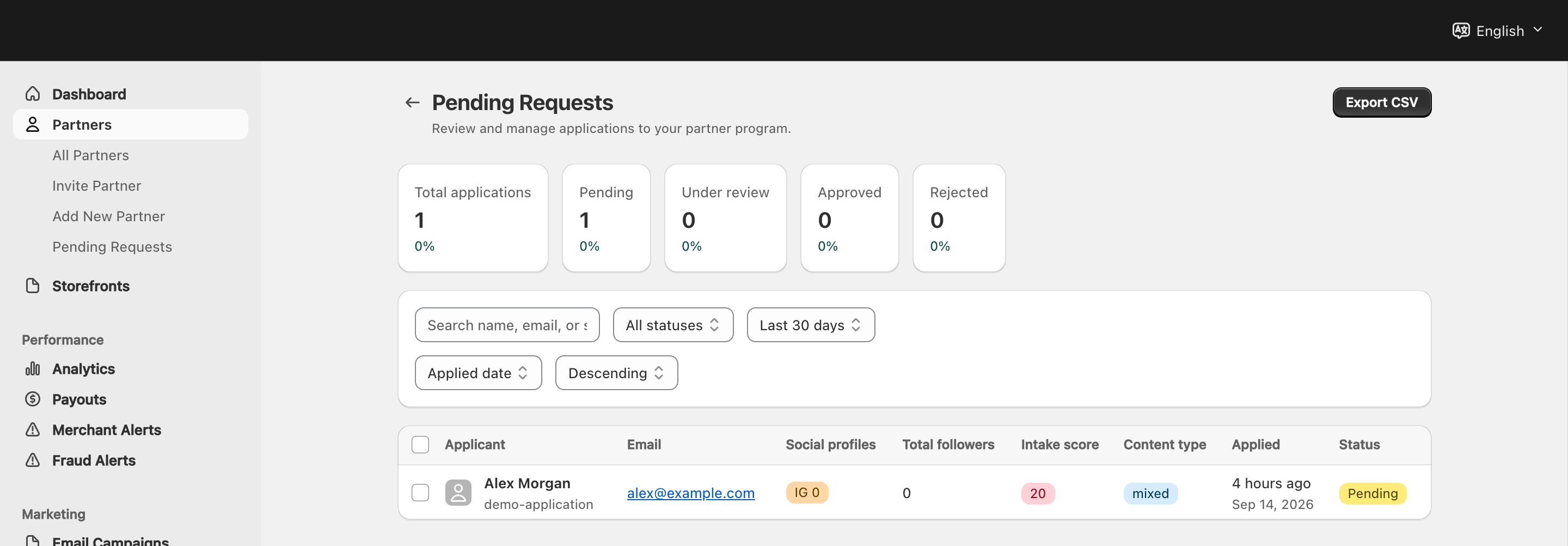
View full-size image: Applications queue
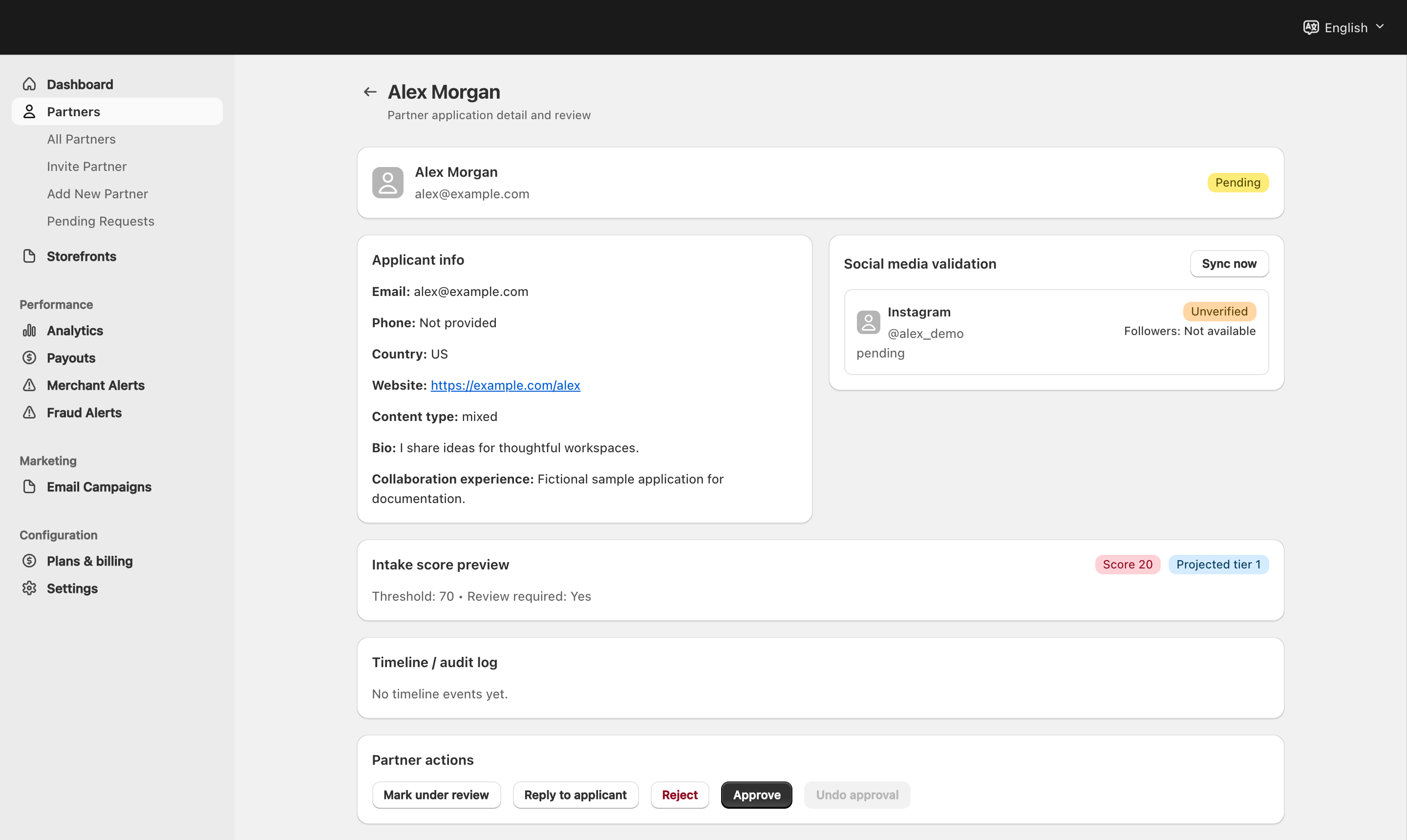
View full-size image: Application review page
Step 1.
Open Partners → Pending Requests to review the queue.
Step 2.
Filter by status, date range, or sort order to narrow the list.
Step 3.
Use bulk approve, bulk reject, or export when you need a wider action.
Step 4.
Open an application to see the full profile, intake score, and activity timeline.
Step 5.
Mark the application under review if you need time before deciding.
Step 6.
Approve, reject, or undo the approval as needed.
Before applications can arrive
- The usual public intake path is the storefront Partner Apply Button flow documented in /docs/settings-guide/partner-program.
- Applications will not be created until Allow Partner Applications is on and the storefront button has been published in Theme Editor.
- If the button is visible but applications are closed, visitors can still see the CTA, but submission attempts are blocked.
Settings explained
- Pending Requests is the merchant review queue for new application intake.
- Intake score gives merchants an early signal about application quality.
- Projected tier previews where the applicant may fit.
- Social validation helps confirm profile details before approval.
- Reply to applicant gives merchants a structured way to follow up from the application screen.
Example
A merchant publishes the storefront application button on Monday, submits one test application, then opens Pending Requests to confirm the queue is receiving applications before starting normal approval work for new candidates later in the week.
Tips and limits
- If the queue stays empty, re-check the setup steps in /docs/settings-guide/partner-program before assuming the review page is broken.
- Bulk actions are fastest when your approval rules are already clear.
- Use Under review instead of leaving applications untouched when another teammate is still evaluating them.