
VIP PartnerOverview
VIP Partner guide
Use these pages to manage your storefront, bundles, analytics, and other VIP partner tools.
Last reviewed: Sep 14, 2026UI path: Partner dashboard → active VIP store → Storefront, Analytics, Brand & Content
Go here if...
I need to set up or edit a storefrontOpen the content and layout guide for hero media, content blocks, and storefront structure.I need discount or visibility controlsOpen the VIP access and SEO guide for storefront access, discount display, and discoverability.I need VIP analyticsOpen the reporting guide for advanced storefront and partner performance analysis.
When to use this page
- You have VIP access and need the storefront-building or advanced reporting path.
- You want to distinguish standard partner tools from VIP-only tools quickly.
Before you start
- Have VIP Partner access for at least one store.
Top tasks
Language and appearanceChoose your portal language and light, dark, or system appearance.VIP onboardingReview the first-run VIP setup steps and what changes after access is granted.Storefront content and layoutManage the public storefront structure and presentation.Access, discounts, and SEOControl storefront access rules, discount presentation, and discovery settings.Advanced analyticsOpen the reporting view for deeper storefront performance analysis.
Success looks like
- You can find the VIP onboarding, storefront, discount, and analytics pages from one section.
- You can tell which tools are extra on top of the standard partner workflow.
Where to find it
Partner dashboard → active VIP store → Storefront, Analytics, Brand & Content
Steps
ScreenshotVIP welcome flow
Local image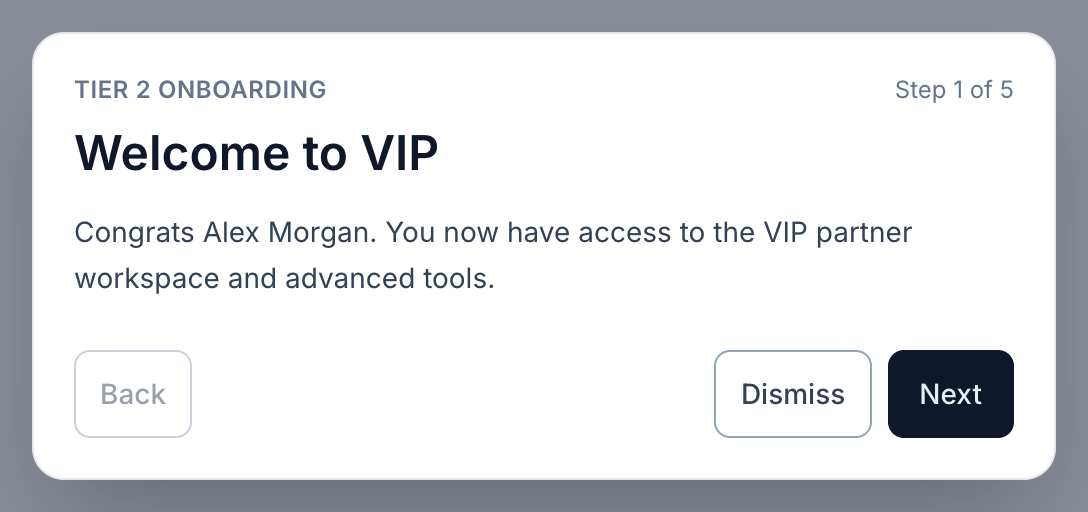
View full-size image: VIP welcome dialog
- Review the VIP onboarding flow when it first appears.
- Use Storefront content and layout and Access, discounts, and SEO to create the shopper experience.
- Open the task page that matches what you want to do next, such as Bundle Manager, Advanced Analytics, Discount Visibility, or Press Kit, rights, and gifting.
Settings explained
- VIP Partners still keep access to standard partner tools such as links, profile, stores, payouts, and contracts.
- VIP tools are designed for partners who curate a storefront and need deeper reporting or asset access.
- Read Standard Affiliate, VIP Partner, and Storefront for the complete explanation of Tier 2, storefront provisioning, access gates, and demotion behavior.
Example
A VIP Partner finishes onboarding, edits the storefront headline and hero media, publishes a bundle, and then checks advanced analytics after the first campaign goes live.
Tips and limits
- VIP features still depend on the current store context.
- Merchants control feature availability through tier settings, so not every VIP store relationship will look identical.