
MerchantGuide
Gifting Settings
Turn VIP welcome gifting on or off and choose the product variant used for the welcome gift.
Last reviewed: Sep 14, 2026UI path: Merchant sidebar → Settings page → Gifting Settings
Before you start
- Choose the gift product you want VIP partners to receive.
Where to find it
Merchant sidebar → Settings page → Gifting Settings
Steps
ScreenshotSteps 1-4
Local image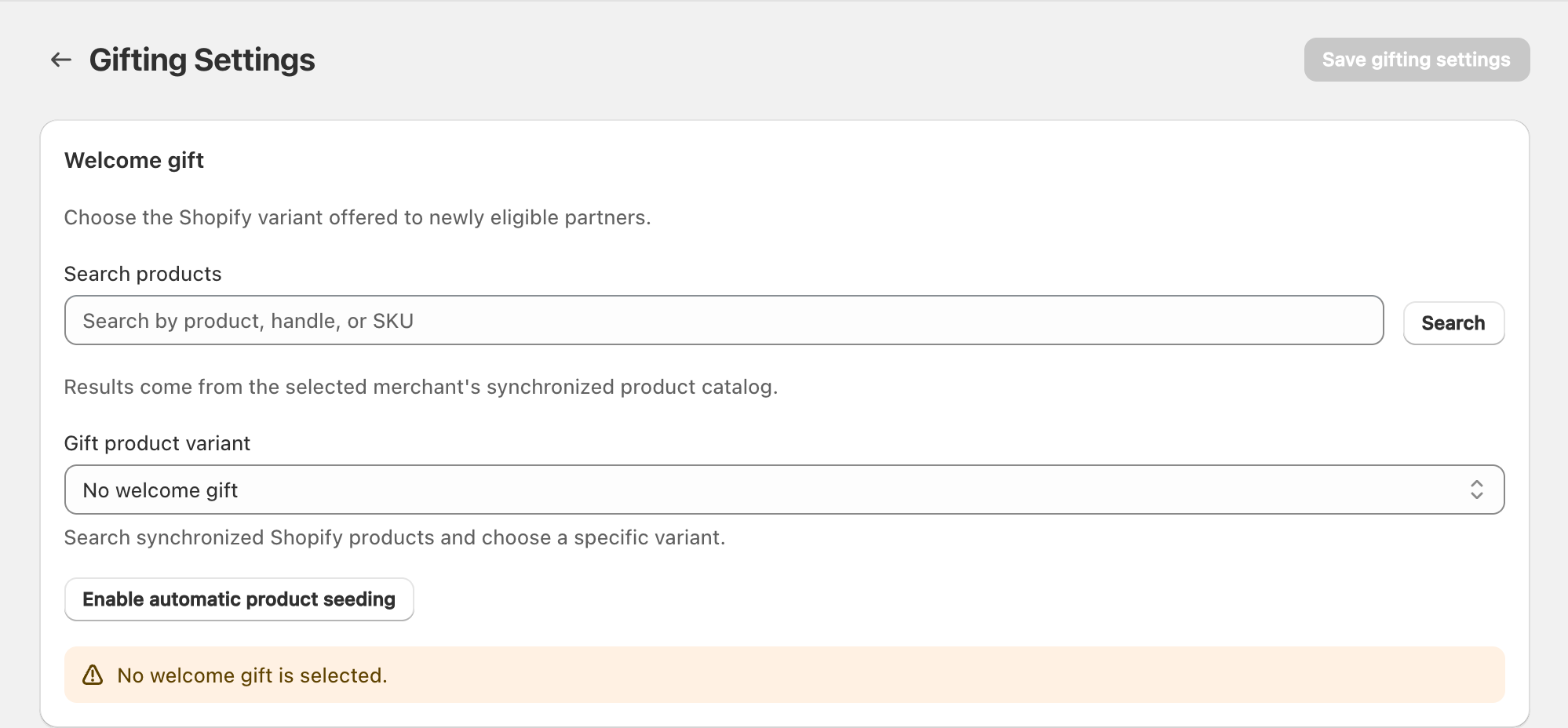
View full-size image: Gifting before selection
Step 1.
Open Settings, then select Gifting Settings.
Step 2.
Turn welcome gifting on if VIP partners should receive a gift automatically.
Step 3.
Search the catalog for the product you want to use.
Step 4.
Select the correct variant and review the current availability summary.
Step 5.
Save the page before promoting or inviting VIP partners who should receive the gift.
Settings explained
- Auto-seeding controls whether the welcome gift flow is active.
- Selected variant is the exact item used for the gift.
- Availability summary helps you notice stock or selection problems before launch.
- Welcome gift supports the VIP onboarding experience after promotion or approval.
Example
A merchant enables welcome gifting, chooses the correct product variant, confirms it is still available, and then promotes a high-value partner into VIP access.
Tips and limits
- Check product availability before a large VIP recruitment push.
- If the wrong item appears in the welcome gift summary, update the variant before more partners are added.
- Gifting works best when the partner shipping details are already current.