
Payments, assets, and contracts
See which settings page controls merchant payout readiness, email sync, gifting, assets, contracts, and storefront routing checks.
Before you start
- Finish the basic program settings first.
Where to find it
Merchant sidebar → Settings → Payout Settings, Asset Library, Contract Templates; Merchant sidebar → Settings page → Email Sync, Gifting Settings, App Proxy Configuration
For current connection and destination examples, see the illustrated PayPal guide.
Steps
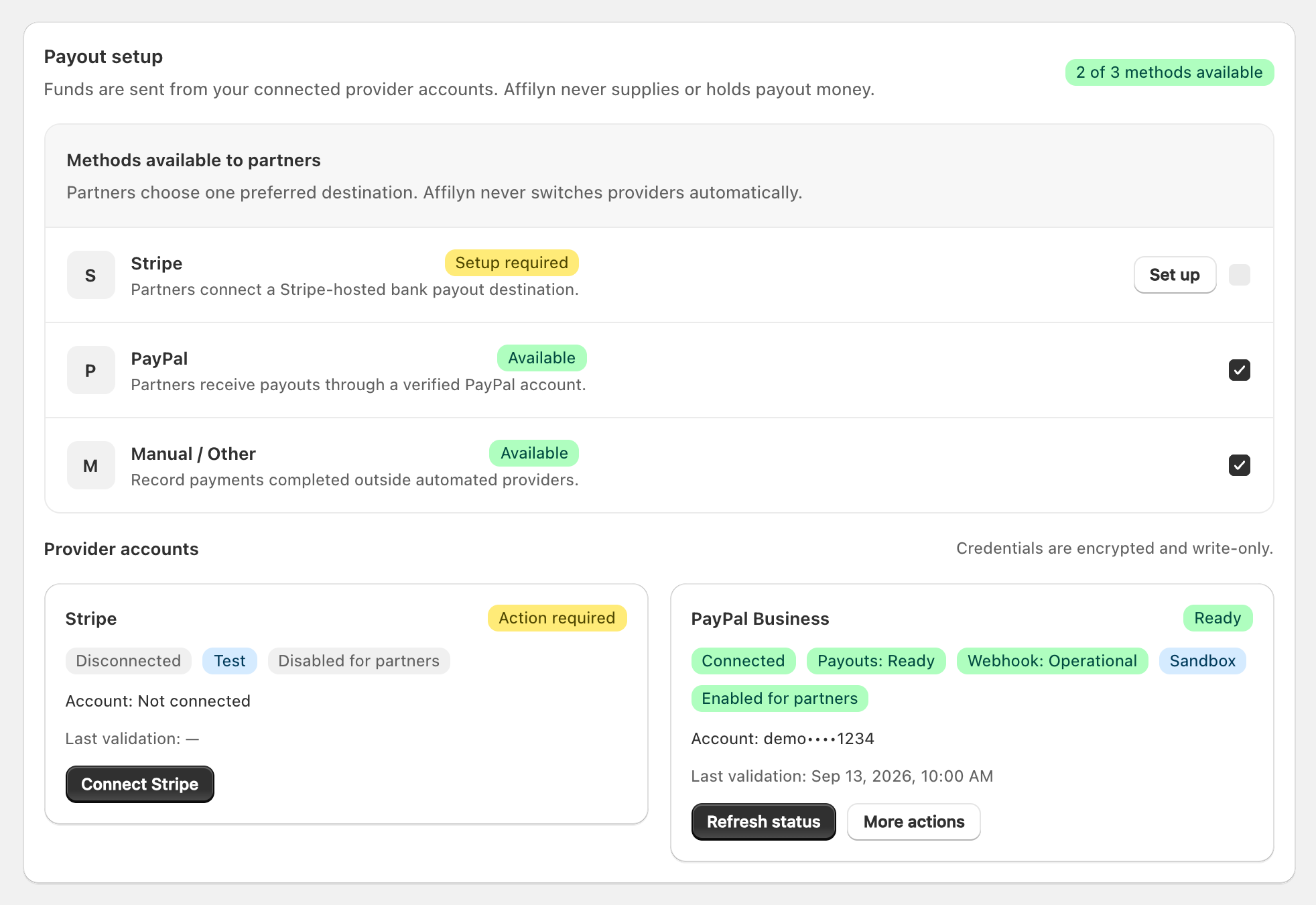
View full-size image: Merchant payout providers and availability
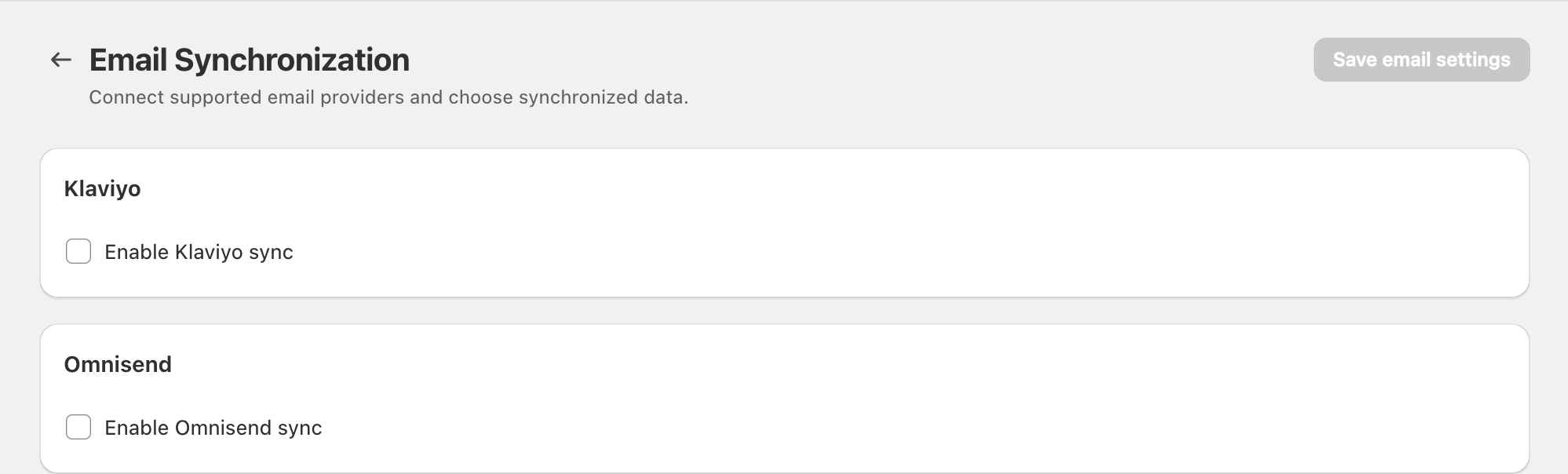
View full-size image: Email providers before configuration
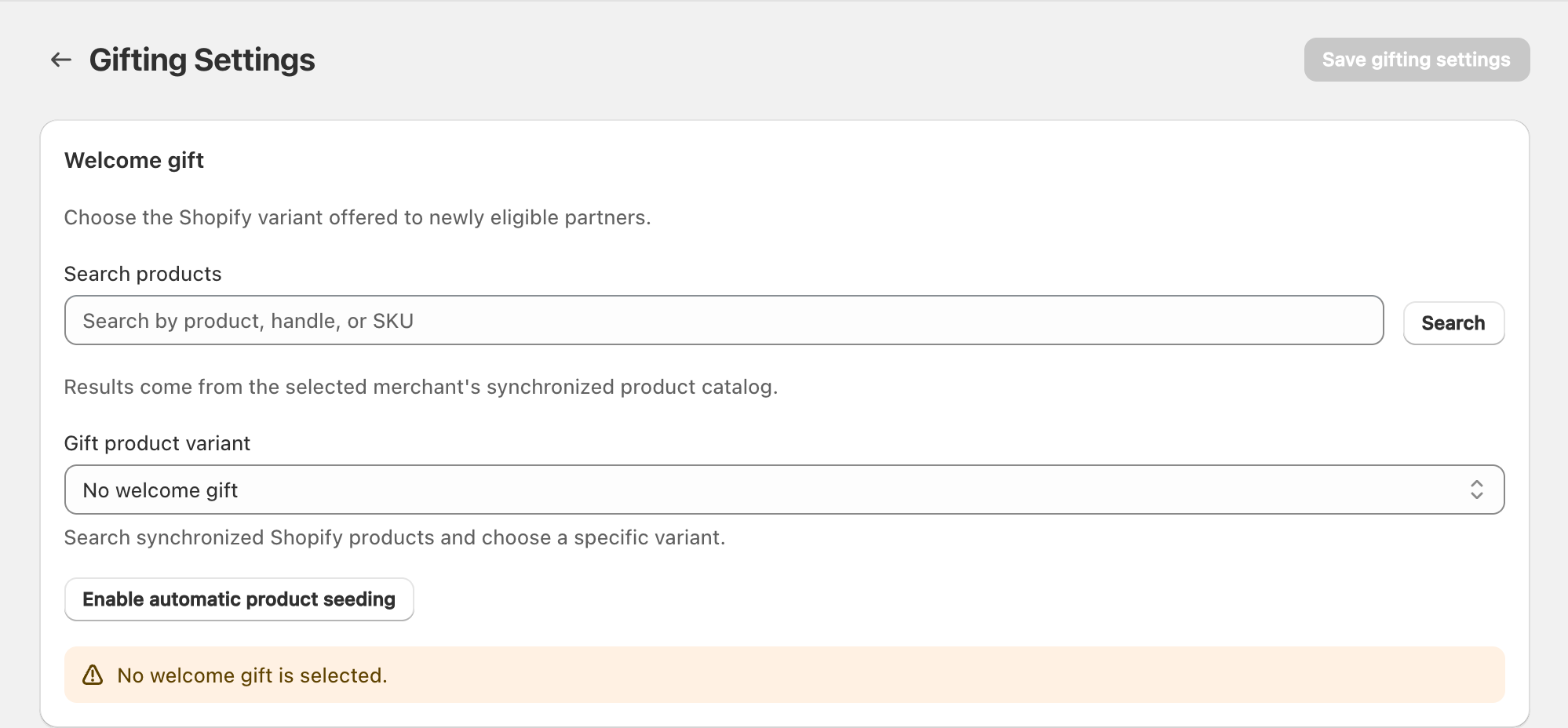
View full-size image: Gifting before selection
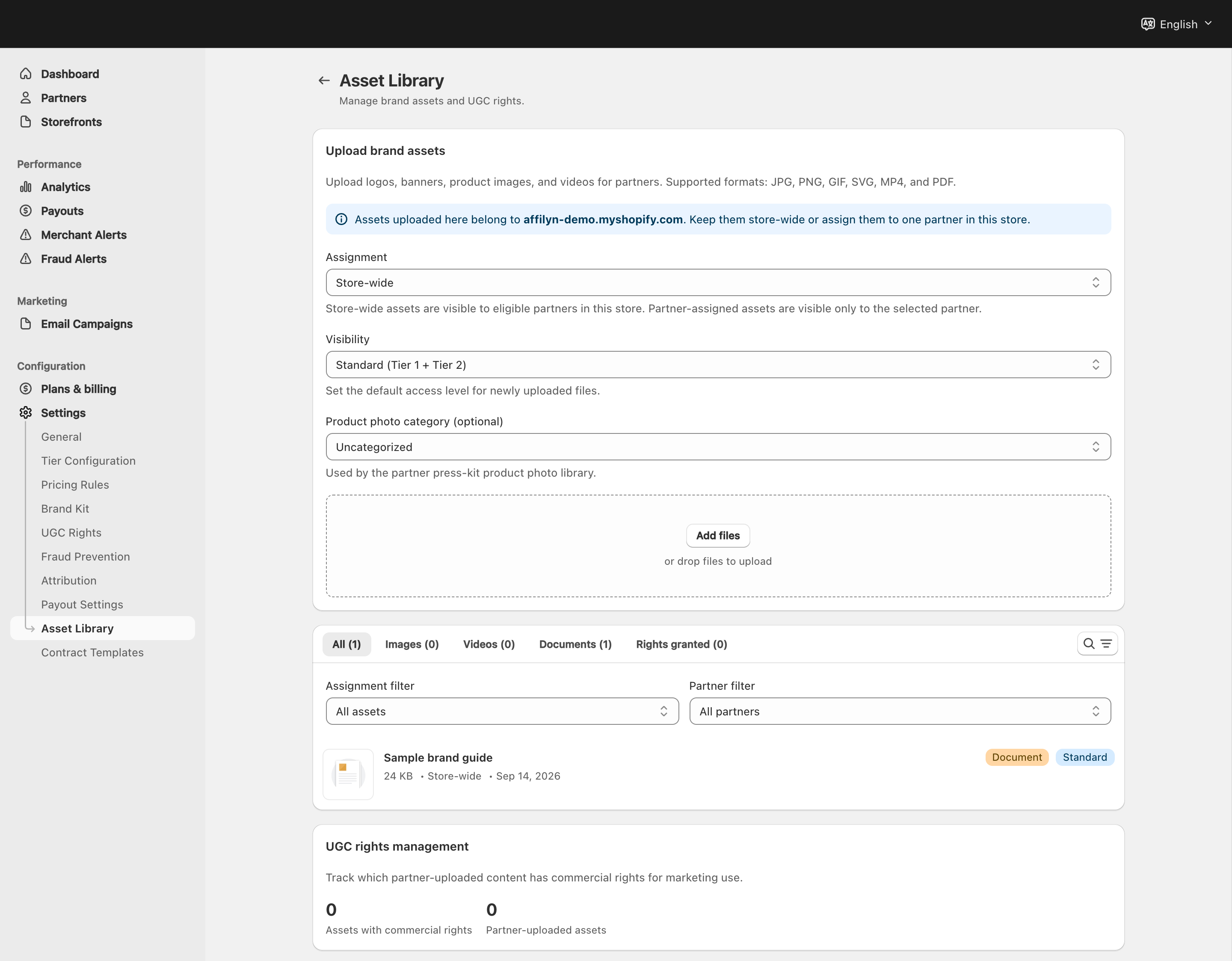
View full-size image: Asset Library upload and organization
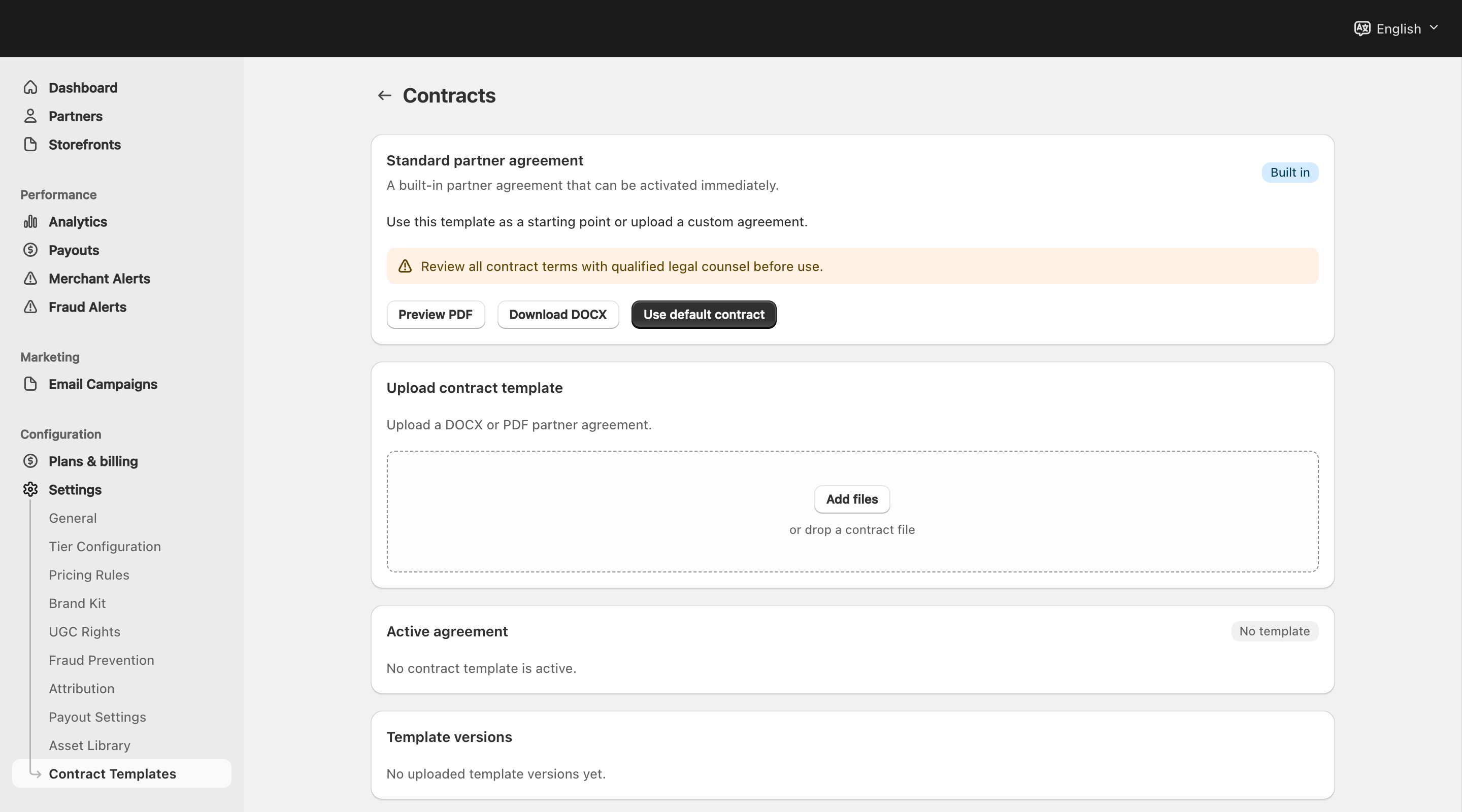
View full-size image: Contract templates before activation
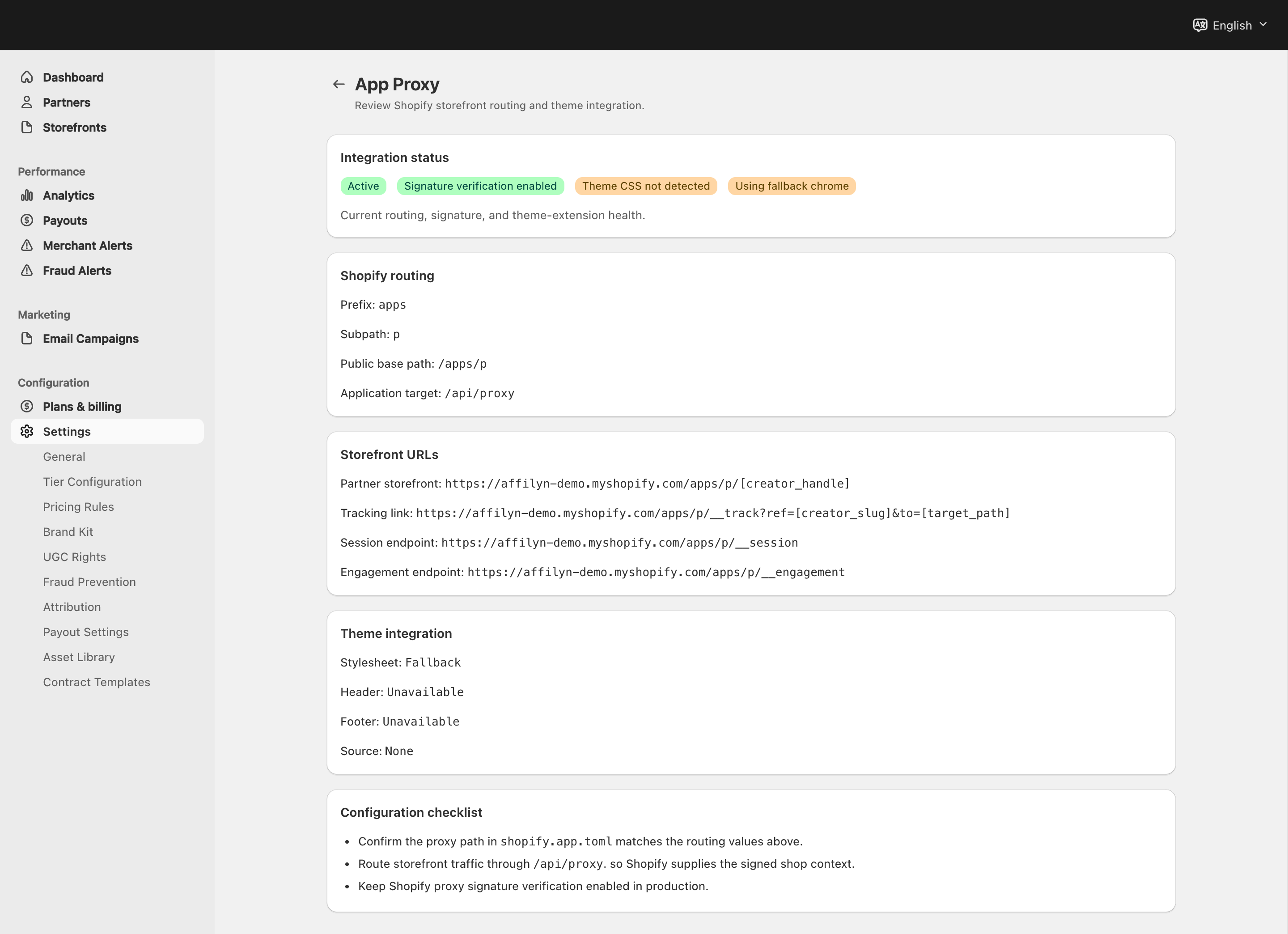
View full-size image: App Proxy routing and readiness
Step 1.
Open Settings → Payout Settings and prepare your merchant payout methods.
Step 2.
Open Settings → Email Sync from the settings landing page if you want contact sync with a connected marketing platform.
Step 3.
Open Settings → Gifting Settings from the settings landing page to choose the product used for welcome gifting.
Step 4.
Open Settings → Asset Library to upload program assets and manage visibility.
Step 5.
Open Settings → Contract Templates to upload and activate the contract template used for partner agreements.
Step 6.
Open Settings → App Proxy Configuration to review the storefront routing readiness page.
Settings explained
- Payout Settings decide whether payout operations are actually ready for merchant approval workflows. This page now separates automated readiness, shop default threshold, and merchant-owned Stripe or PayPal account controls.
- Email Sync supports marketing workflows by keeping contact data aligned.
- Gifting Settings prepares welcome gifts for eligible VIP partners.
- Asset Library stores brand assets and product photos for partner use.
- Contract Templates control the starting document used when sending contracts.
- App Proxy Configuration helps merchants confirm storefront routing readiness in plain language.
Example
A merchant connects the shop's Stripe account in Payout Settings, checks that automated readiness is complete, uploads premium brand assets for VIP use, activates a contract template, and then enables gifting so approved VIP partners receive a welcome gift after onboarding.
Tips and limits
- This page is an overview. Use the detailed settings pages when you need exact steps for one workflow.
- Do not wait until the first payout request to confirm gateway readiness or threshold behavior.
- Keep asset visibility levels clear so standard and premium content are not mixed by mistake.
- Review contract template versions before sending a new batch of contracts.