
MerchantGuide
General settings
Manage the business profile details and communication defaults used across the merchant experience.
Last reviewed: Sep 14, 2026UI path: Merchant sidebar → Settings → General
Before you start
- Finish the first-time setup flow or know the business details you want to store.
Where to find it
Merchant sidebar → Settings → General
Steps
ScreenshotSteps 1-4
Local image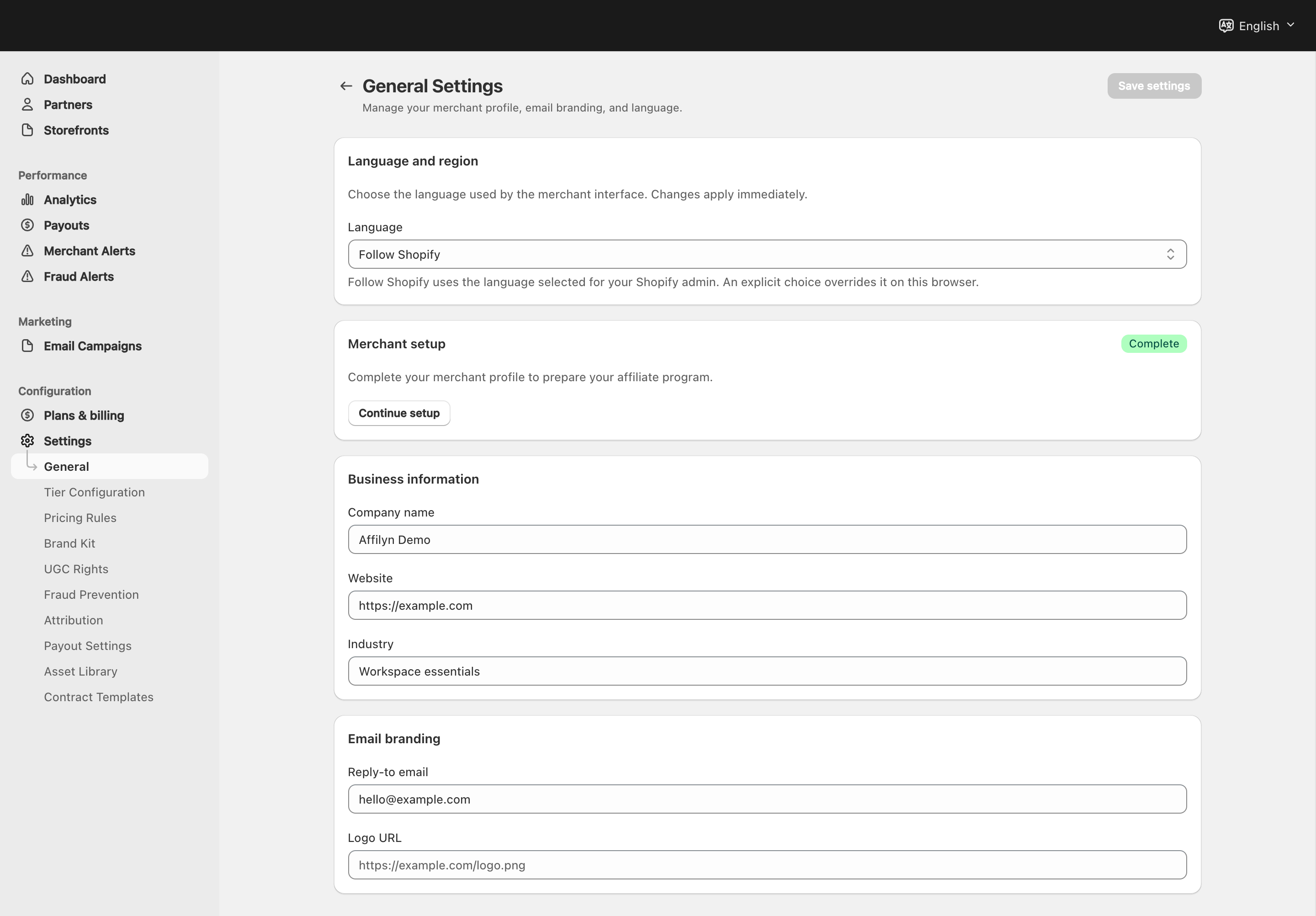
View full-size image: General settings and language
Step 1.
Open Settings → General.
Step 2.
Review the company name, website, and industry fields.
Step 3.
Confirm the reply email that should be used for partner-facing communication.
Step 4.
Add or review the email logo if your brand uses one in message templates.
Step 5.
Save the page before returning to setup, invitations, or campaign work.
Settings explained
- Company name identifies the business inside the program.
- Website gives partners and internal workflows the primary business URL.
- Industry helps keep the business profile current.
- Reply-to email controls where responses should be sent.
- Email logo URL adds branded identity to supported email experiences.
Example
A merchant updates the company website after a rebrand, confirms the new team inbox as the reply email, and adds the current logo before sending partner invitations.
Tips and limits
- Review this page after a rebrand, domain change, or support-email change.
- Keep the reply email current so partner replies do not go to an outdated inbox.
- Use the setup wizard for first-time onboarding, then use this page for later updates.