MerchantGuide
App Proxy readiness
Review the storefront routing status page in plain language before relying on live VIP storefront delivery.
Last reviewed: Jul 28, 2026UI path: Merchant sidebar → Settings page → App Proxy Configuration
Before you start
- Have at least one VIP storefront or storefront preview to validate.
Where to find it
Merchant sidebar → Settings page → App Proxy Configuration
Steps
ScreenshotSteps 1-4
Local image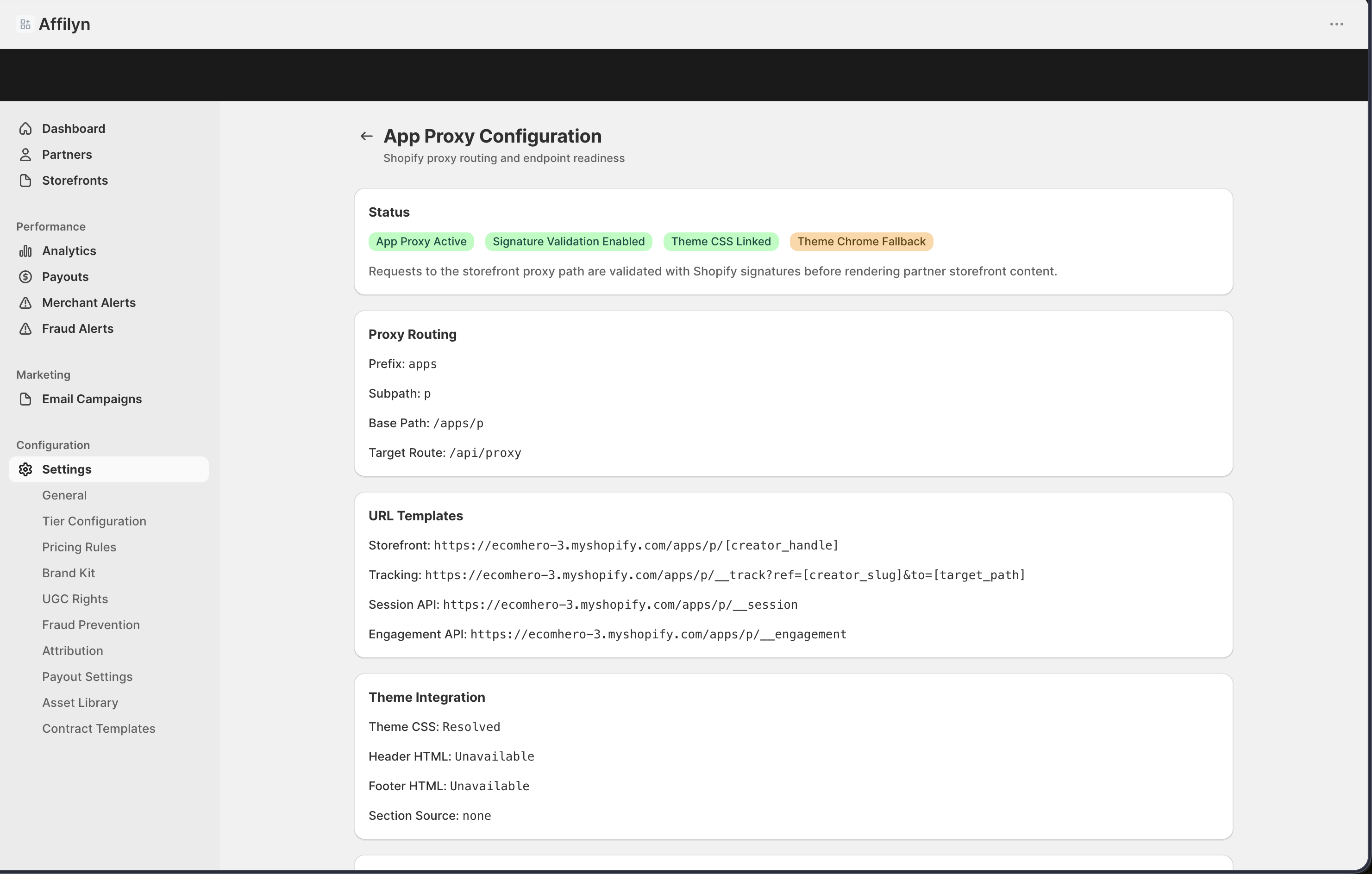
Step 1.
Open Settings, then select App Proxy Configuration.
Step 2.
Review the status badges at the top of the page.
Step 3.
Check the routing information shown for the storefront path.
Step 4.
Review any diagnostic warnings before relying on the live storefront.
Step 5.
Return to storefront review after the page shows the readiness you expect.
Settings explained
- Route status tells you whether the storefront link is ready to use.
- Security check confirms the storefront link is being verified correctly.
- Storefront styling shows whether the page can load the expected design.
- Page frame helps confirm that the storefront can use the expected layout around the content.
- Route details show which storefront path is currently being used.
Example
A merchant reviews the readiness page before a VIP launch, notices a warning, resolves the storefront setup with the team, and checks the page again before sharing the live storefront link.
Tips and limits
- Review this page before a launch, not after shoppers report a problem.
- Use this page as a readiness check, then confirm the live storefront view separately.
- If storefront delivery looks wrong, compare this page with the public storefront preview instead of guessing where the problem starts.