
Merchant guide
Run the partner program from the merchant dashboard, from recruiting through storefront applications to managing payouts and campaigns.
Go here if...
When to use this page
- You are already inside the merchant app and need the operational page for a specific task.
- You want to manage partners, applications, payouts, campaigns, or alerts after setup is complete.
Before you start
- Finish the first-time merchant setup.
Top tasks
Success looks like
- You can tell whether a task belongs in the merchant workflow area or in Settings.
- You can reach the correct merchant page for recruiting, review, payouts, campaigns, or alerts.
Where to find it
Merchant app sidebar
Steps
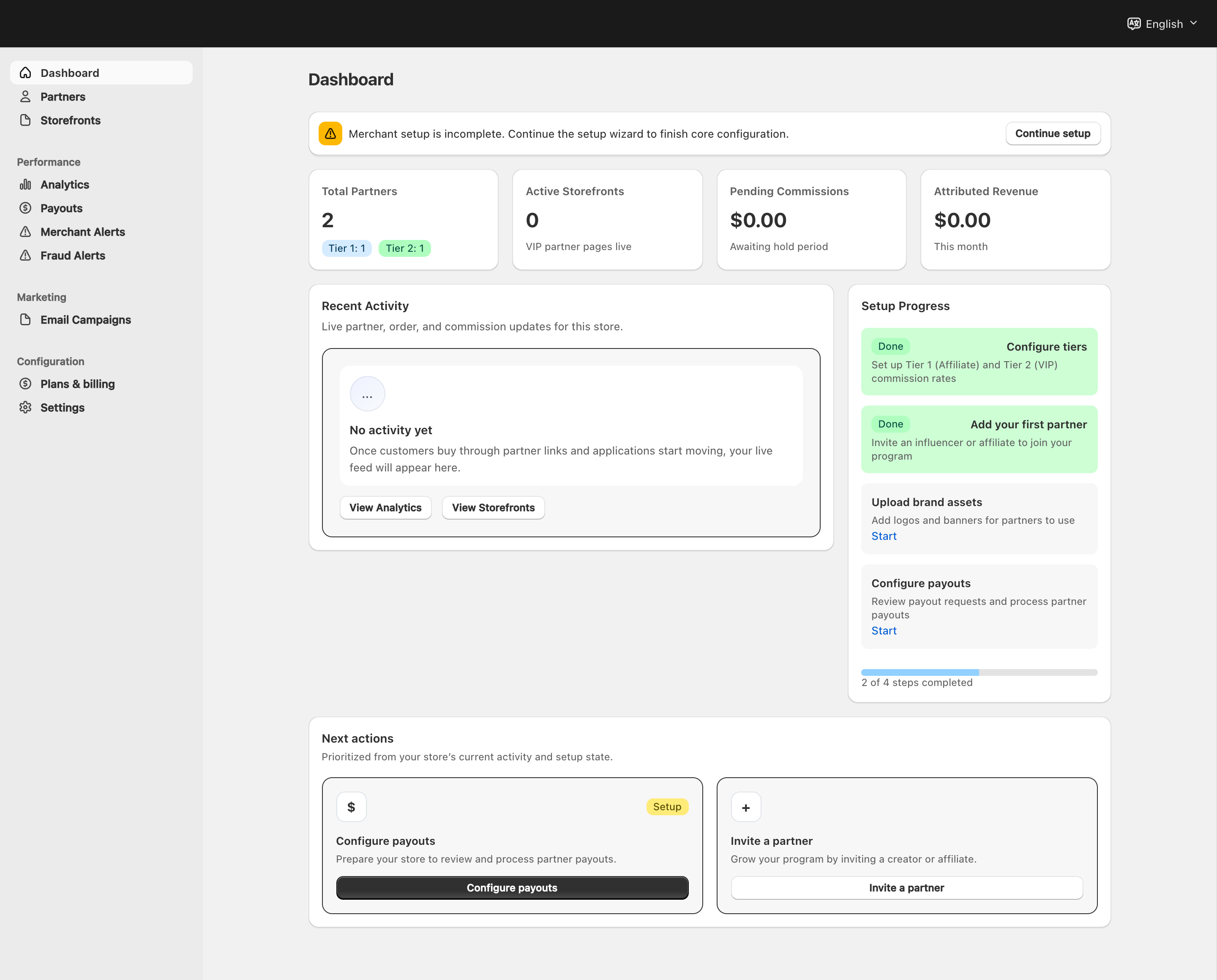
View full-size image: Merchant dashboard and navigation
Step 1.
Use Dashboard for a quick health check.
Step 2.
Use Partners to manage the people already in your program.
Step 3.
Use Pending Requests to review new applications submitted through the storefront application flow.
Step 4.
Use Storefronts, Analytics, and Email Campaigns to improve performance.
Step 5.
Use Payouts, Merchant Alerts, and Fraud Alerts to protect operations.
Step 6.
Use the detailed Settings pages to adjust long-term program rules.
Settings explained
- Merchant pages focus on the whole program, not one partner at a time.
- Most merchant workflows combine operations and configuration. For example, payouts depend on both queue review and payout settings readiness.
- Public recruiting is a two-step setup: enable applications in Partner Program, then publish the storefront application CTA in Shopify Theme Editor.
Example
A merchant launches the storefront application button, reviews the first new requests in Pending Requests, updates tier rules in the afternoon, and then schedules an email campaign for approved partners before the end of the day.
Tips and limits
- The dashboard is useful for overview, but most actions happen in the dedicated pages.
- Keep settings, payouts, and alerts in sync so operational problems surface early.
- If no new public applications appear, verify both Partner Program and the Theme Editor setup before troubleshooting the review queue.