
MerchantGuide
UGC Rights settings
Control the consent language shown when partners upload content that may later be reused commercially.
Last reviewed: Sep 14, 2026UI path: Merchant sidebar → Settings → UGC Rights
Before you start
- Decide what permission wording should appear during partner content upload.
Where to find it
Merchant sidebar → Settings → UGC Rights
Steps
ScreenshotSteps 1-3
Local image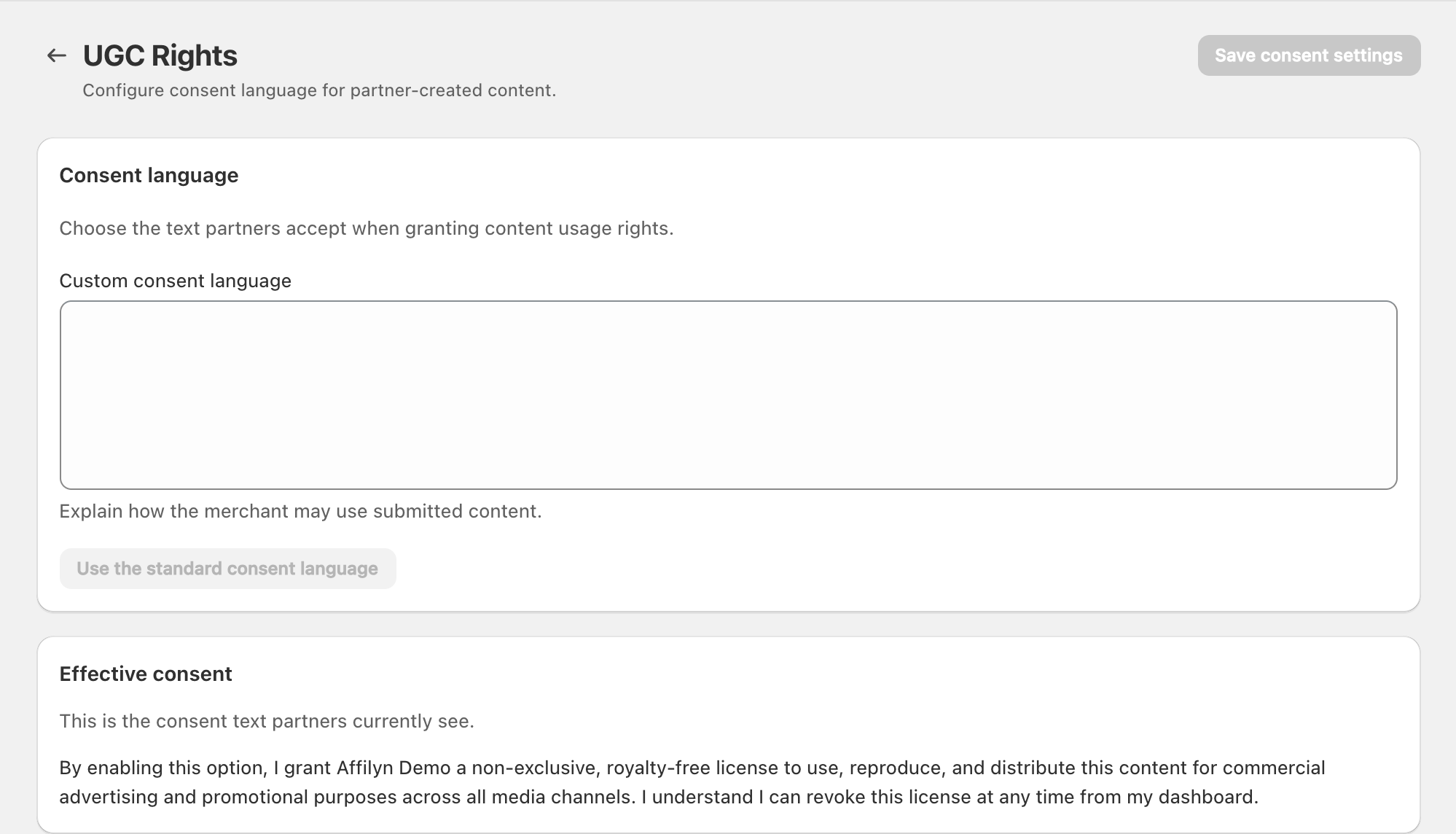
View full-size image: UGC consent configuration
Step 1.
Open Settings → UGC Rights.
Step 2.
Review the current consent wording shown to partners during content upload.
Step 3.
Add or update the custom consent text if the default language is not enough.
Step 4.
Save the page before reviewing partner upload or rights workflows.
Settings explained
- Consent text is the wording partners see when permission is requested.
- Custom text lets merchants adjust the message to match the program rules.
- Rights wording supports later review in partner-facing rights pages.
Example
A merchant updates the consent wording before a new paid-media push so VIP partners see a clearer explanation of how the brand may reuse uploaded content.
Tips and limits
- Keep the wording direct and easy to understand.
- Review the text with your internal team before changing it frequently.
- Update this page before asking partners for new campaign content, not after uploads are already in progress.