
Stripe payouts for merchants
Connect a merchant-owned Stripe account, enable Stripe for partners, configure payout policy, approve requests, and monitor automatic or manual payout settlement.
When to use this page
- You are setting up Stripe payouts for a store.
- You need to approve or monitor a partner payout.
- You want weekly or monthly automatic payouts.
Before you start
- Use a Stripe account owned by the merchant that has Stripe Connect access.
- Have the merchant's live Stripe secret credential ready for the secure, write-only connection form.
Success looks like
- Stripe shows Connected, Ready, and Enabled for partners.
- A partner can complete Stripe-hosted destination onboarding.
- Eligible commissions can move through reservation, provider processing, and paid settlement without Affilyn holding funds.
Where to find it
Merchant dashboard → Payouts
Ownership model
The store owner supplies and controls the Stripe account used for payouts. Affilyn stores the merchant authorization securely, calculates eligible commissions, and instructs Stripe to send the payment to the partner's connected destination. Affilyn does not supply, receive, or temporarily hold the payout money.
Money flow: merchant Stripe balance → merchant authorization used by Affilyn → Stripe transfer → partner Stripe destination.
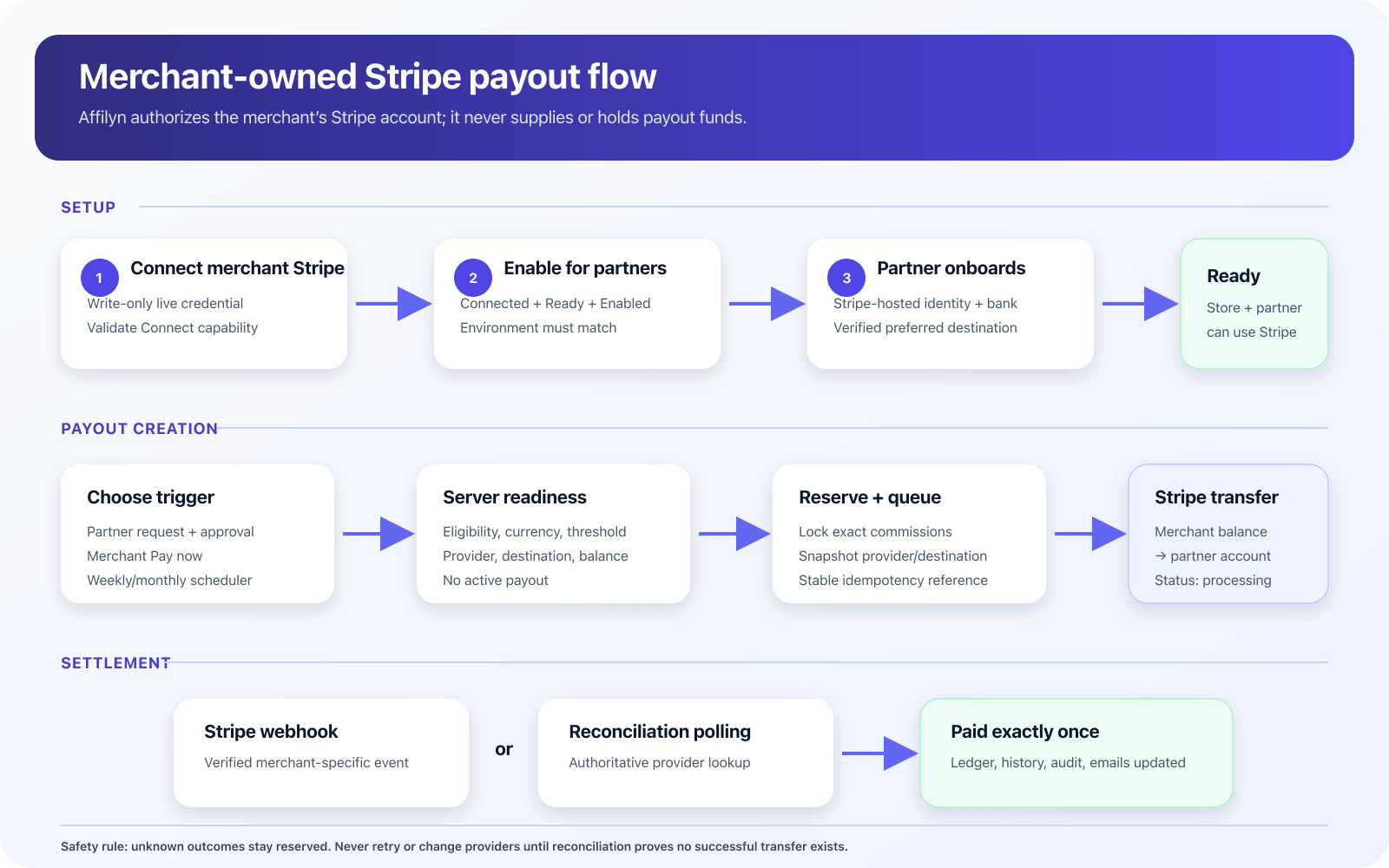
View full-size image: Merchant Stripe payout flow
Part 1: prepare the merchant Stripe account
- Sign in to the Stripe account that belongs to the merchant.
- Activate the account for live payments and complete Stripe's business verification requirements.
- Open Connect in Stripe and finish the platform profile/setup requested by Stripe.
- Confirm the account can create and manage connected accounts. A valid secret key alone is not sufficient.
- Confirm the credential belongs to the merchant's live Stripe account.
- Make sure the live Stripe balance has enough available funds for the payout. Pending funds cannot fund an immediate transfer.
Stripe Global Payouts or Connect access must exist on the merchant account. Affilyn must never fall back to an Affilyn-owned Stripe balance.
Part 2: connect Stripe in Affilyn
- In Shopify Admin, open the Affilyn app and select Payouts.
- In Provider accounts, locate Stripe.
- Choose Connect Stripe. Enter the merchant's Stripe secret key in the secure, write-only form when prompted.
- Submit the connection. Affilyn validates account access and the required payout/Connect capability.
- Review all three labels:
- Connection: Connected means the credential identifies the merchant's live Stripe account.
- Payout capability: Ready means the required Stripe operations are available.
- Partner availability: Enabled means partners may select Stripe for this store.
- If the capability is incomplete, use Complete setup or Refresh status after resolving Stripe's requirements.
- Use More actions only when needed:
- Rotate credentials replaces the write-only key and increments the authorization version.
- Disconnect removes authorization, subject to active-payout locks.
Provider status keys
| Label | Meaning | Merchant action |
|---|---|---|
| Connected | Stripe authorization is stored and validated. | Review capability and environment. |
| Disconnected | No usable Stripe authorization exists. | Connect Stripe. |
| Ready | Required Stripe payout capability is operational. | Enable Stripe for partners. |
| Action required | Setup or validation is incomplete. | Open requirements or complete setup. |
| Restricted | Stripe has disabled or limited the account/capability. | Resolve the listed Stripe requirement, then refresh. |
| Live | The connection can move real money. | Confirm production readiness before enabling execution. |
Part 3: make Stripe available to partners
- In Methods available to partners, find the Stripe row.
- Turn on the Stripe availability toggle.
- If Stripe is not operational, the toggle remains disabled and a Set up action is shown.
- Confirm the summary counts Stripe as an available method.
Enabling Stripe makes it selectable; it does not create a merchant-wide default. Each partner connects a destination and chooses a preferred provider. Affilyn snapshots the chosen provider and destination on each payout and never falls back automatically.
Part 4: configure payout policy
Choose one policy card and then save it.
| Setting | Meaning |
|---|---|
| Pay now only | No scheduled payout is created. The merchant uses Pay now, or reviews partner requests when requests are allowed. |
| Weekly automatic | Eligible commissions are selected each Monday at 00:00 UTC. |
| Monthly automatic | Eligible commissions are selected on the first day of each month at 00:00 UTC. |
| Minimum payout | The available finalized balance required before a payout may be created. |
| Maximum payout | Optional cap. Affilyn selects whole eligible commission rows without exceeding it. |
| Holding period | Number of days a finalized commission waits before becoming available. |
| Approval mode | For on-request payouts, determines whether merchant approval is required. Scheduled payouts are approved by the scheduler. |
| Early request | Allows a partner to request before a scheduled run when all normal readiness checks pass. |
| Processing fee | Currently merchant-absorbed; Stripe fees are charged to the merchant-owned account. |
The automatic-readiness checklist should confirm an operational provider, a preferred verified partner destination, matching currency, and valid minimum/maximum values. The scheduler skips and alerts instead of switching provider when any required item is unavailable.
Part 5A: partner-requested payout with merchant approval
- The partner reaches the minimum and chooses Request payout.
- Affilyn calculates the amount on the server and transactionally reserves the exact eligible commission rows.
- The request appears in Payouts → Request Queue as
pending; the merchant receives an approval notification. - Review partner, amount, currency, selected provider, masked destination, merchant funding account, readiness, and any blocking reason.
- Approve the request. Approval changes it to
approvedand schedules secure processing. It does not mean paid. - The partner receives an approval email.
- Affilyn submits the transfer using the merchant's Stripe authorization.
- The request becomes
processingafter Stripe accepts it. - Affilyn verifies Stripe's final outcome and changes the payout to
paid, then completes the reserved commissions.
Declining the request releases its reservations. Never create another payout to work around a processing or unknown outcome.
Part 5B: merchant Pay now
- Open Payouts and find Pay now.
- Search for and select the partner.
- Review the server-calculated eligible commissions and amount.
- Confirm Stripe is the partner's preferred verified destination.
- Review the masked partner destination, merchant-owned funding account, currency, policy limits, and provider balance/readiness.
- Confirm the payout. Affilyn reserves the commissions and schedules secure Stripe processing.
- Follow the payout from
processingto its verified final status in payout history.
Part 5C: automatic weekly or monthly payout
- Select Weekly automatic or Monthly automatic and save the policy.
- Confirm the next UTC run shown on the page.
- At the scheduled time, the scheduler evaluates every eligible partner independently.
- For each partner, it uses only that partner's preferred verified Stripe destination.
- It applies holding period, currency, minimum, optional maximum, active-payout, credential, capability, and balance checks.
- Passing partners receive a reserved payout that Affilyn submits securely at the scheduled time.
- Failing partners are skipped and the merchant is alerted. Affilyn does not change provider or funding source.
Part 6: automatic processing and settlement
After approval, Pay now confirmation, or a scheduled run, Affilyn handles submission and status checks automatically. Merchants do not need to run scripts or manually call Stripe APIs.
- Affilyn reserves the exact eligible commissions before submission.
- Stripe receives an idempotent transfer instruction funded by the merchant's connected account.
- The payout displays
processingwhile Stripe is handling it. - Affilyn verifies provider events and checks unresolved processing payouts automatically.
- Only a verified outcome changes the payout to
paid,failed, orreversed. - Affilyn updates balances, history, audit records, and required notifications.
If a payout remains processing unusually long, use the status and alert information shown in Payouts and contact Affilyn support. Do not create a second payout.
Status lifecycle
| Status | Meaning | Money treatment |
|---|---|---|
| pending | Partner request awaits review. | Exact commissions are reserved. |
| under review | Merchant review has started. | Remains reserved. |
| approved | Merchant approved and secure processing is scheduled. | Remains reserved. |
| queued | The payout is waiting for automatic submission. | Remains reserved. |
| processing | Stripe accepted the transfer. | Not yet treated as paid. |
| paid | Stripe settlement was verified. | Commissions become paid. |
| failed | Provider execution definitively failed. | Reservations are safely released when allowed. |
| reversed | Stripe reversed a previously accepted transfer. | Ledger and commissions require reversal handling. |
| outcome unknown | Submission outcome cannot yet be proven. | Keep funds reserved and reconcile; do not retry blindly. |
Production activation checklist
Complete every item before allowing live payout execution:
- Connect the merchant's live Stripe account and confirm Connected, Ready, and Live.
- Confirm Stripe Connect is activated and all merchant account requirements are satisfied.
- Enable Stripe for partners.
- Have at least one partner complete live Stripe-hosted onboarding and confirm the destination is verified and preferred.
- Confirm Affilyn shows the live environment and reports production readiness as ready.
- Confirm the merchant's available live Stripe balance covers the intended payout plus applicable provider fees.
- Start with a controlled low-value live payout approved by the merchant.
- Confirm Stripe records the transfer, Affilyn first shows
processing, and then changes it topaidonly after provider verification. - Confirm balances, payout history, merchant alerts, and partner emails all agree.
Notifications
- Partner: earnings moved from pending to available.
- Merchant: partner request requires approval.
- Partner: request submitted and awaiting review.
- Partner: request approved but not yet paid.
- Partner: payout processing.
- Partner and merchant: payout completed, failed, or reversed as applicable.
Troubleshooting
Stripe is ready on the merchant page but unavailable to the partner
Confirm Stripe is both Ready and explicitly Enabled for partners, environments match, and the partner page is using the same store ID. Refresh provider status after changing either setting.
Connect says the key lacks Connect permissions
Enable Stripe Connect on the merchant Stripe account, finish the platform profile, then rotate/reconnect the merchant credential and refresh status.
Execution fails with insufficient balance
Add funds to the merchant Stripe account and wait until they appear under Available, not Pending. Keep the existing reserved request and use Retry safely only when Affilyn confirms that no successful Stripe transfer exists.
Payout remains processing
Stripe accepted the transfer but Affilyn has not yet verified its final outcome. Review the provider reference and operational alert shown in Payouts, then contact Affilyn support if the status remains unchanged. Do not submit or record a duplicate payment.
Email was not received
Verify the partner's email address, ask the partner to check spam, and confirm the payout actually changed to the expected status. If the email is still missing, contact Affilyn support with the payout reference.
Current behavior
- Affilyn uses only the selected merchant's Stripe authorization and balance.
- Partners may connect multiple supported destinations but choose one preferred destination.
- Affilyn never changes payout providers automatically.
Limitations
- This guide covers Stripe only; PayPal configuration is intentionally excluded.
- Live payout execution is available only when Affilyn reports that production readiness has passed.
- Stripe accepting a transfer means processing, not paid; Affilyn verifies the final provider outcome automatically.