
Dashboard overview
Use the merchant dashboard to review core metrics, recent activity, setup progress, and quick actions after onboarding.
Before you start
- Install the app and sign in with a merchant account.
Where to find it
Merchant sidebar → Dashboard
Steps
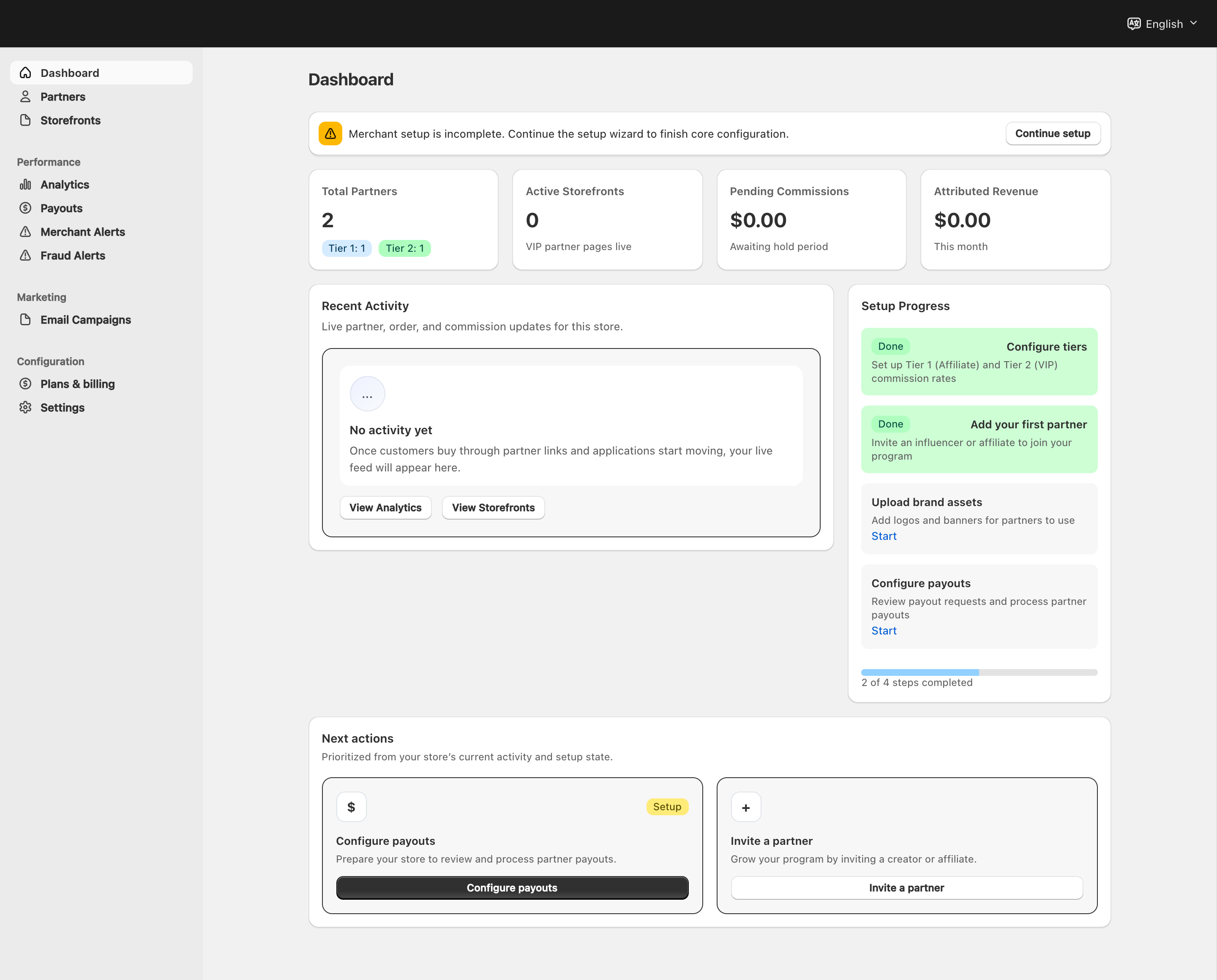
View full-size image: Merchant dashboard and navigation
Step 1.
Open Dashboard after signing in.
Step 2.
Review any setup progress or Continue setup entry point if the program is not fully configured.
Step 3.
Check the top performance summary before opening detailed pages.
Step 4.
Review Recent Activity for live partner application, order, and commission updates for the current store.
Step 5.
Use the dashboard as a starting point, then move into the detailed page that matches the task you need to complete.
Settings explained
- Setup progress shows whether the program still needs onboarding work.
- Summary metrics show total partners, active VIP storefronts, commissions awaiting their hold period, and attributed revenue for the current month. Some insights depend on plan access.
- Recent Activity shows application, order, and commission updates. It is not the payout-request queue.
- Setup Progress links to tier configuration, adding the first partner, brand assets, and payout operations.
- Quick Actions link to adding a partner, configuring tiers, and analytics.
Example
A merchant chooses Open my dashboard after onboarding, confirms the program has no partners yet, uses Add New Partner, and later returns to monitor attributed orders and commissions.
Tips and limits
- Use the dashboard for orientation, not for every action.
- If the dashboard shows Continue setup, the onboarding completion step has not been saved yet.
- Use Payouts for payout requests and execution status; those records are not represented by the dashboard activity feed.
- The dashboard Add New Partner action creates a partner profile directly. The wizard’s Invite my first partner choice instead opens verified-candidate invitations.