
Stripe payouts for partners
Connect a Stripe-hosted bank payout destination, choose it as preferred, understand balances and thresholds, request payout, and follow every payout status.
When to use this page
- You want a store to pay affiliate commissions to your Stripe-connected bank destination.
- You need to understand why Request payout is disabled.
- You want to track a Stripe payout from request through settlement.
Before you start
- Have an active affiliation with the selected store.
- The merchant must show Stripe as operational and enabled for partners.
- Be ready to provide accurate legal, identity, business, and bank information directly to Stripe.
Success looks like
- Stripe is shown as a connected and verified destination for the selected store.
- Stripe is marked Preferred when it should be used for future and automatic payouts.
- You can request eligible funds or understand the exact blocking requirement.
Where to find it
Partner Portal → select a store → Payout Settings
Before connecting Stripe
Select the correct store first. Provider availability, currency, holding period, threshold, payout policy, preferred destination, and history are all store-specific.
Stripe must be operational and enabled by the merchant. If the card says Unavailable, use Notify merchant; connecting a personal Stripe account elsewhere does not enable it for this store.
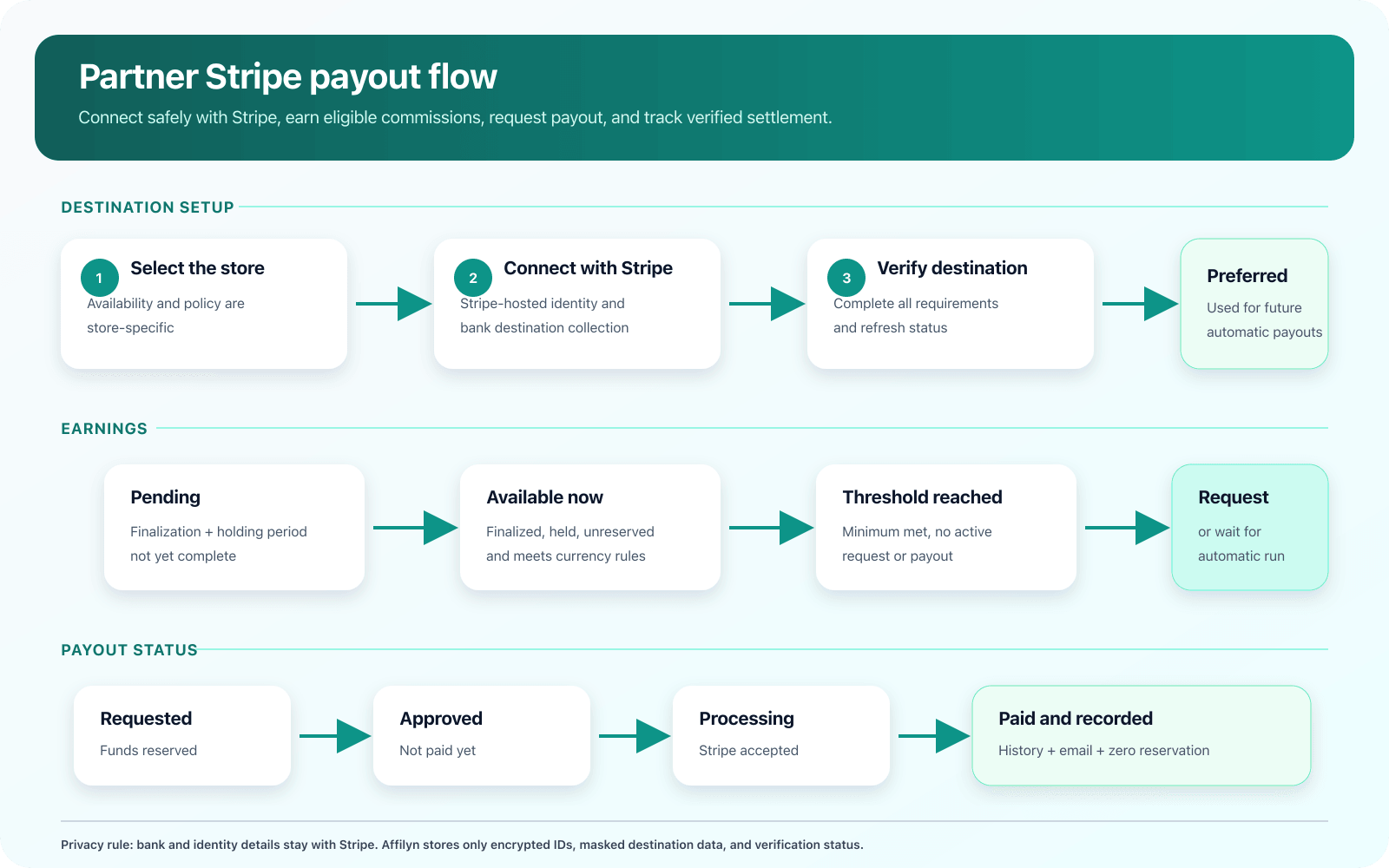
View full-size image: Partner Stripe payout flow
Part 1: connect your Stripe payout destination
- Open Payout Settings for the intended store.
- Find Connected payout destinations.
- On Stripe bank payout, choose Connect with Stripe.
- Affilyn creates a connected account under the selected merchant's Stripe platform and opens Stripe-hosted onboarding.
- Enter accurate legal, identity, business, website or product, and banking information on Stripe's hosted pages.
- Complete identity, business, website/product description, and bank destination steps requested by Stripe.
- Submit until Stripe returns you to Affilyn.
- Affilyn refreshes and stores only safe destination information: encrypted recipient/account ID, masked destination, country, currency, account type when safe, verification state, and outstanding requirements.
- Confirm the card shows a usable destination. If setup is incomplete, choose Complete setup and finish the remaining Stripe requirements.
Affilyn never asks you to type raw bank account or routing details into the Partner Portal. Those details belong only on Stripe-hosted pages.
Part 2: choose the preferred destination
If multiple providers are connected, exactly one is Preferred.
- Future automatic payouts use only the preferred verified provider.
- An on-request payout may show a provider selector when more than one provider is ready.
- Selecting a provider for one request snapshots that provider without silently changing the preferred destination.
- Affilyn never falls back from Stripe to another provider when Stripe is unavailable.
- Reserved, processing, and completed payouts retain their original provider and masked destination snapshot.
Destination controls explained
| Control or label | Meaning |
|---|---|
| Connect with Stripe | Starts Stripe-hosted onboarding under this merchant's Stripe platform. |
| Current destination | This destination is connected for the selected store. |
| Preferred | Future automatic payouts use this verified provider. |
| Complete setup | Stripe reports additional required information. |
| Refresh status | Retrieves current verification and capability details from Stripe. |
| Replace destination | Starts a new hosted destination setup; blocked during an active payout. |
| Disconnect | Removes this store-specific destination; blocked while reserved or processing. |
| Action required | Stripe requires more information or has restricted the destination. |
Part 3: understand your payout balance
| Balance or setting | Meaning |
|---|---|
| Pending | Earned commissions that are not yet available because finalization or holding time is incomplete. |
| Available now | Finalized commissions that have passed the holding period and are not reserved. |
| Reserved | Exact commissions locked to an active payout request or job. |
| Minimum payout | Required available balance before a request or scheduled payout can be created. |
| Maximum payout | Optional store cap; whole commission rows are selected up to the cap. |
| Holding period | Days after finalization before a commission becomes available. |
| Next automatic payout | Next Monday 00:00 UTC or first day of the month 00:00 UTC, according to store policy. |
| Current payout | The active pending, approved, queued, or processing payout. |
When earnings move from pending to available, the portal balance updates and the partner receives an availability email.
Part 4A: request a payout
The Request payout button is enabled only when all conditions pass:
- Stripe is enabled and operational for the selected store.
- Your Stripe destination is verified.
- The payout currency is supported and matches the eligible commissions.
- Available finalized balance meets the effective minimum.
- The optional maximum is valid.
- No request or payout is already active.
- The store permits partner requests or early requests.
To request:
- Review Available now, Minimum payout, and the selected provider.
- If multiple providers are ready, choose Stripe payout destination under Send this payout through.
- Choose Request payout.
- Affilyn calculates the amount on the server and reserves the selected commission rows transactionally.
- Review the new Current payout status and request-confirmation email.
- If merchant approval is required, wait for the merchant. Do not submit another request.
Part 4B: automatic payout behavior
When the merchant selects weekly or monthly automatic payouts, you normally do not need to request payout.
At the scheduled UTC time, Affilyn checks your preferred Stripe destination, currency, available balance, threshold, holding period, cap, active payout state, and merchant provider readiness. If a check fails, the payout is skipped; Affilyn does not switch providers. Resolve the displayed issue before the next run or contact the merchant.
Part 5: follow the payout lifecycle
| Partner status | What happened | What you should do |
|---|---|---|
| pending | Request submitted and commissions reserved. | Wait for merchant review. |
| under review | Merchant is reviewing the request. | No action unless contacted. |
| approved | Merchant approved; Stripe submission has not necessarily occurred. | Wait for processing. |
| queued | The approved payout is waiting for automatic submission. | Do not request again. |
| processing | Stripe accepted the transfer. | Wait for webhook/reconciliation and bank delivery. |
| paid | Provider settlement was verified. | Review history and allow for bank delivery timing. |
| rejected | Merchant declined the request. | Review the reason; eligible reservations are released. |
| failed | Provider reported a definitive failure. | Review the message and contact the merchant if needed. |
| reversed | Stripe reversed the payout. | Contact the merchant; the ledger will reflect the reversal. |
| outcome unknown | Affilyn cannot yet prove success or failure. | Wait for reconciliation; do not create a duplicate request. |
Part 6: review history and notifications
Open Payout History to see amount, provider, immutable masked destination, provider reference, timestamps, and final status. Sensitive account details are never shown.
Expected emails include:
- Earnings became available.
- Payout request submitted.
- Merchant approved the request.
- Stripe payout is processing.
- Payout completed, failed, or reversed.
Approval is not proof of payment. A payout becomes complete only after Stripe webhook or authoritative reconciliation confirms settlement.
First live payout checklist
- Confirm the selected store shows Stripe as available.
- Choose Connect with Stripe and complete the live Stripe-hosted onboarding with accurate information.
- Return to Affilyn and confirm Stripe is connected, verified, and preferred.
- Wait until finalized commissions pass the holding period and appear under Available now.
- Confirm the available balance meets the store's effective threshold.
- Submit Request payout, when the store permits requests, and verify the confirmation email.
- If merchant approval is required, wait for approval and its notification.
- Confirm the payout changes to
processingonly after Stripe accepts the live transfer. - Do not submit another request while processing.
- After webhook or authoritative reconciliation, confirm
paid/completed, zero reserved balance, an immutable history record, and the completion email. - Allow for the partner bank's delivery timing after Stripe marks the transfer successful.
Troubleshooting
Merchant sees Stripe Ready but partner sees Unavailable
The merchant must also enable Stripe in Methods available to partners. Confirm both pages use the same store and live Stripe environment, then refresh provider status and reload the partner page.
Stripe onboarding returns but setup is still required
Choose Complete setup or Refresh status. Stripe may require a website, product description, identity information, or a valid external account before enabling payouts.
Request payout is disabled
Read the message beside the button. Common causes are insufficient available balance, holding period, unverified destination, requests disabled by policy, currency mismatch, or an existing active payout.
Payout remains processing
Processing means Stripe accepted the transfer, not that settlement is complete. The merchant should confirm webhook delivery or run authoritative reconciliation. Do not reconnect or submit another request.
Completion email did not arrive
Verify the email on your partner profile and check spam. The email is sent only when the request actually transitions to paid; replaying reconciliation for an already-paid record does not send a duplicate.
Current behavior
- Stripe collects bank and identity details on Stripe-hosted pages; Affilyn does not receive raw bank details.
- A destination is store-specific and tied to the merchant's Stripe platform/environment.
- The chosen provider and masked destination are snapshotted on each request.
Limitations
- This guide covers Stripe only.
- You cannot replace or disconnect a destination while commissions are reserved or a payout is processing.
- You cannot submit a second request while another request is active.