
MerchantGuide
Merchant alerts
Monitor operational alerts so important account, delivery, and workflow issues do not get missed.
Last reviewed: Sep 15, 2026UI path: Merchant sidebar → Merchant Alerts
Before you start
- Be signed in to the merchant dashboard.
Where to find it
Merchant sidebar → Merchant Alerts
Steps
ScreenshotSteps 1-3
Local image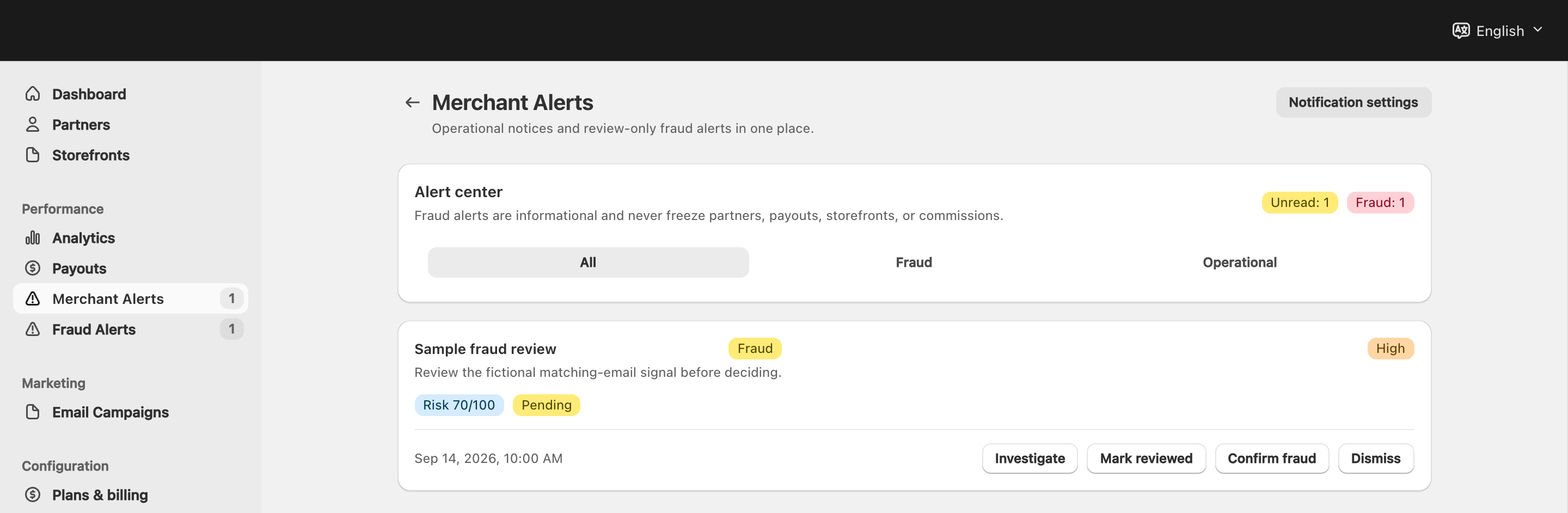
View full-size image: Merchant alert center
Step 1.
Open Merchant Alerts when the sidebar badge shows new activity or when you want to review operational updates.
Step 2.
Start with unread or newest alerts so the most urgent items are handled first.
Step 3.
Open the alert details and complete any related task in payouts, settings, storefronts, or partner management.
Step 4.
Return to the alert list to confirm which items still need follow-up.
Settings explained
- Unread count helps you spot new items quickly from the sidebar.
- Alert type tells you what kind of issue needs attention.
- Read state helps teams understand what has already been reviewed.
- Linked workflow points you back to the page where the issue can actually be resolved.
Example
A merchant opens Merchant Alerts after seeing a new badge in the sidebar, reviews a payout-related warning, and then moves into the payouts console to finish the action that the alert raised.
Tips and limits
- Alerts are most useful when they are reviewed regularly instead of in large batches.
- If the same alert keeps returning, check the connected settings page instead of clearing the alert alone.
- Use alerts as a starting point, then complete the action in the correct operational page.