
VIP PartnerGuide
Discount Visibility
Check how the storefront discount is shown to shoppers, what products it affects, and how it relates to performance.
Last reviewed: Sep 14, 2026UI path: Partner dashboard → active VIP store → Analytics → Discount Visibility
Before you start
- Have VIP Partner access in the current store.
- Have a storefront discount configured for the current store.
Where to find it
Partner dashboard → active VIP store → Analytics → Discount Visibility
Steps
ScreenshotSteps 1–4
Local image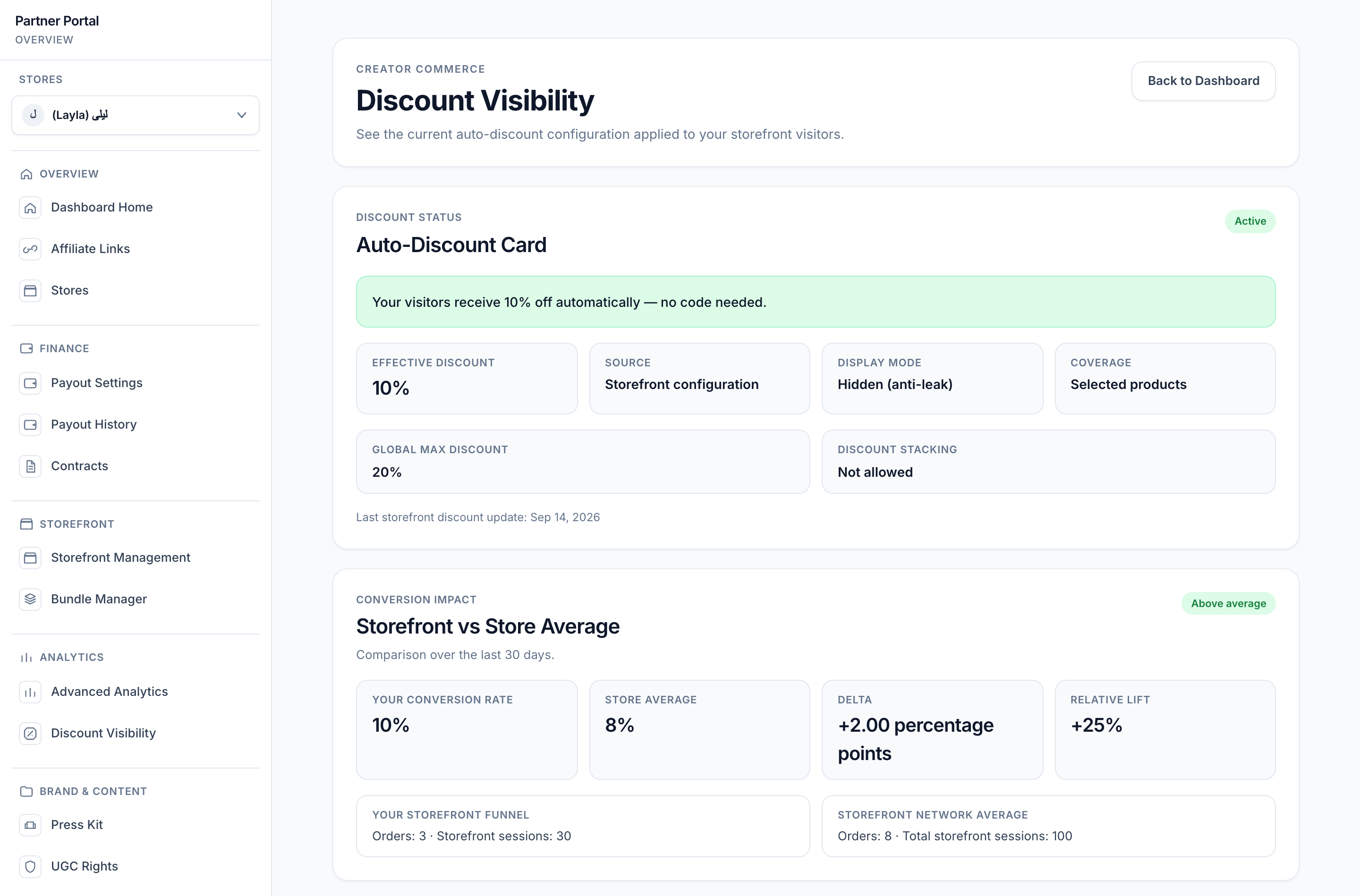
View full-size image: Discount visibility and conversion impact
- Select the VIP store you want to review, then open Discount Visibility.
- Review the current storefront discount and how it is being presented.
- Check whether the active discount comes from storefront configuration, category configuration, or global shop configuration.
- Review the conversion impact section for storefront conversion rate, store average, delta, and relative lift.
- Return to the storefront builder if the discount setup needs to change.
Settings explained
- Display mode explains whether the discount is visible at checkout or hidden for anti-leak protection.
- Coverage shows whether the discount applies across all storefront products, selected products, or configured categories.
- Current discount level helps you confirm what shoppers are receiving.
- Conversion impact compares the storefront funnel with the broader store average for the current evaluation window.
Example
A VIP Partner reviews the page after a campaign launch, confirms the discount is limited to the intended scope, and compares the impact data before deciding whether the storefront message should be adjusted.
Tips and limits
- Review this page after changing storefront discount settings.
- If the shopper-facing result feels unclear, compare this page with the live storefront and the builder's Access Control tab.
- Keep discount visibility aligned with the story you are telling in the storefront content.