
Language and appearance
Set English or Arabic and choose a light, dark or system theme for your Partner Portal across your stores.
Before you start
- Sign in to the Partner Portal to use Settings.
Where to find it
Partner Portal → Account → Settings
Open Settings
On desktop, choose Settings in the sidebar's Account section. On mobile, open Menu, scroll to Account, and choose Settings.
Settings is available to Standard Affiliates, VIP Partners and signed-in partners who have not joined a store yet. Language and appearance controls now live on this page instead of inside the sidebar.
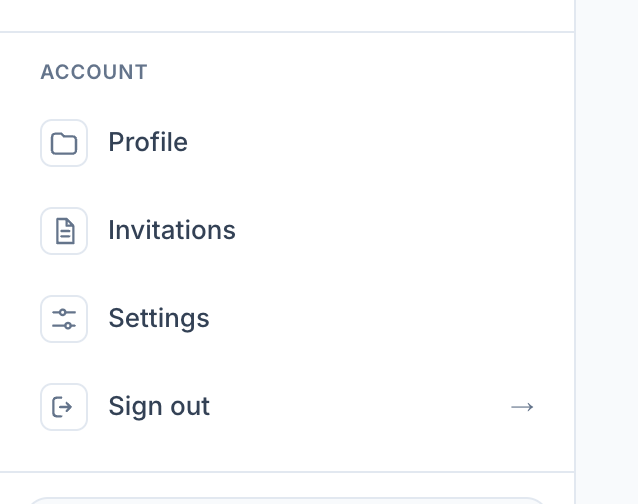
View full-size image: Settings in account navigation
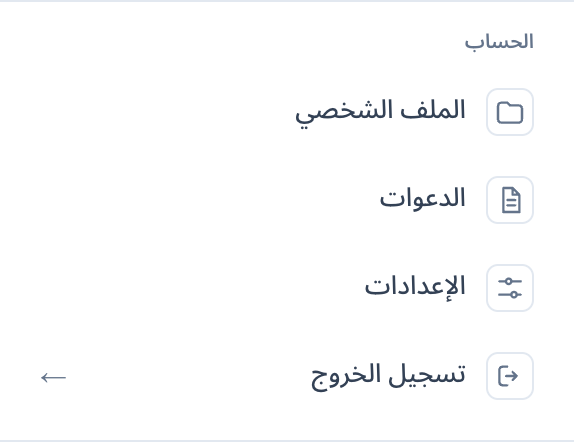
View full-size image: Settings in the Arabic mobile drawer
Choose your language
- In Settings, open the Language dropdown.
- Choose Follow browser/system language, English, or العربية.
- The selected option has a checkmark. The language changes immediately, and your preference is saved automatically in this browser.
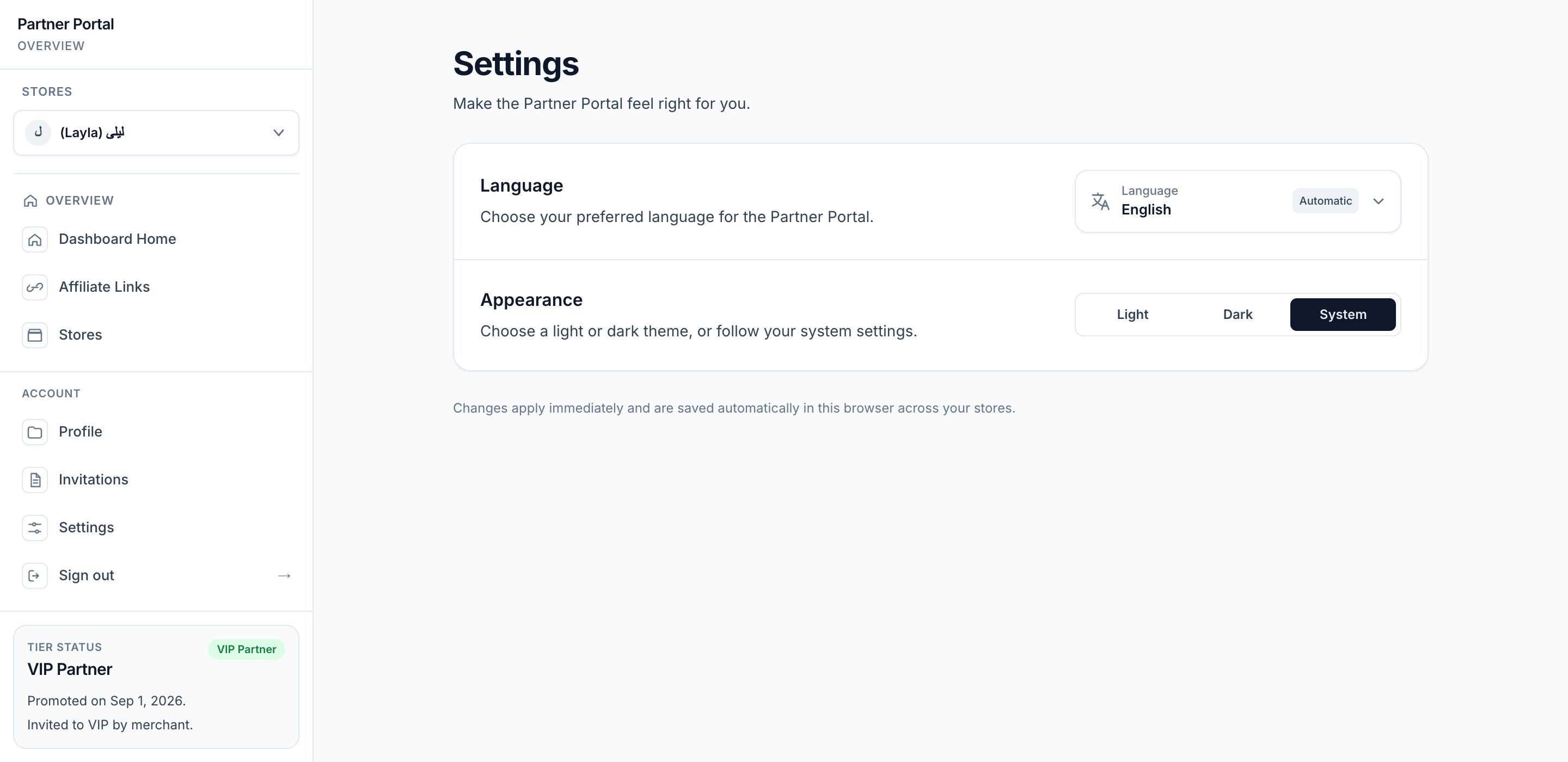
View full-size image: Partner language and appearance Settings
| Choice | What it does |
|---|---|
| Follow browser/system language | Uses the supported language reported by your browser. This can follow your device settings. If no supported preference is found, the portal uses English. |
| English | Uses English and a left-to-right layout. |
| العربية | Uses Arabic and a right-to-left layout. |
Arabic changes navigation, labels, feedback and the display of dates, numbers, percentages and currencies. Amounts and calculations stay the same. Names, emails, links, handles and identifiers retain their original content and are displayed safely alongside Arabic text.
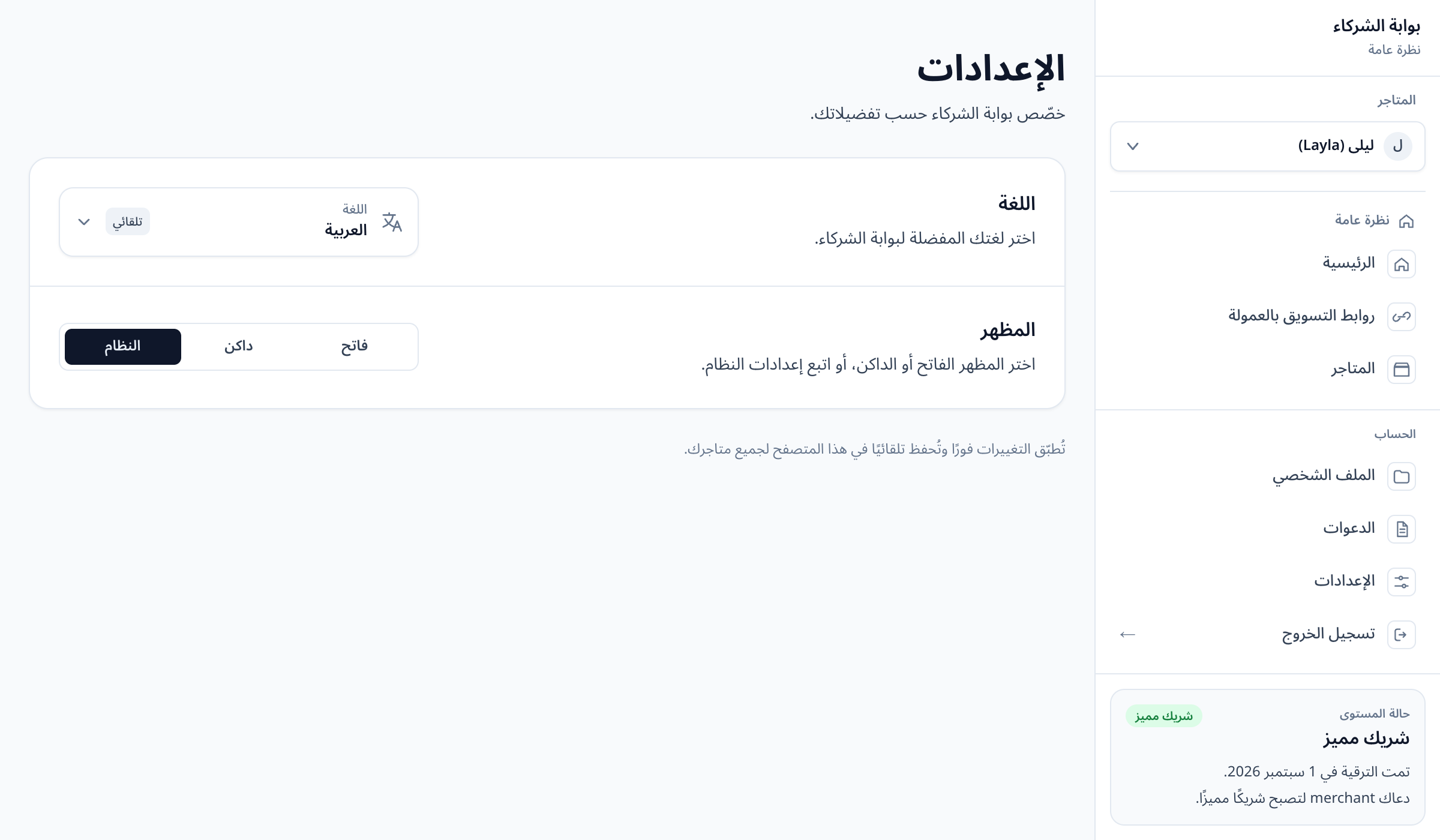
View full-size image: Arabic partner Settings
Choose light or dark appearance
Under Appearance, choose Light, Dark, or System. System follows the light/dark appearance reported by your device. Theme changes apply immediately and are saved automatically; there is no Save button.
Language and appearance are independent. You can use Arabic with a light theme or English with a dark theme.
Before login or signup
Use the compact language selector below the login or signup form. It offers the same three language choices and preserves the details already entered in the form. Once signed in, manage language and appearance from Settings.
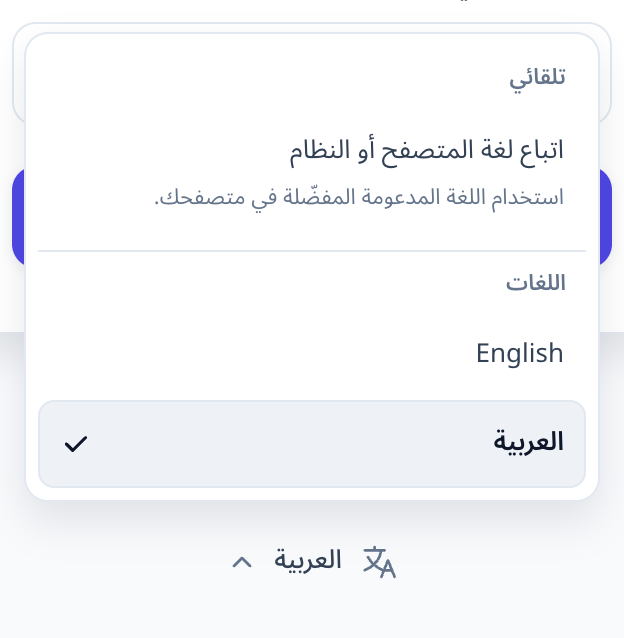
View full-size image: Choose a language before signing in
Multiple stores and saved preferences
Your language and appearance apply across your stores in this browser. Switching stores changes the active store context, not these preferences. Your language choice also carries through navigation, refresh, logout and your next login in the same browser.
These preferences do not synchronize through your account to other devices. Select them separately in another browser or on another device. Clearing site data or using a private browsing session may reset them.
The merchant's language choice does not control yours, and your Settings do not change the merchant's app language.
What is not translated automatically
Changing the interface language does not translate your authored storefront copy, biography, product names, merchant messages, contract terms, downloaded files or email content. It also does not change your public storefront's language, store permissions, prices or payout currency.
Keyboard access and recovery
Use Tab to reach the language selector, Enter or Space to open it, arrow keys to move between choices, and Enter or Space to select. Escape closes the dropdown and returns focus to its trigger.
If the portal opens in an unexpected language, choose English or العربية explicitly. To resume automatic selection, choose Follow browser/system language. If the preference is not remembered, check whether your browser is clearing or blocking site storage.