
VIP PartnerGuide
Storefront content and layout
Build the top of the storefront experience by editing content, arranging sections, and managing featured products.
Last reviewed: Sep 15, 2026UI path: Partner dashboard → active VIP store → Storefront Management
Before you start
- Have VIP Partner access in the current store.
- Have products ready to feature.
Where to find it
Partner dashboard → active VIP store → Storefront Management
Steps
ScreenshotSteps 1-2
Local image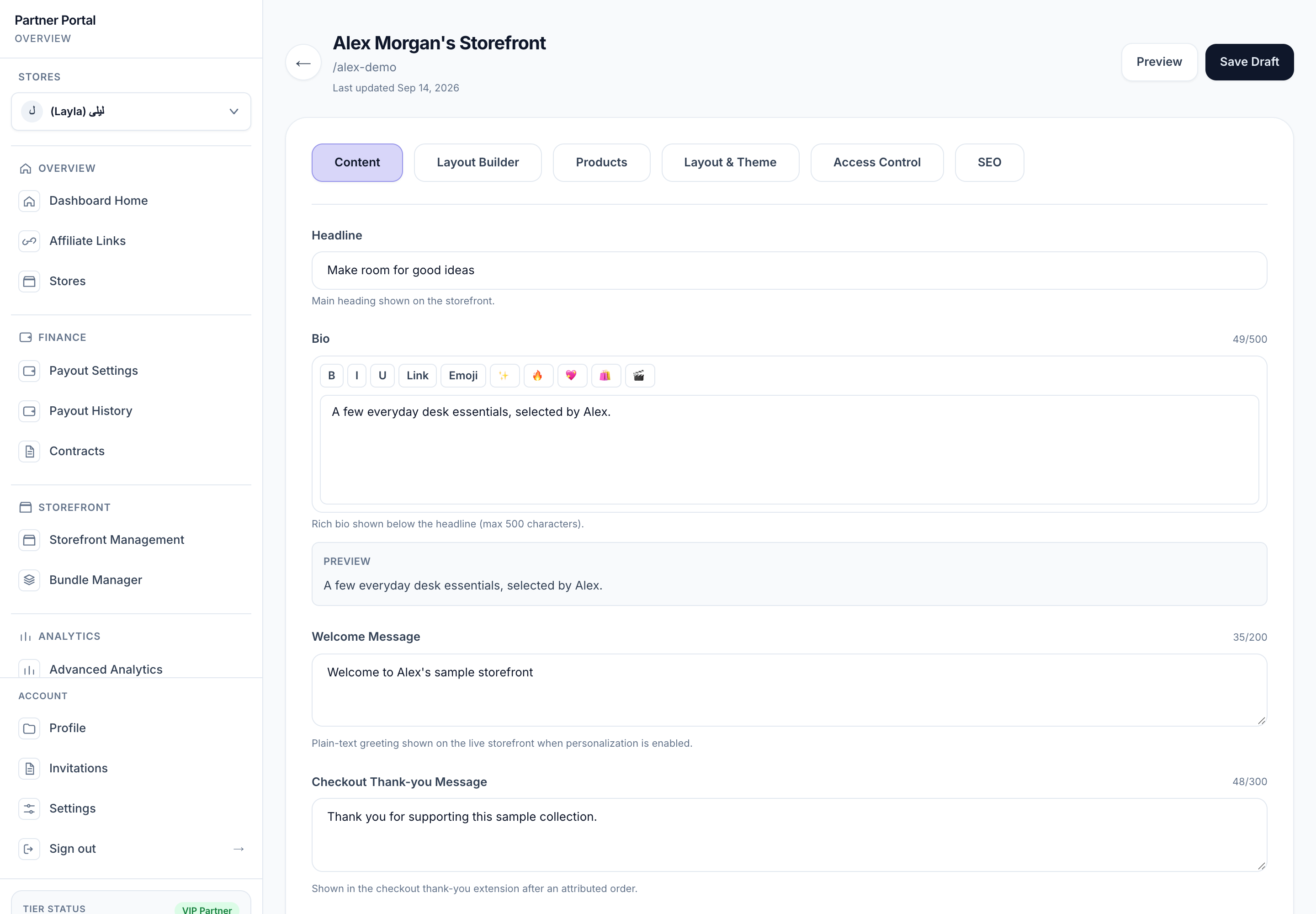
View full-size image: Storefront builder content tab
- Select the VIP store you want to edit, then open Storefront Management.
- Use the content area to update the headline, bio, welcome message, thank-you message, and hero media.
- Open the layout builder to add, reorder, hide, or remove supported sections.
- Update the partner photo or video sections if those areas are part of your storefront. The photo controls support JPG, PNG, or WebP uploads up to 5 MB.
- Open Products to add featured items, reorder them, and write product notes where needed.
- Review the live preview in mobile, tablet, or desktop layouts before moving to access or SEO settings.
- Save the changes and let video uploads finish processing before expecting the final storefront view everywhere.
Settings explained
- Headline and bio set the tone of the storefront.
- Welcome and thank-you messages shape the beginning and later parts of the shopper journey. The thank-you message is used in the checkout thank-you experience after an attributed order.
- Layout Builder controls section order and visibility.
- Partner photo and videos help personalize the storefront. If the photo section is hidden or no photo is uploaded, the storefront falls back to initials instead of showing an empty area.
- Product notes add context to featured items.
- Responsive preview helps you catch layout issues before publishing by showing how the storefront changes across device sizes.
Example
A VIP Partner refreshes the storefront for a new campaign by updating the headline, replacing the hero media, uploading a new partner photo, moving the video section higher, and adding notes to three featured products.
Tips and limits
- Review the layout after big content changes so sections still feel balanced.
- Keep product notes short and specific.
- Use the preview after photo, video, or section-order changes because those shifts are easiest to miss on smaller screens.
- If the product list looks outdated, sync products before rearranging the storefront.