
VIP PartnerGuide
Access, discounts, and SEO
Choose who can open your storefront, how discounts appear, and what the page title and description look like before you publish.
Last reviewed: Sep 15, 2026UI path: Partner dashboard → active VIP store → Storefront Management → Layout & Theme, Access Control, SEO
Before you start
- Have VIP Partner access in the current store.
Where to find it
Partner dashboard → active VIP store → Storefront Management → Layout & Theme, Access Control, SEO
Steps
ScreenshotSteps 1-2
Local image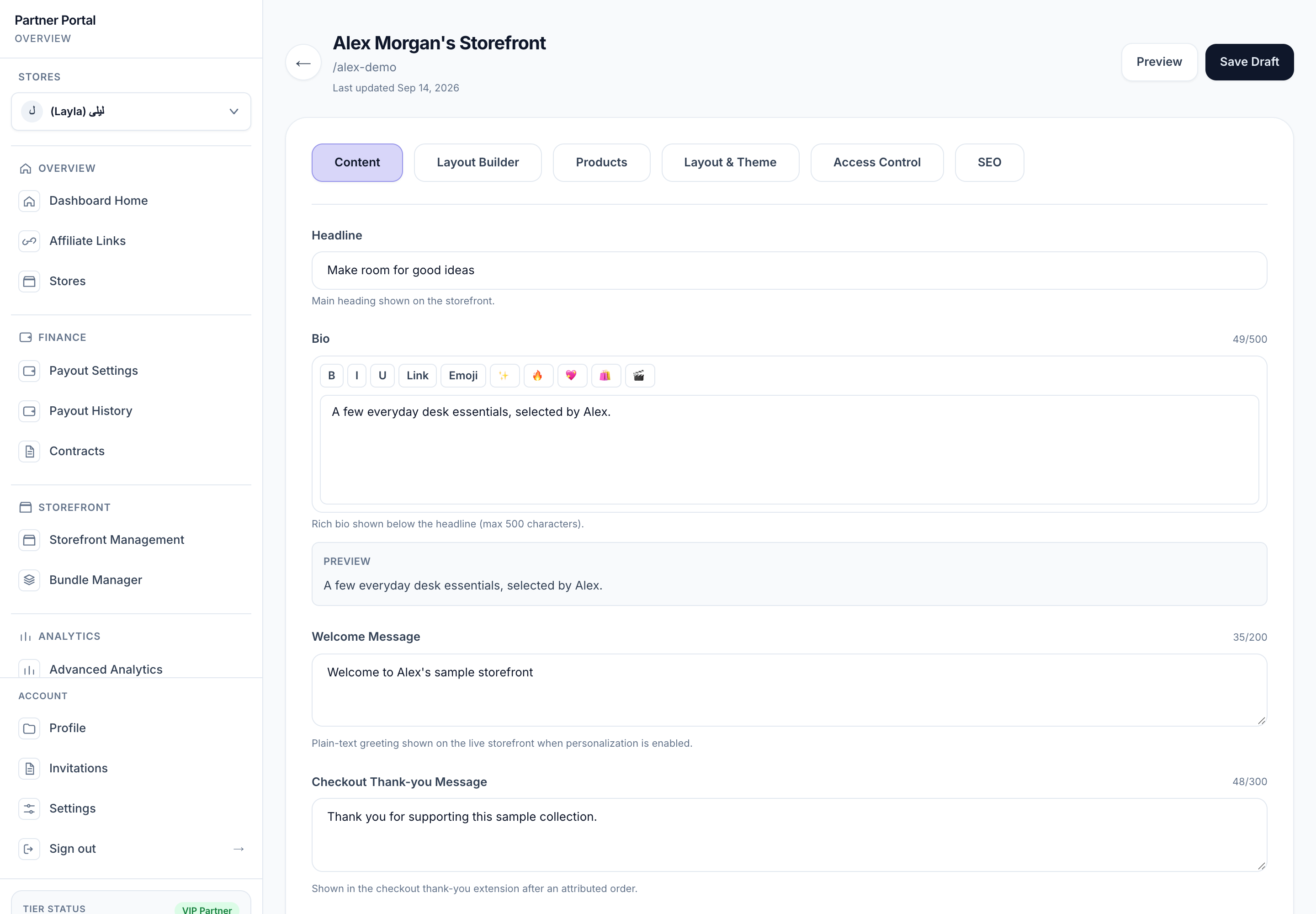
View full-size image: Storefront builder tabs
- Open Storefront Management, then choose Layout & Theme to review the visual style of the storefront.
- Use the live preview controls to check mobile, tablet, and desktop widths.
- Open Access Control and choose whether the storefront should be public, password-protected, or token-based.
- Review whether the discount should be visible or more quietly applied for shoppers.
- Confirm whether the discount should apply to all storefront products, featured products, or categories when category discounts are enabled.
- Open SEO to update the page title and description.
Settings explained
- Theme and preview help you review how the storefront looks before launch. The preview can be refreshed or opened in a new tab.
- Access mode controls who can open the storefront.
- Password mode limits access to shoppers who know the password.
- Token mode limits access through a protected link flow.
- Discount mode controls how the storefront offer is applied or presented.
- Discount scope can apply across all storefront products, featured products, or category-based rules where that option is enabled for the store.
- SEO title and description shape how the storefront is described in search result metadata.
Example
A VIP Partner switches to a seasonal theme, tests the mobile preview, protects the storefront with a password for an early launch, and updates the SEO description so the page summary matches the campaign story.
Tips and limits
- Preview the storefront after changing both theme and access settings.
- Use password or token access for early launches or smaller private campaigns.
- Re-check the live shopper view after discount changes so the storefront matches the current promotion.
- If category discounts are enabled in your store, double-check that every category row still matches the intended product group.