
Standard AffiliateVIP PartnerGuide
Contracts and signing
Review contract status, open contract details, download files, and complete signing when a merchant sends an agreement.
Last reviewed: Sep 14, 2026UI path: Partner dashboard → Contracts
When to use this page
- A merchant sent you a new contract, or you need to review an existing contract record for one of your stores.
- You need to verify signing status, download the original agreement, or retrieve the signed file later.
Before you start
- Have a contract sent by a merchant or an older contract record to review.
Success looks like
- You understand the current contract status before taking action.
- The correct version is reviewed, signed when eligible, and downloaded if you need a saved copy.
Where to find it
Partner dashboard → Contracts
Steps
ScreenshotSteps 1–2
Local image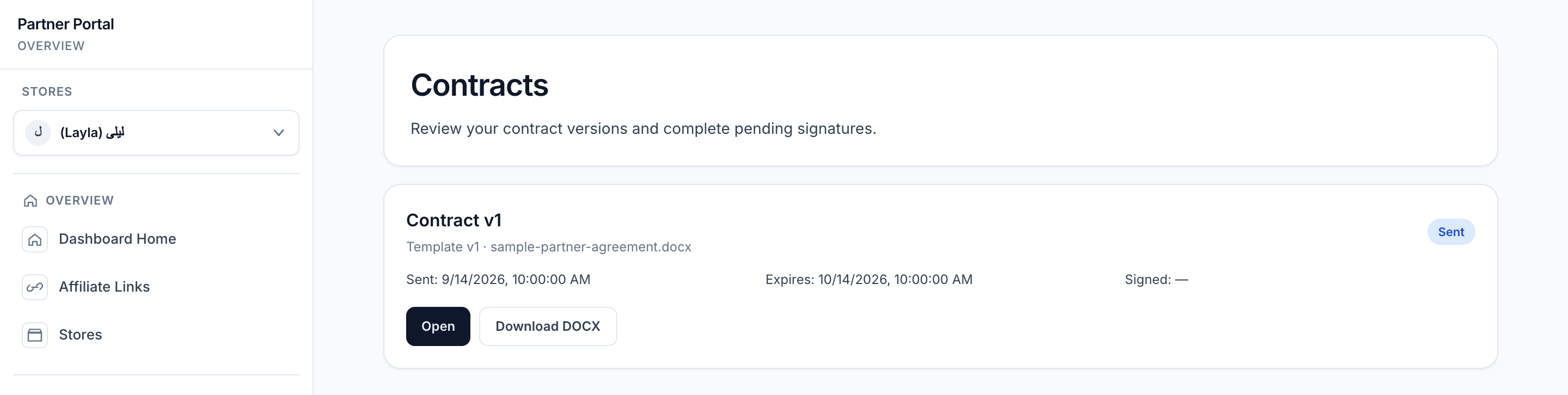
View full-size image: Unsigned contract in the list
ScreenshotSteps 3–5
Local image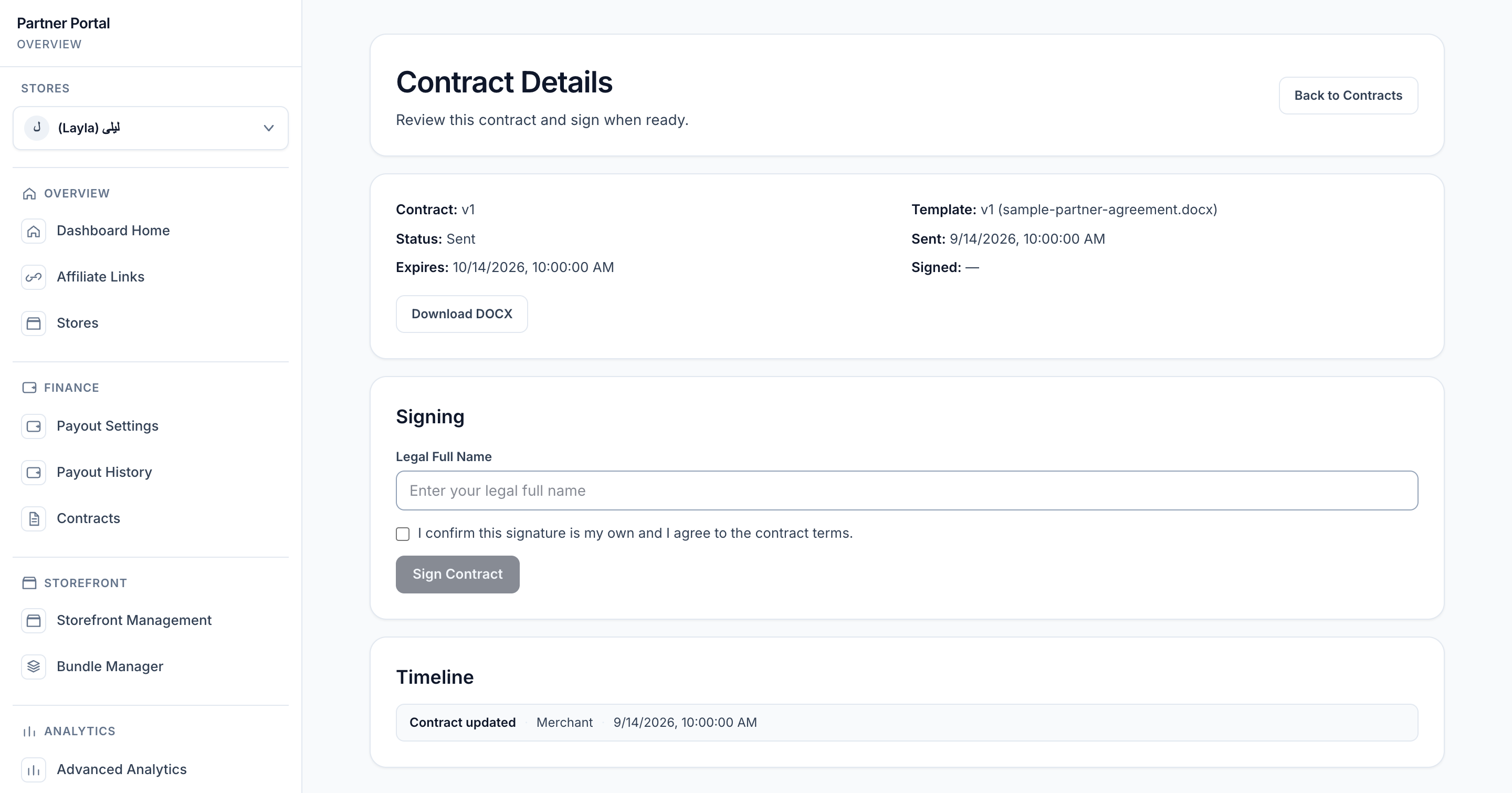
View full-size image: Unsigned contract and signing controls
- Open Contracts to review the current list.
- Check the status badge and sent or signed dates before opening a contract.
- Open the contract detail when you want to review the agreement closely.
- Download the available DOCX or signed PDF files if you need a saved copy.
- Enter your legal full name and complete the consent checkbox when the contract is ready to sign.
Settings explained
- Draft means the merchant created the contract but has not sent it yet.
- Sent means the contract is ready for partner review.
- Viewed means the contract was opened but not yet signed.
- Signed means the agreement is complete.
- Voided or expired means the current version can no longer be signed.
- Download DOCX gives you the generated agreement file that the merchant sent.
- Download Signed PDF appears after signing completes and gives you the signed summary file.
- Void reason explains why a contract was withdrawn when that action was taken by the merchant.
Example
A partner opens the Contracts page, finds a newly sent agreement, reviews the terms, signs it with the required legal details, and then returns later to download the signed file for reference.
Tips and limits
- Review the correct store context before signing if you work with multiple merchants.
- If a contract cannot be signed, check whether the status is still active or whether the contract was voided or expired.
- Download the final file after signing if you want an easy reference copy outside the dashboard.
Current behavior
- Sent contracts expose the generated DOCX agreement that the merchant issued.
- Signed contracts add a signed PDF download after the signature flow completes.
Limitations
- Draft, voided, and expired versions cannot be signed.
- Multi-store partners still need to confirm the correct merchant and store context before signing.