
Store affiliations and tier access
Understand how one partner can work with multiple stores and how tier access changes the available tools.
Before you start
- Have at least one partner account and one merchant relationship.
Where to find it
Partner dashboard → Stores
Steps
Step 1
Open Stores in the partner dashboard to see each active store relationship.
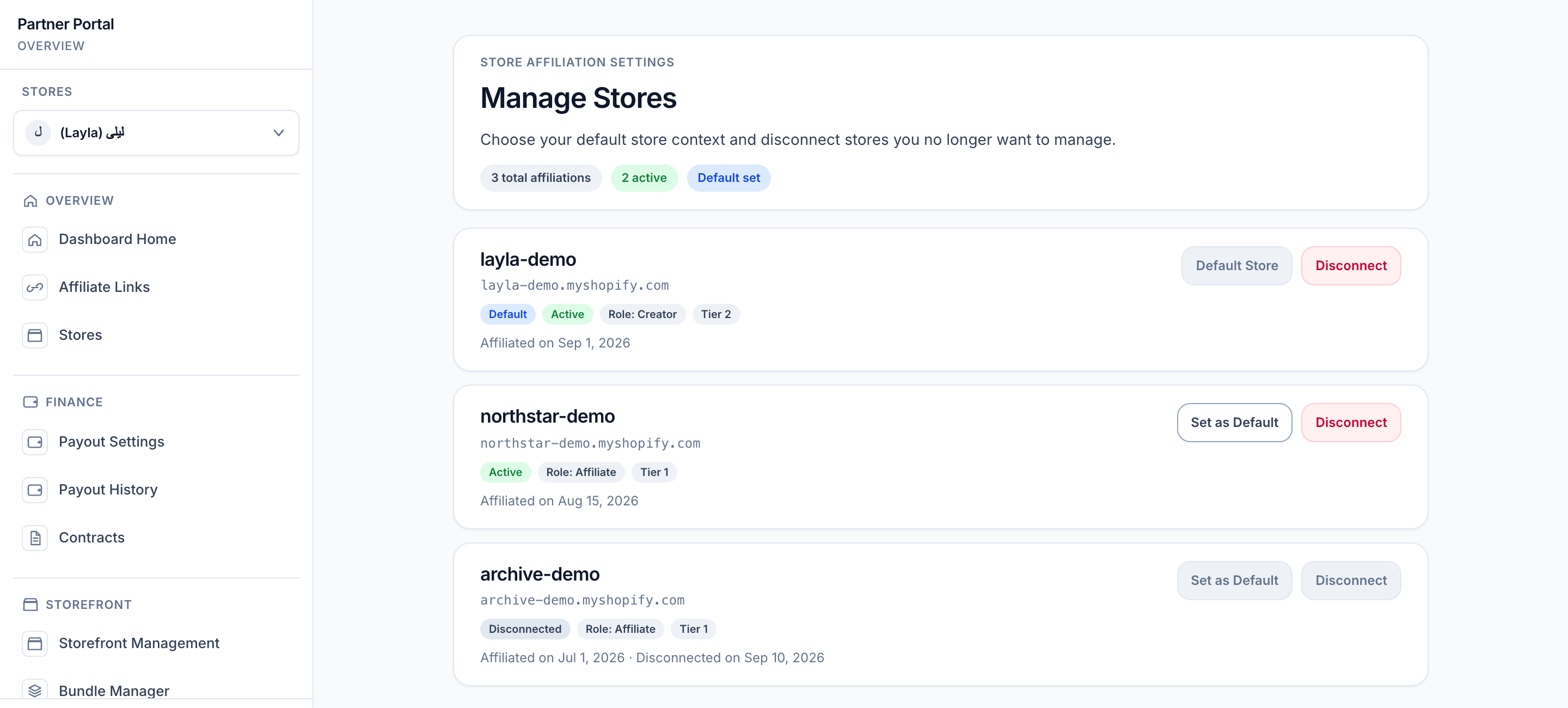
View full-size image: Manage Stores page
Step 2
Review which store is marked as your default store.
View full-size image: Default store controls
Step 3
Check the tier label shown for each store.
View full-size image: Tier labels on store affiliations
Step 4
Use the store switcher if you need to change context before editing links, payouts, analytics, or storefront settings.
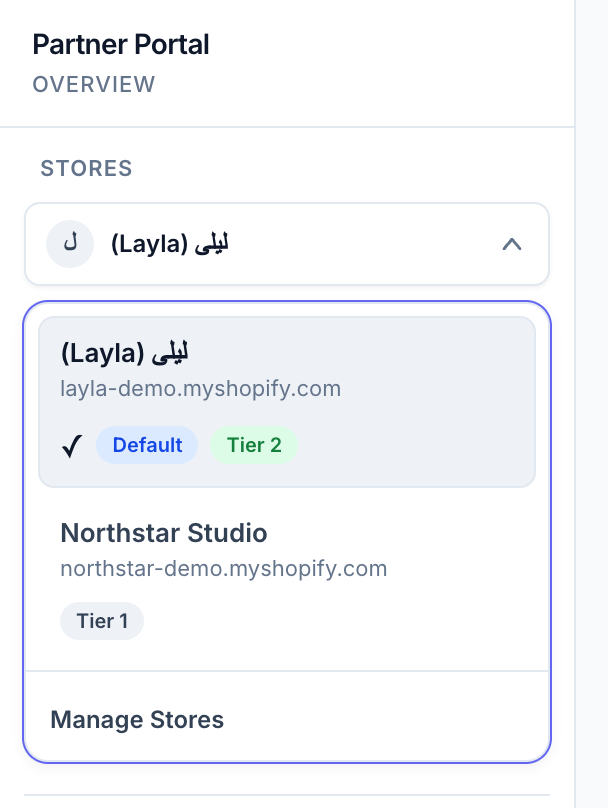
View full-size image: Store switcher menu
Step 5
Treat the store selector as the current context label, even if only one active affiliation is listed there.
Settings explained
- Default store is the store that opens first in a multi-store dashboard.
- Tier controls which tools are shown for that store relationship.
- Status shows whether the affiliation is active, suspended, or disconnected.
- Store selector visibility can remain visible with one active affiliation so the current store context is always clear.
- Merchants can lock a tier, promote a partner, or allow automatic changes based on program rules.
Example
A partner may be a Standard Affiliate for one store and a VIP Partner for another. The dashboard adjusts when the partner changes store context, so the storefront builder only appears when the current store relationship includes VIP access.
Tips and limits
- Disconnecting from a store removes active access to that store context.
- If the current store becomes unavailable, the dashboard can redirect you to the default active store.
- Public storefront and public partner profile visibility are separate from private dashboard access.
- Checkout attribution, thank-you messaging, and storefront personalization can still depend on the active store relationship behind the scenes, even though the shopper only sees a smooth storefront experience.