
Dashboard and profile
Use the partner dashboard home, profile tools, and store list to manage your account, understand earnings, and recognize store-specific dashboard states.
Before you start
- Log in with your partner account.
Where to find it
Partner dashboard → Home, Profile, Stores
Steps
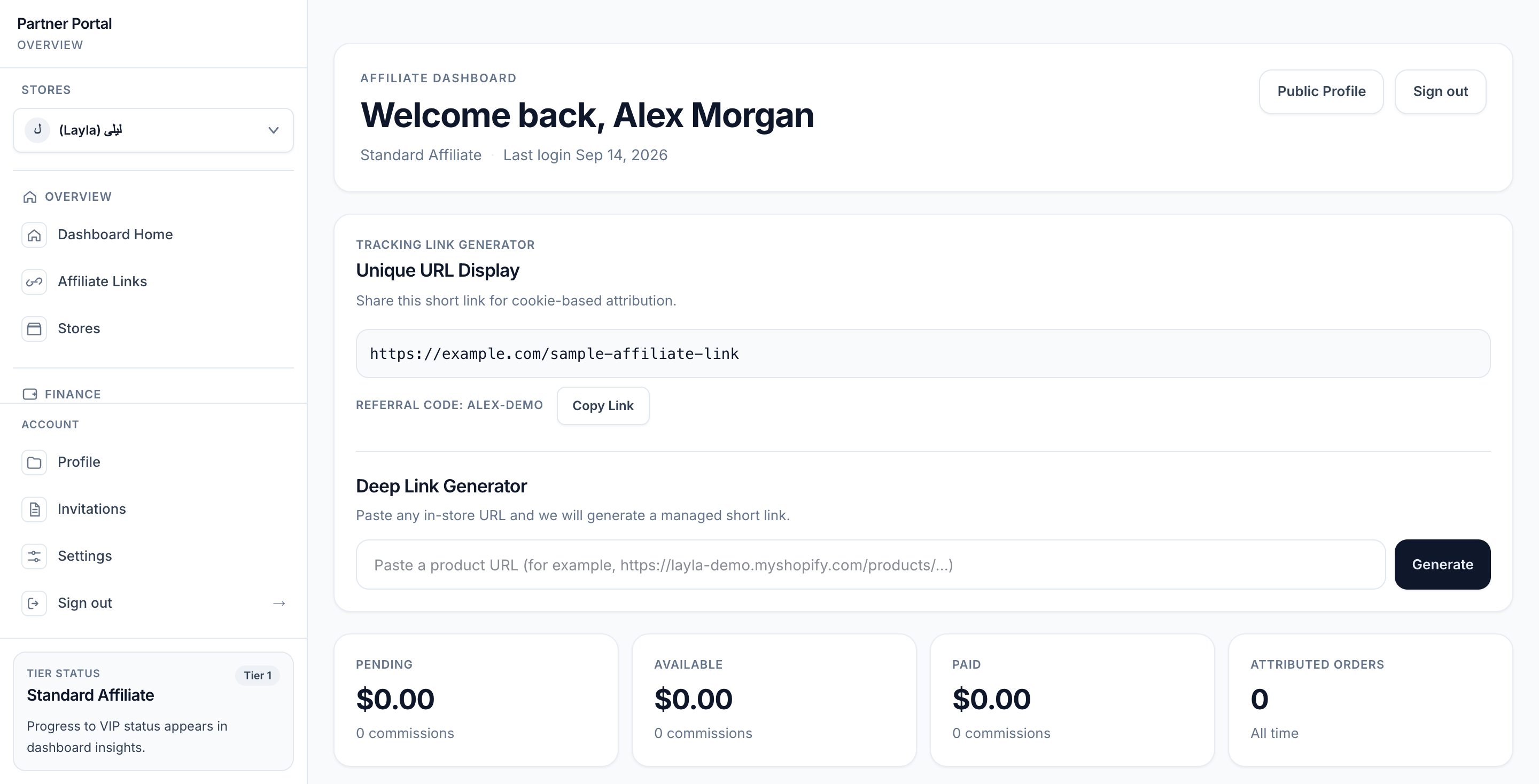
View full-size image: Standard Affiliate dashboard
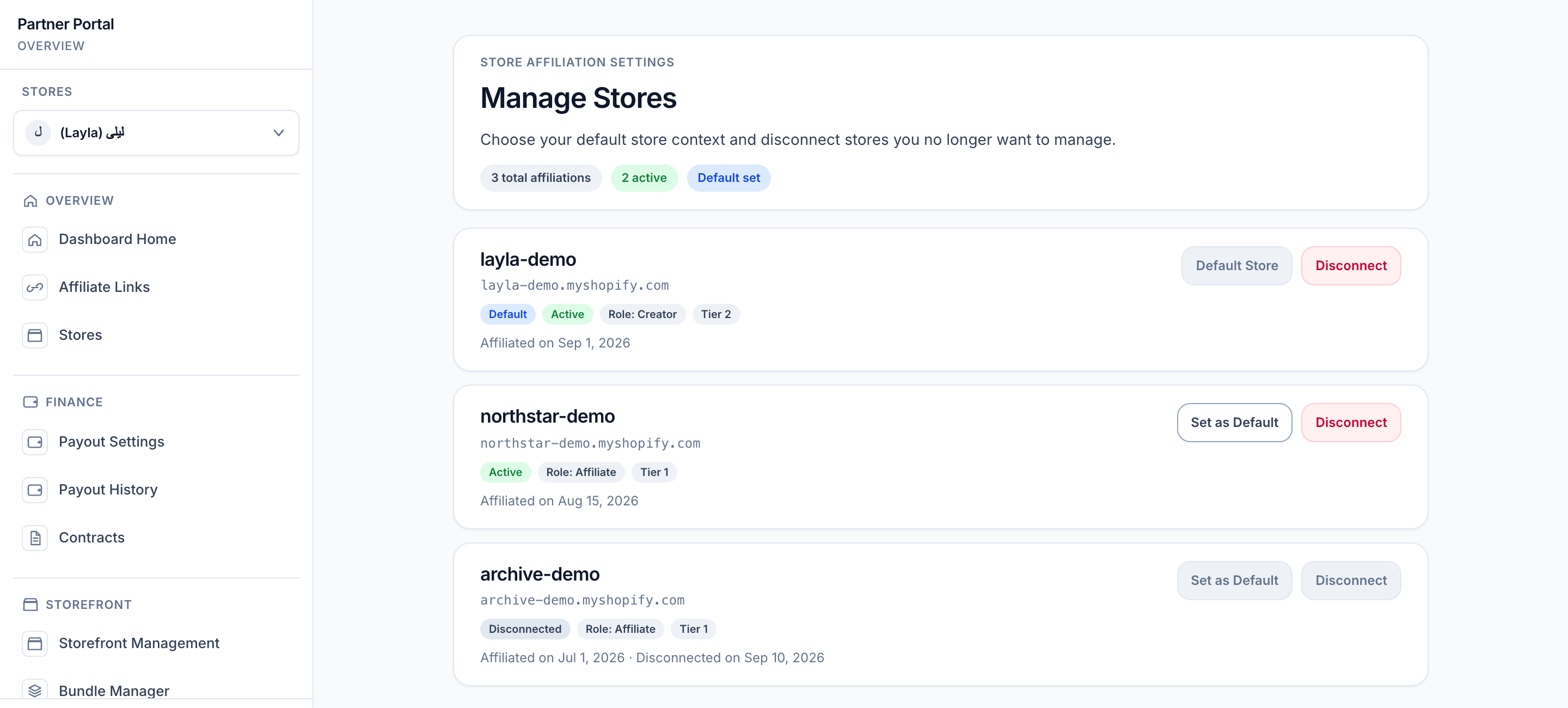
View full-size image: Stores page
Step 1.
Open the dashboard home to review earnings, recent activity, and quick actions.
Step 2.
Open Profile to update your contact details, profile photo, bio, socials, and optional address details.
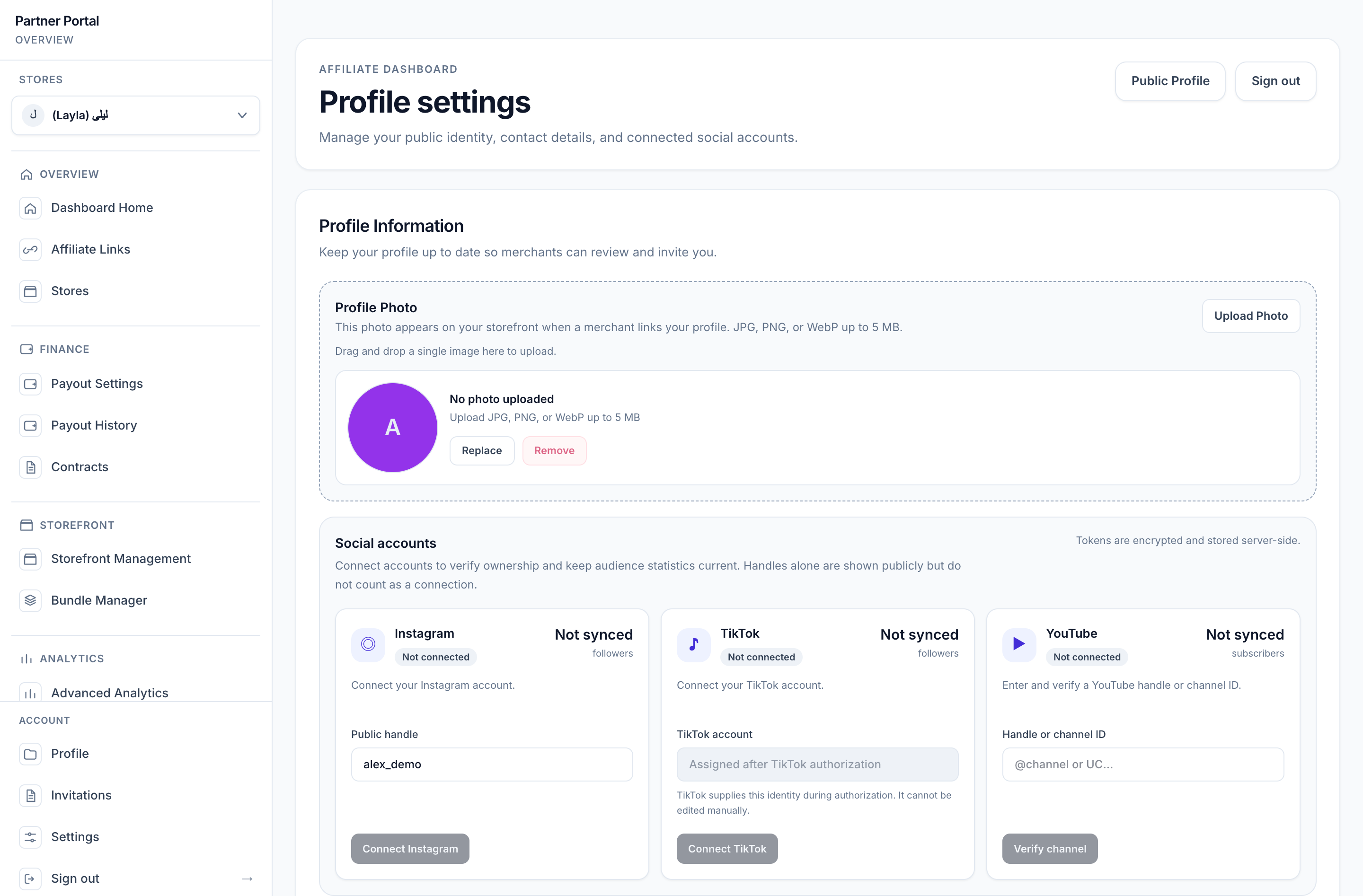
View full-size image: Partner profile page
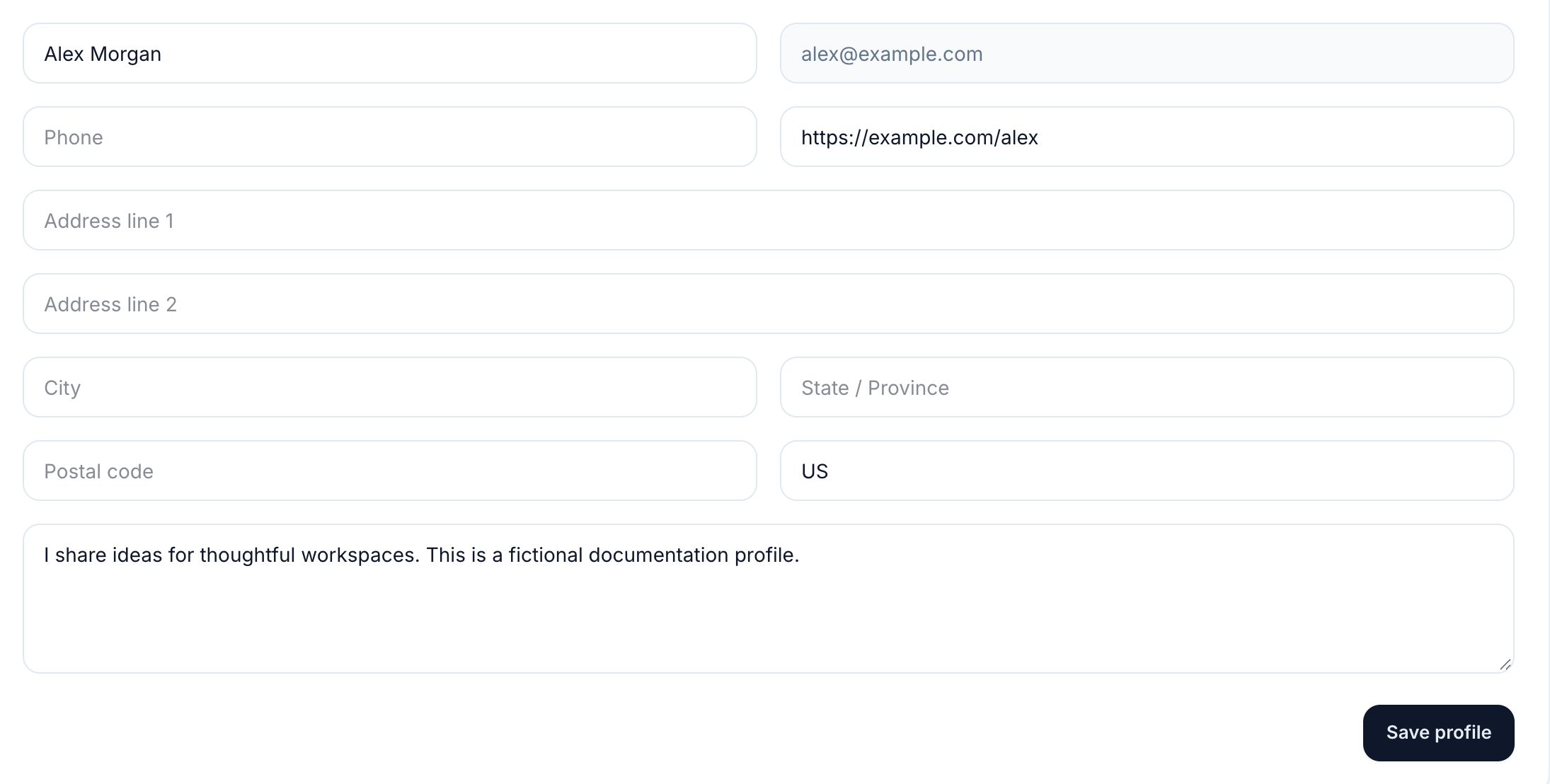
View full-size image: Profile contact fields
Step 3.
Use the profile photo uploader when you want a current headshot or avatar to appear in partner-facing experiences that support it.
Step 4.
Open Stores to review each store relationship, set the default store, or disconnect when needed.
Step 5.
If the dashboard shows limited access, review the current store and affiliation state before troubleshooting further.
Settings explained
- Dashboard Home is your snapshot view for earnings, links, and recent events.
- Wallet summary helps you understand pending, available, and paid earnings at a glance.
- Tier watcher helps you see how the current store relationship is progressing.
- Asset bank can appear on the dashboard when partner assets are available.
- Profile stores the details merchants use to identify and work with you.
- Profile photo can be uploaded, replaced, or removed from the profile page and can surface later in storefront areas that use partner photo content.
- Stores shows whether you have one or many active affiliations, what tier applies to each one, and whether a store is active, suspended, or disconnected.
Example
A partner notices one store is no longer the main priority, opens Stores, sets another store as the default, and then returns to the dashboard in the new store context before creating links.
Tips and limits
- The dashboard home is a quick summary, not the only place to manage key tasks.
- Store changes can affect what links, analytics, or payouts you are looking at.
- Keep profile details current because invitation, contract, and payout workflows depend on accurate information.
- If the current store is disconnected, the dashboard can move you back to your default active store automatically.
- If the dashboard looks limited or some tools are missing, confirm the active store and whether the account currently has active affiliations.