
Store context and switching
Understand how the active store changes your partner dashboard, what the default store does, and why some tools appear only in certain store contexts.
Before you start
- Have at least one active store relationship.
Where to find it
Partner dashboard → Stores and store switcher
Steps
These examples use fictional store relationships. The English desktop and Arabic mobile menus show the same two active stores.
Step 1.
Open Stores to review every active and past store relationship.
Step 2.
Check which store is marked as the default store.
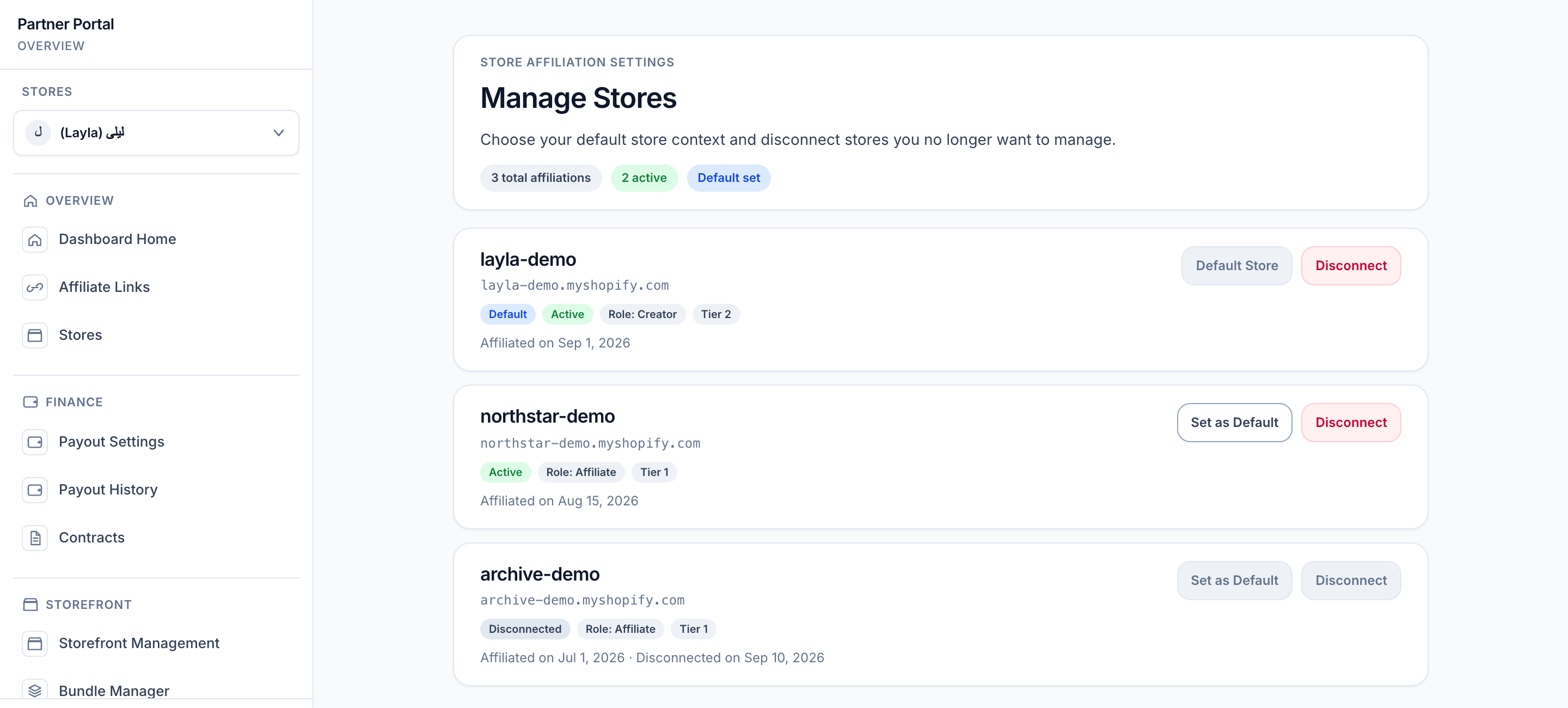
View full-size image: Review active and past store relationships
Step 3.
Use the Stores selector near the top of the desktop sidebar when you need to change the active store. On mobile, open Menu, then open the store selector in the navigation drawer. Choosing a store changes the active context; it does not change your saved default.
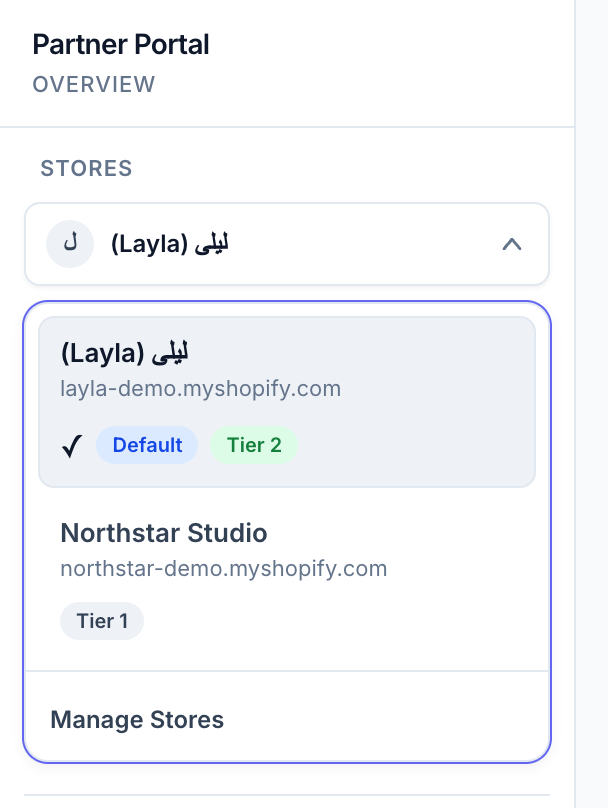
View full-size image: Find the desktop store switcher
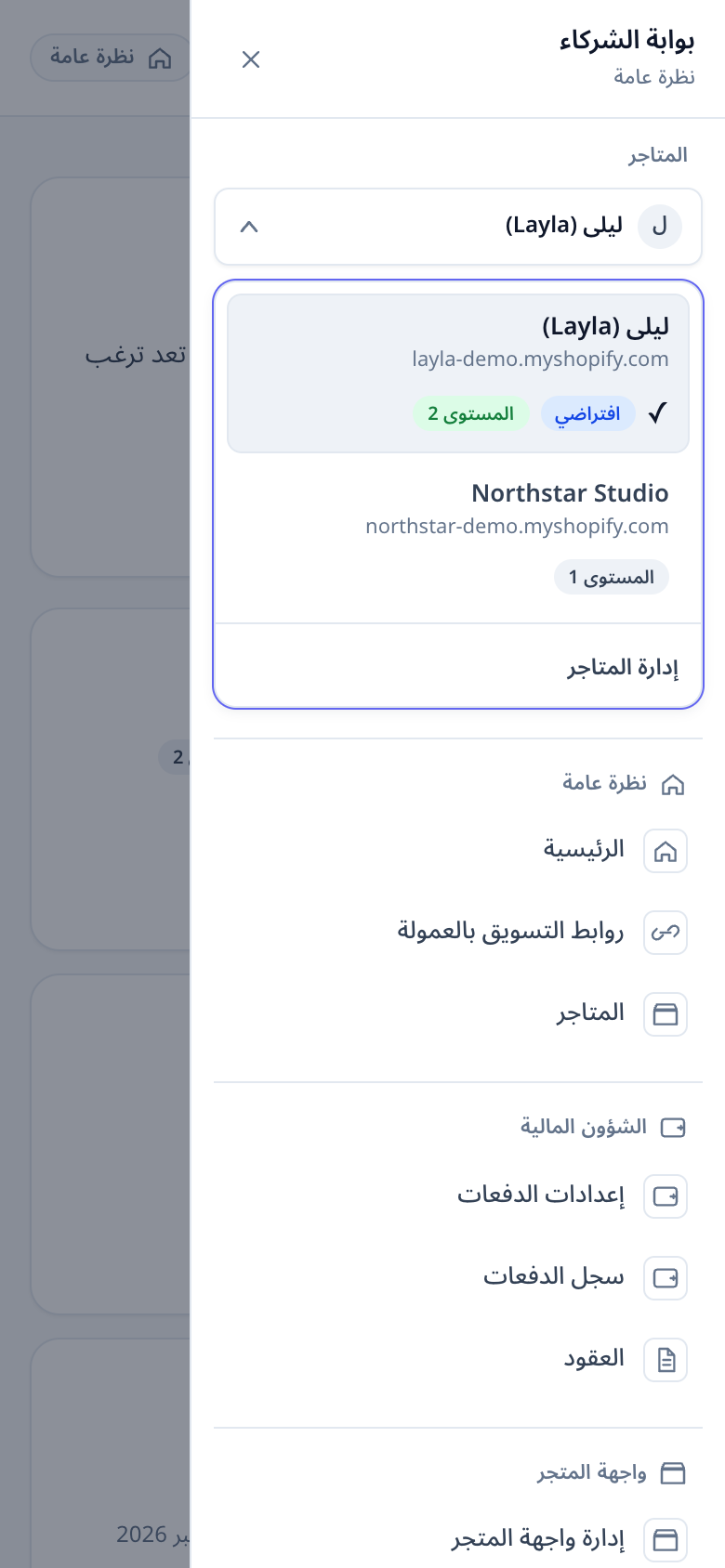
View full-size image: Switch stores from the Arabic mobile drawer
Step 4.
After switching, confirm that you are looking at the right links, payouts, analytics, or storefront tools for that store.
Step 5.
If you no longer work with a store, review the disconnect state before assuming the account is missing.
Step 6.
If the dashboard redirects you to a different store, check whether the previous store became unavailable and the system returned you to the default store.
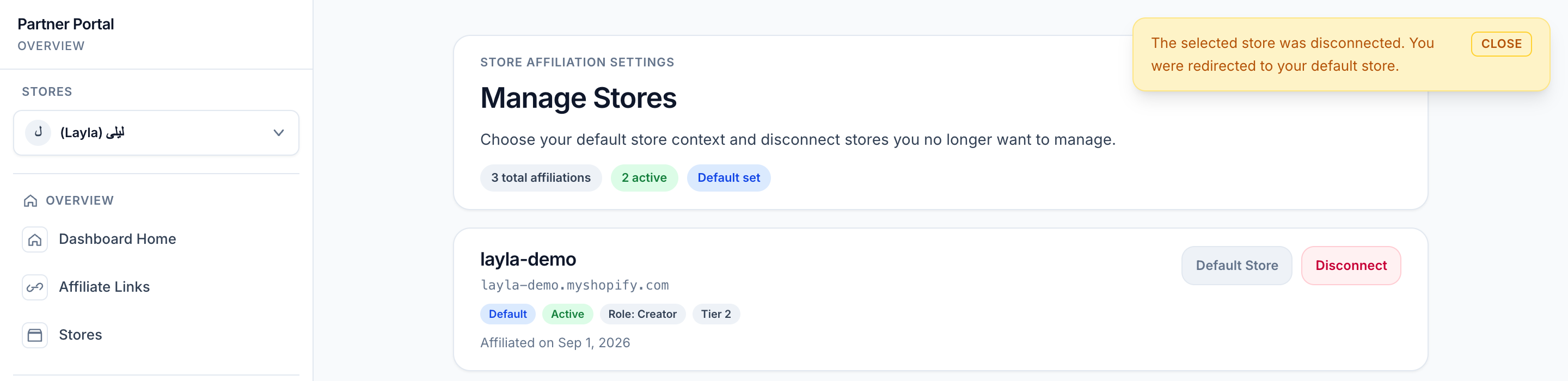
View full-size image: Recognize a fallback to the default store
Settings explained
- Default store is the store that opens first when you enter the dashboard.
- Active store context controls which data and tools the dashboard shows right now.
- Tier per store means you can be a Standard Affiliate in one store and a VIP Partner in another.
- Disconnected status means the relationship is no longer active, even if older history is still visible.
- Store switcher visibility can still appear when only one active affiliation exists, because the current store context remains important.
Example
A partner works with two brands. The first store gives standard affiliate access, while the second store gives VIP access. After switching to the second store, the storefront builder, bundle manager, and advanced analytics become available.
Tips and limits
- Check the active store before editing links, requesting payouts, or reviewing analytics.
- If a VIP tool disappears, confirm that you are still in the store that grants VIP access.
- Store changes affect the dashboard context only. They do not automatically change public profile or storefront links you already shared.
- If the dashboard redirects to the default store, treat that as a context warning and confirm whether the previous store is still active.