
Partner dashboard states
Understand what the partner dashboard looks like when access is fully active, limited by store context, or reduced to profile-only access.
Before you start
- Sign in with a partner account.
Where to find it
Partner dashboard → Home, Profile, Stores
Steps
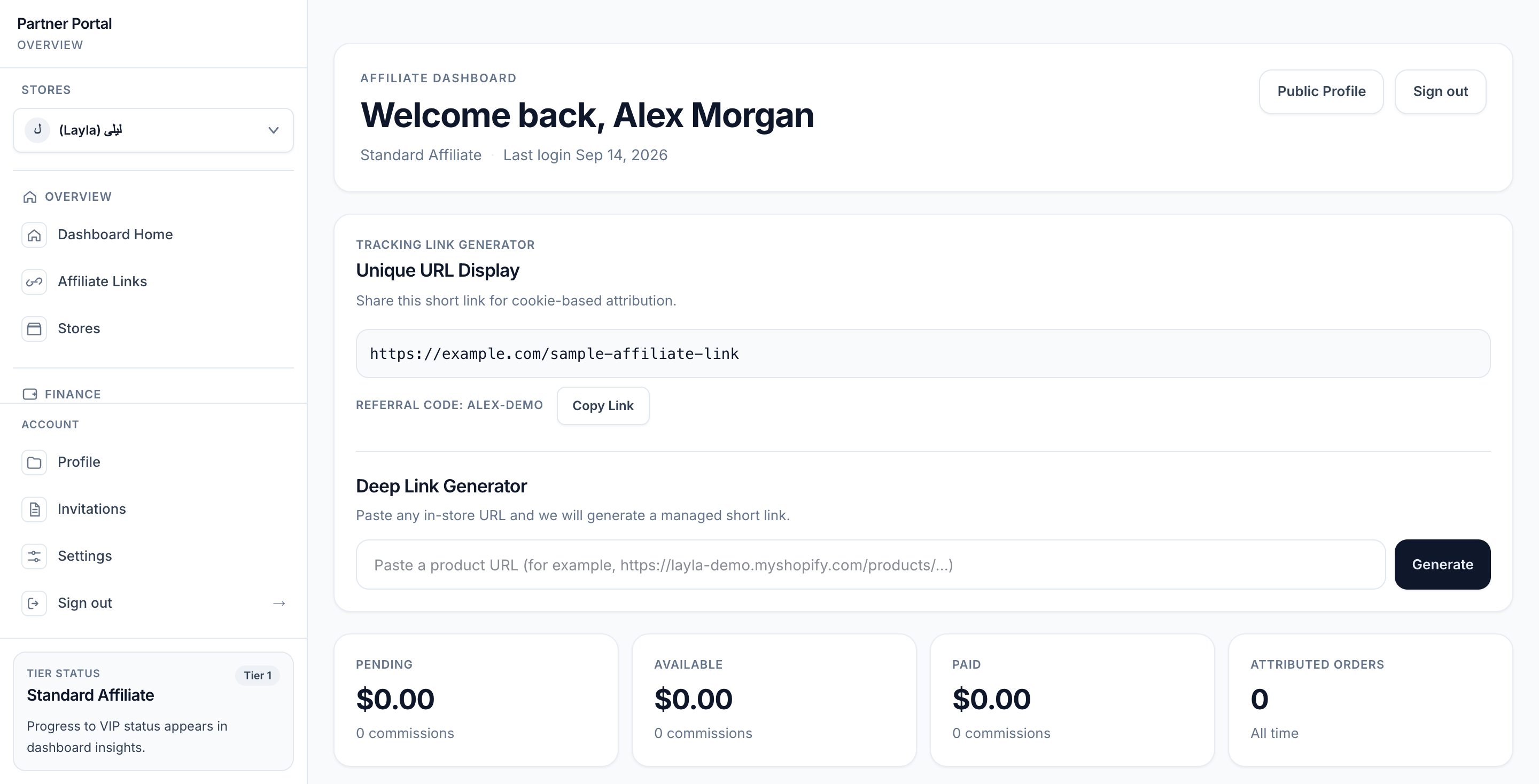
View full-size image: Standard Affiliate dashboard
Step 1.
Open the partner dashboard and look at the tools currently shown in the sidebar or home page.
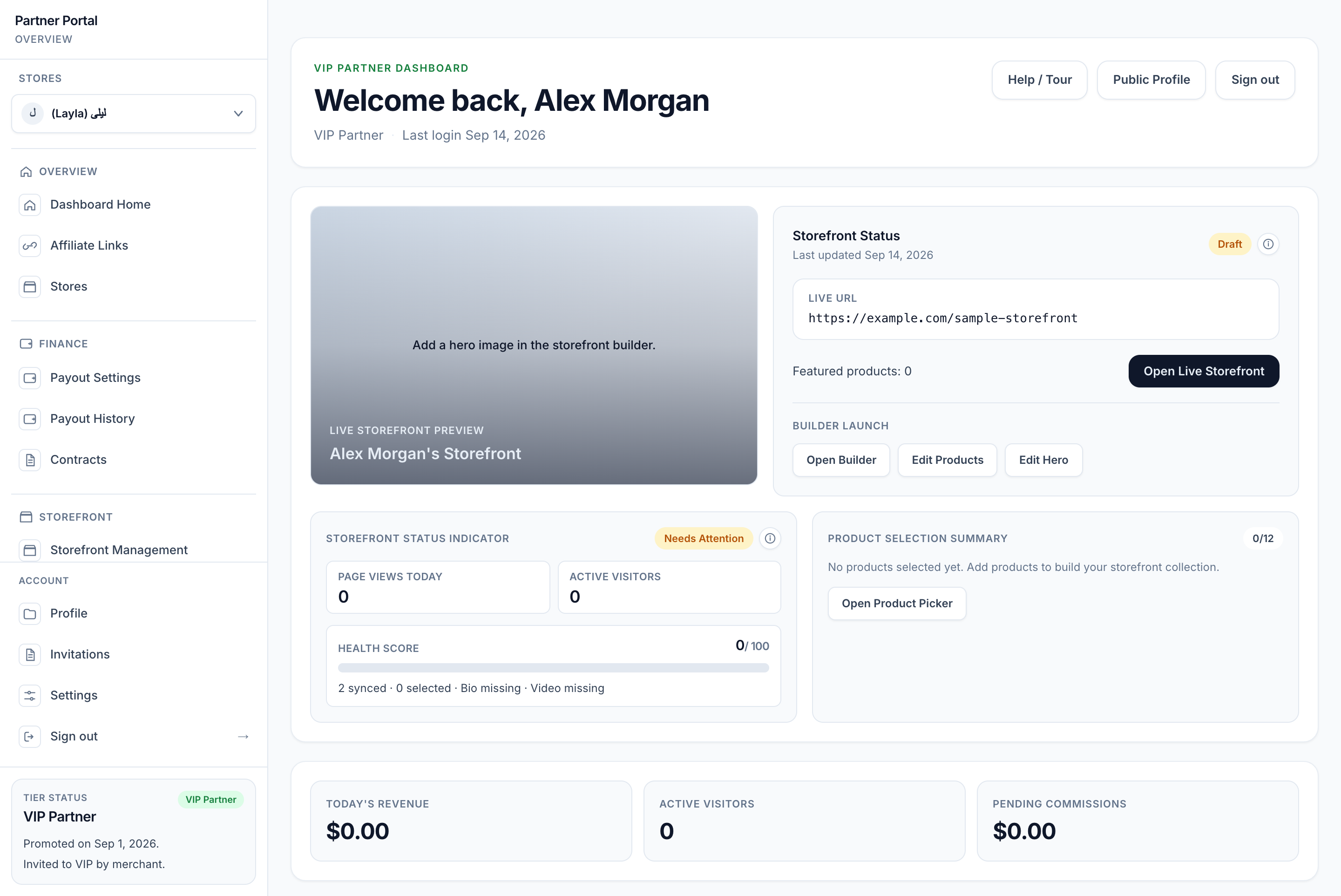
View full-size image: VIP dashboard and draft readiness
Step 2.
Confirm whether you are in a full-access state, a store-limited state, or a profile-only state.
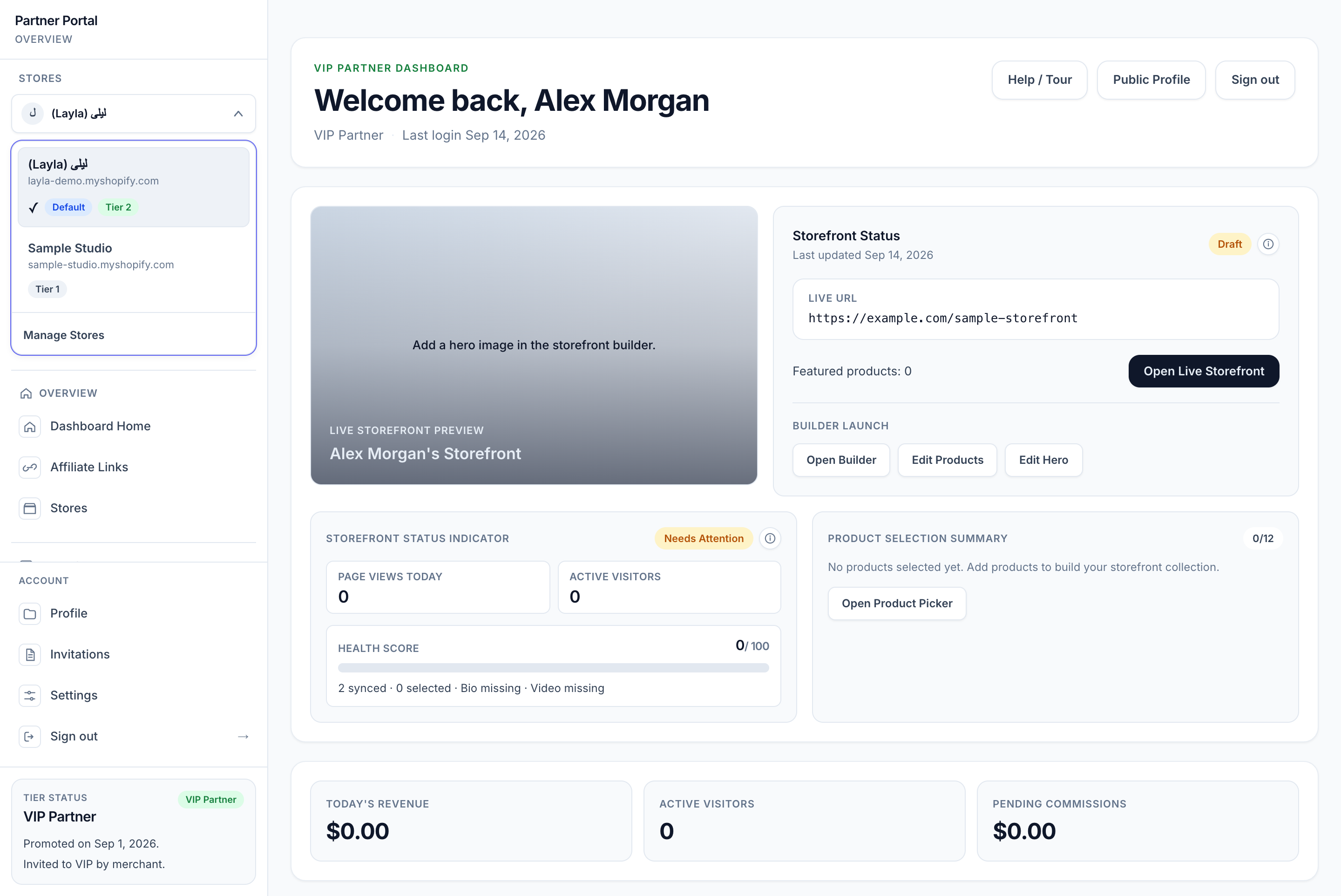
View full-size image: Dashboard with two store choices
Step 3.
If tools are missing, check the active store, tier, and whether the account still has any active store affiliations.
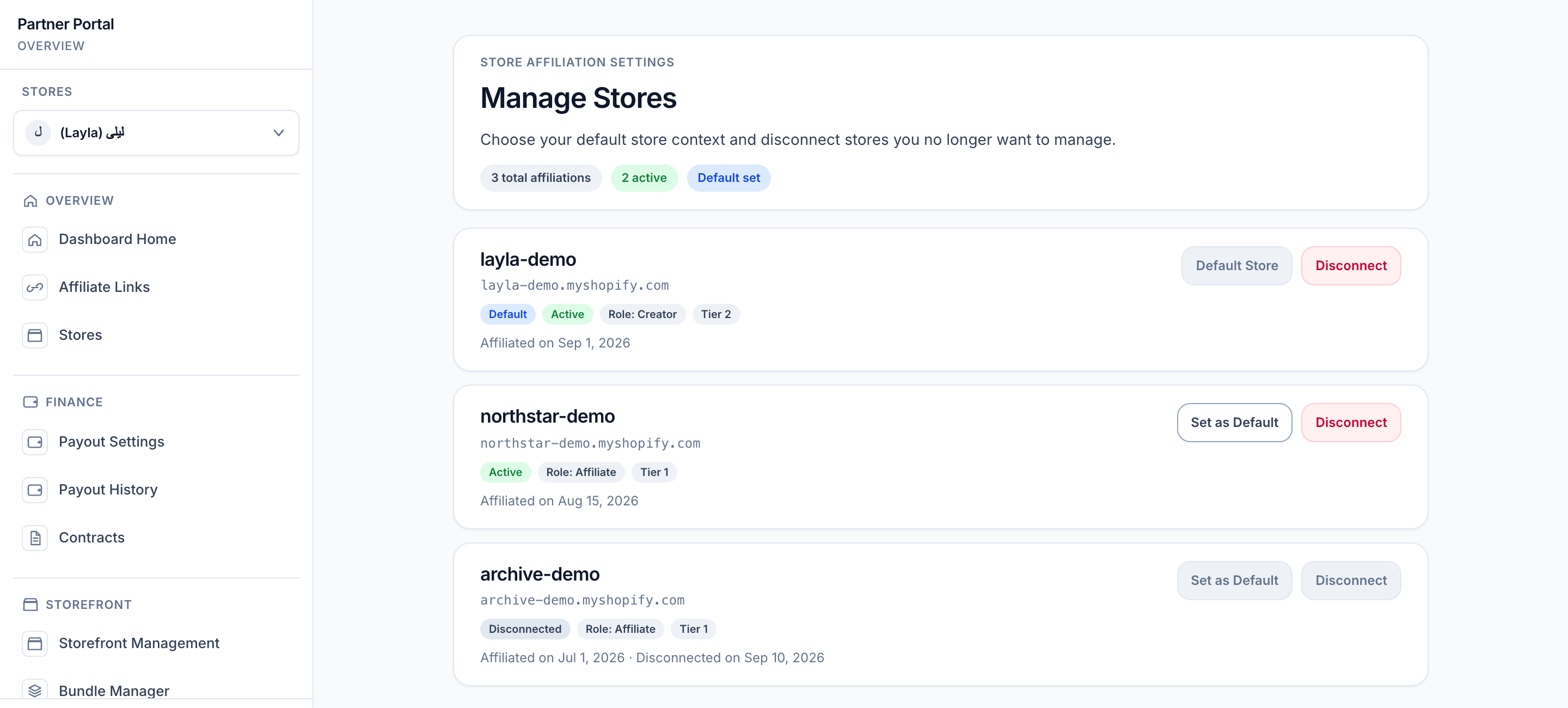
View full-size image: Manage Stores page
Step 4.
If the dashboard only shows profile and stores tools, complete the profile and wait for a merchant to link the account to a store.
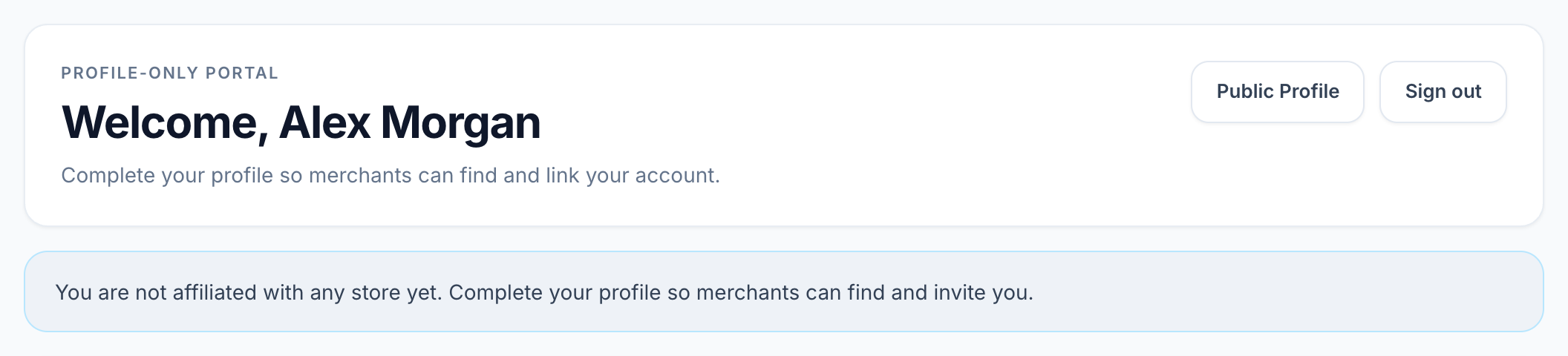
View full-size image: Profile-only dashboard notice
Settings explained
- Full-access dashboard means the account has an active store affiliation and the current store grants the tools shown on screen.
- Store-limited dashboard means the account is active, but the current store does not grant every tool. A Standard Affiliate store can hide VIP pages even if another store gives VIP access.
- Feature-locked notice means the page is real, but it is not available in the current store or current tier.
- Profile-only access means there are no active store affiliations right now. The partner can still update profile details so merchants can find and connect the account later.
- No store affiliation notice appears when a page needs an active store relationship before it can be used.
Example
A partner with VIP access in one store opens the dashboard in a different store where only standard access applies. The storefront builder and advanced analytics disappear, but the account is still active. Switching back to the VIP store restores the missing tools.
Tips and limits
- Missing tools do not always mean the account is broken. Check the current store first.
- If the dashboard redirects after a store becomes unavailable, review the default store and active affiliations.
- Keep the partner profile complete even during profile-only access so merchants can approve or invite the account faster.