
Public partner profile
Learn what appears on the public partner profile page, how the share link works, and what merchants and partners should keep current.
Before you start
- Have a partner profile with at least basic public details.
Where to find it
Open the public partner profile link.
Steps
Step 1.
Open the public profile link.
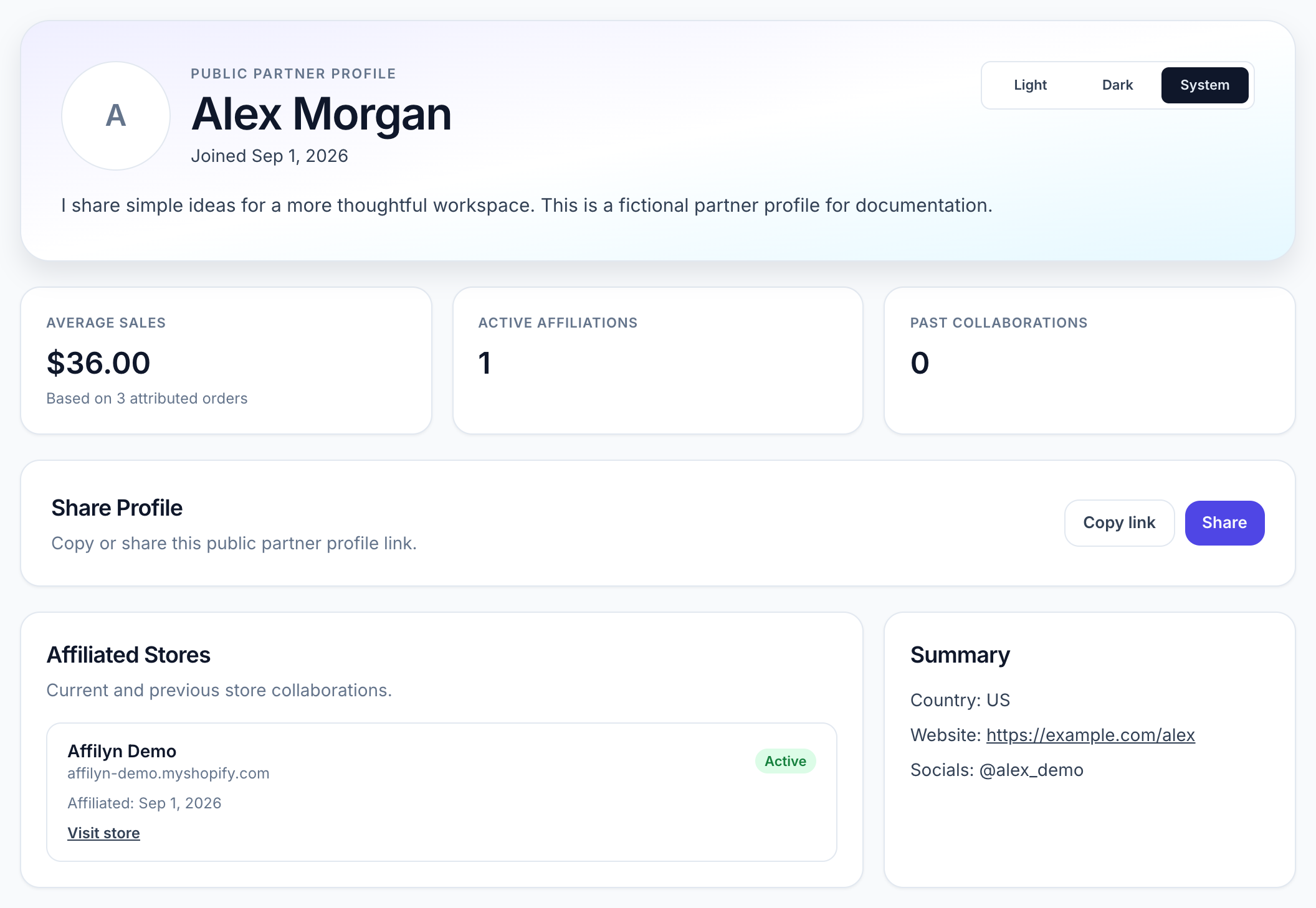
View full-size image: Public partner profile
Step 2.
Review the top section for the partner name, bio, and profile image.
Step 3.
Check the summary cards for average sales, active affiliations, and past collaborations.
Step 4.
Scroll to the affiliated stores section to review current and previous store relationships.
Step 5.
Use Copy link or Share when you want to send the profile to someone else.
Settings explained
- Bio gives a quick public introduction to the partner.
- Affiliated stores show current and previous store relationships.
- Website and socials help merchants or shoppers learn more about the partner.
- Share link opens the same public profile page and keeps the correct public address.
Example
A merchant is considering a new campaign and opens a partner's public profile to review the partner bio, current store relationships, and general sales summary before sending an invitation.
Tips and limits
- Keep profile details current so the public page stays credible and useful.
- Public profile visibility is separate from private dashboard access.
- If the link opens with the wrong address, the profile will still move to the correct public link automatically.