
VisitorGuide
Partner applications and public profiles
Understand how visitors apply as partners from the storefront and what information can appear on public partner profile pages.
Last reviewed: Sep 15, 2026UI path: Storefront apply button, public profile link, or shared partner page
When to use this page
- You want to apply as a partner from the public storefront.
- You want to understand what a public partner profile can show without logging in.
Before you start
- Open the storefront or public profile page that you want to review.
Success looks like
- You can tell whether the apply button, application modal, and success state are working.
- You understand which information is public and which steps continue later in private merchant or partner workflows.
Where to find it
Storefront apply button, public profile link, or shared partner page
What to expect when applying
- Click the storefront apply button if one is visible.
- Complete Basic → Social → About → Review with the requested information.
- Review your details before choosing Send Request, then look for the confirmation message.
- Wait for merchant review. A successful submission does not mean the application has been approved or that dashboard access is ready.
The form examples use the current application extension with sample theme settings. Names, contact details, and profile data are fictional; no application was submitted for these screenshots.
Screenshot
Local image
View full-size image: Apply as a Partner button
Basic information
Screenshot
Local image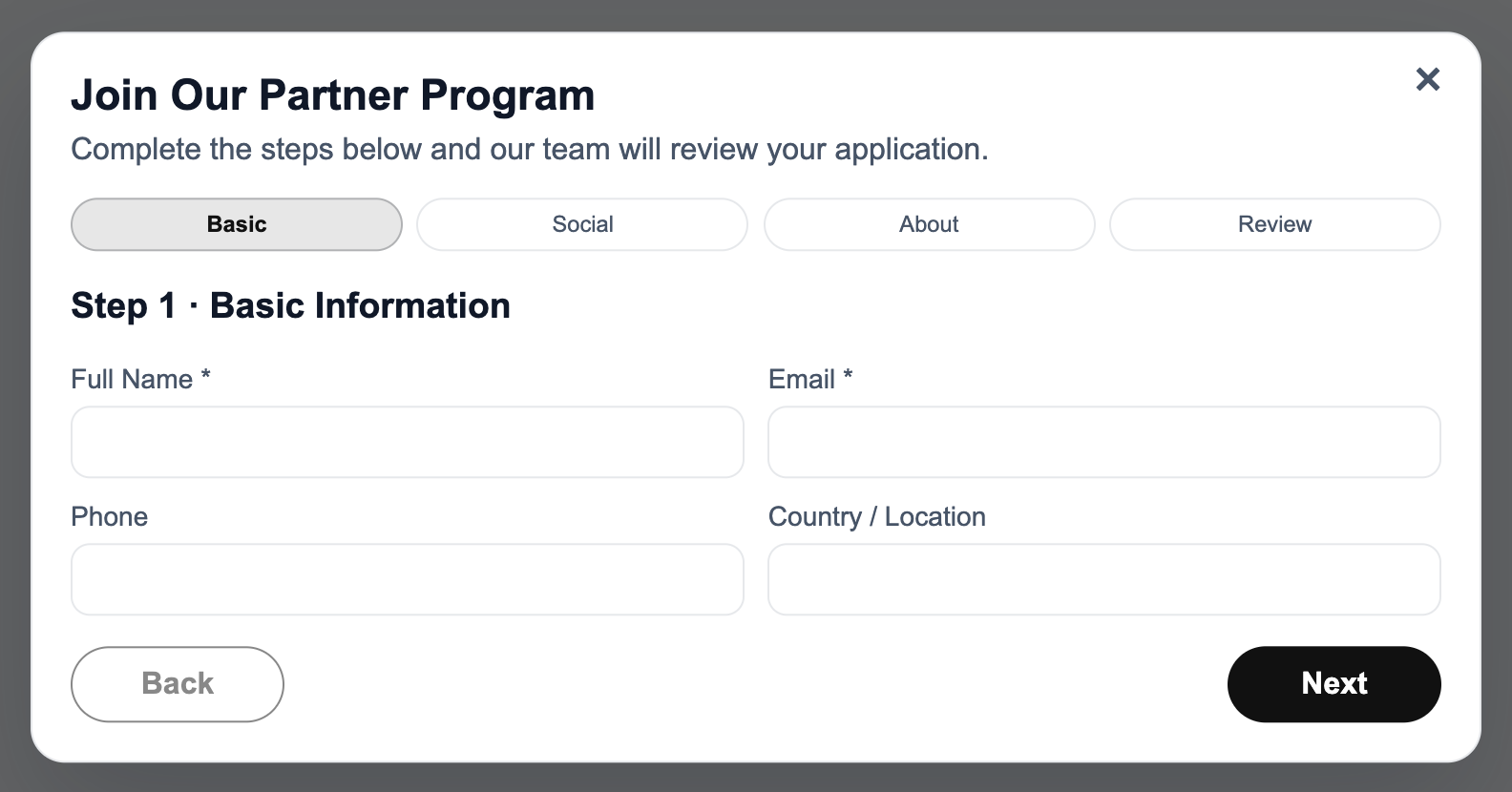
View full-size image: Start with your basic information
Social information
Screenshot
Local image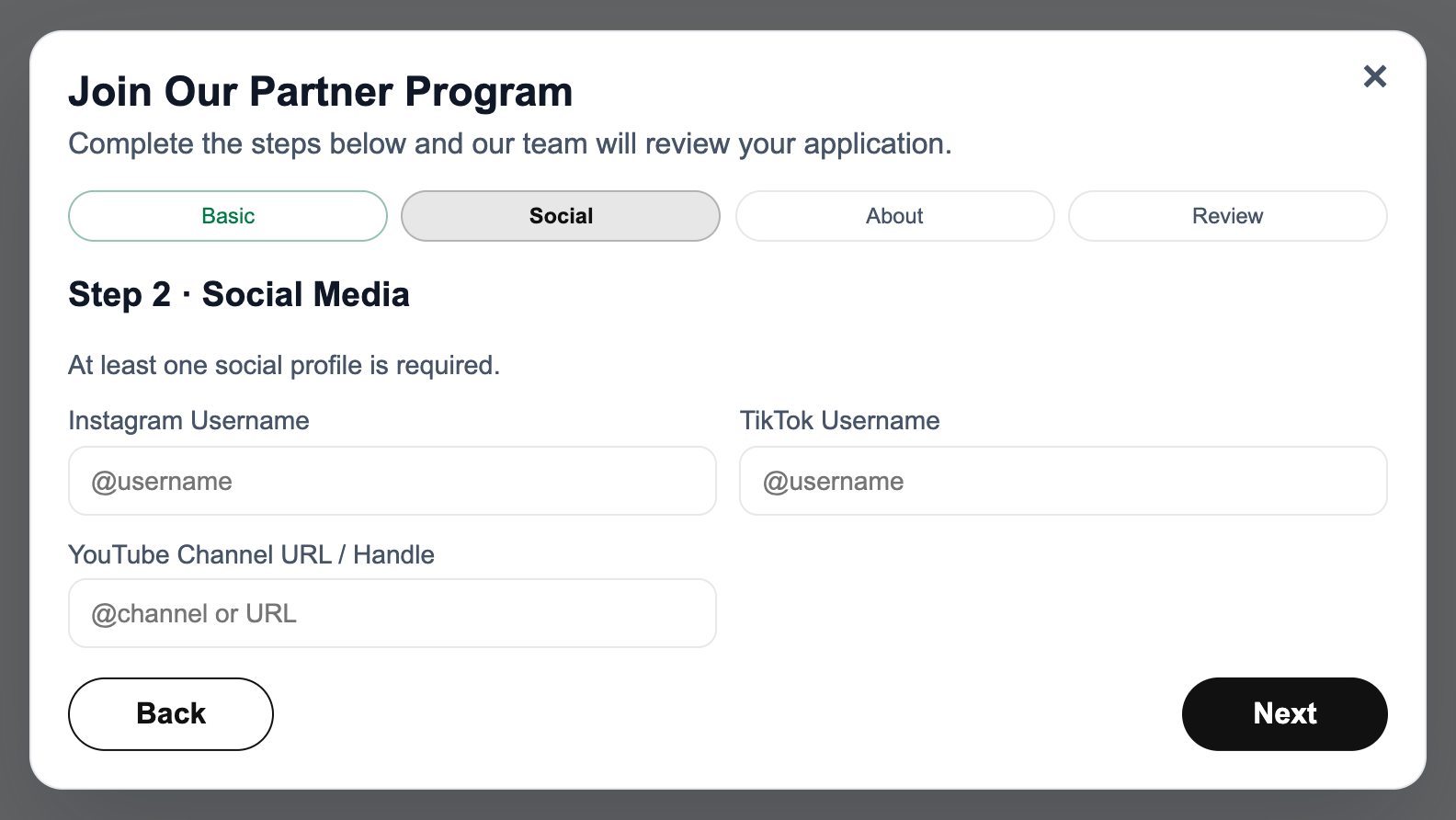
View full-size image: Add at least one social profile
About you
Screenshot
Local image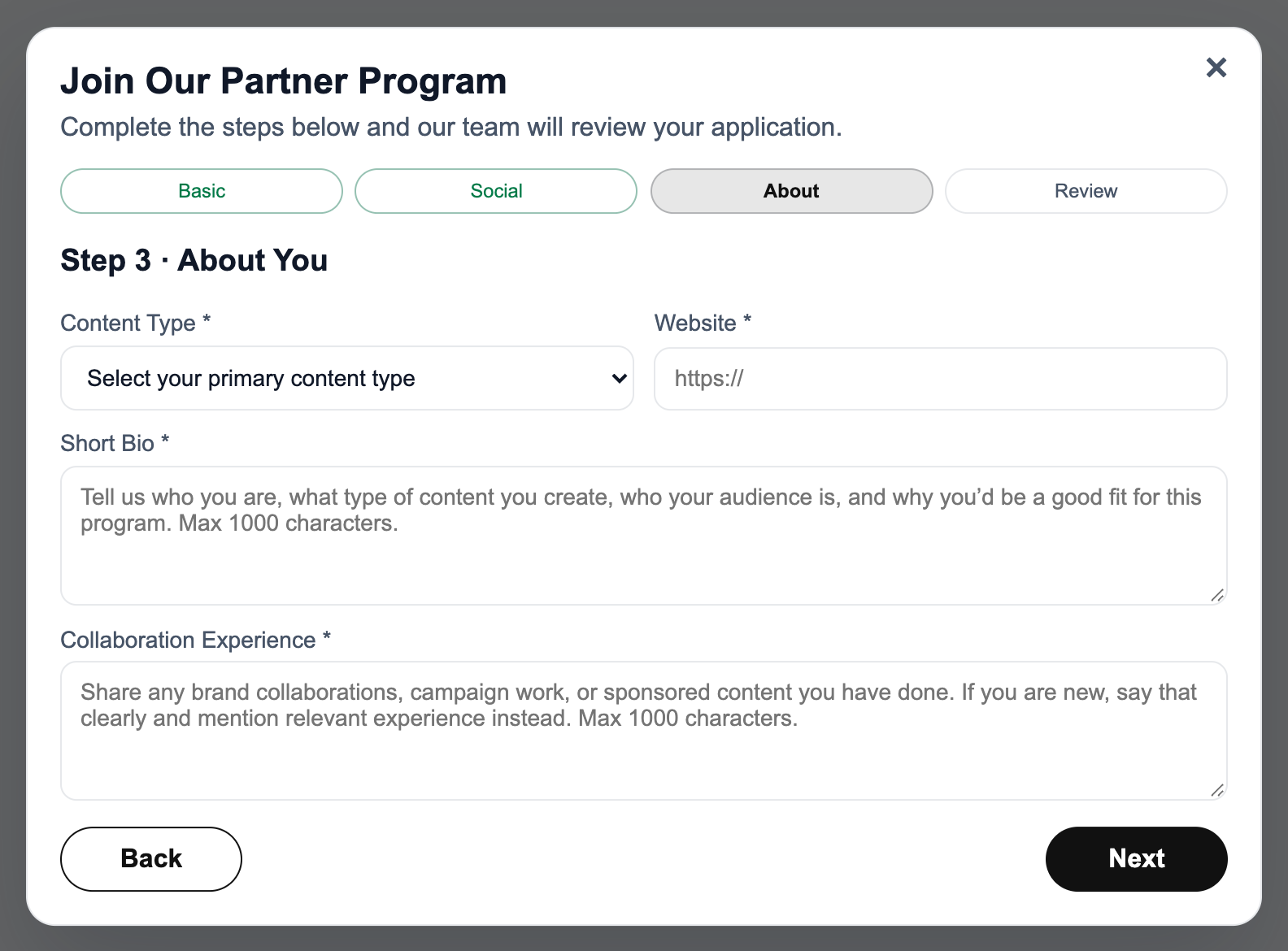
View full-size image: Describe your content and experience
Review and confirmation
Screenshot
Local image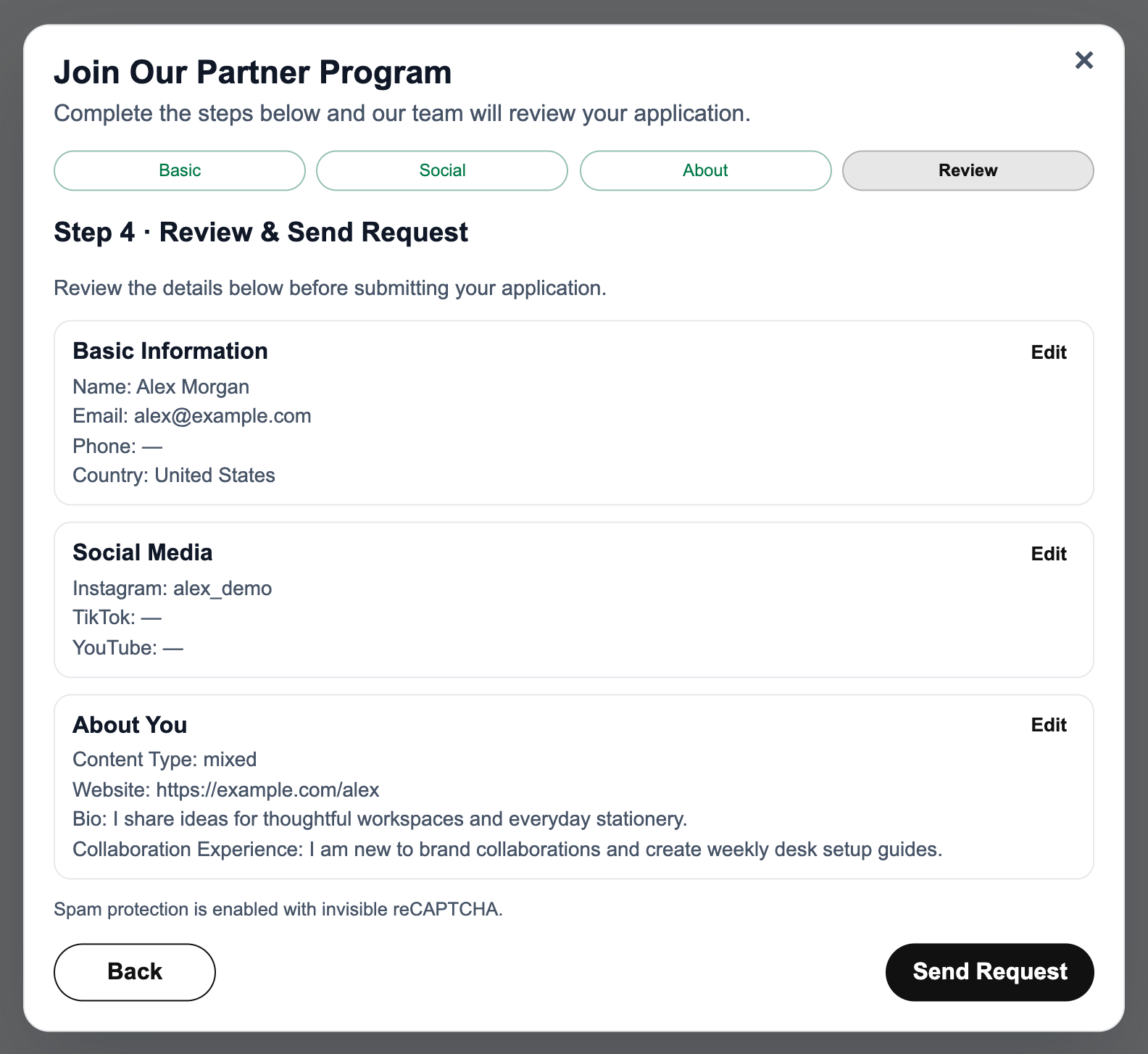
View full-size image: Review before sending your request
Screenshot
Local image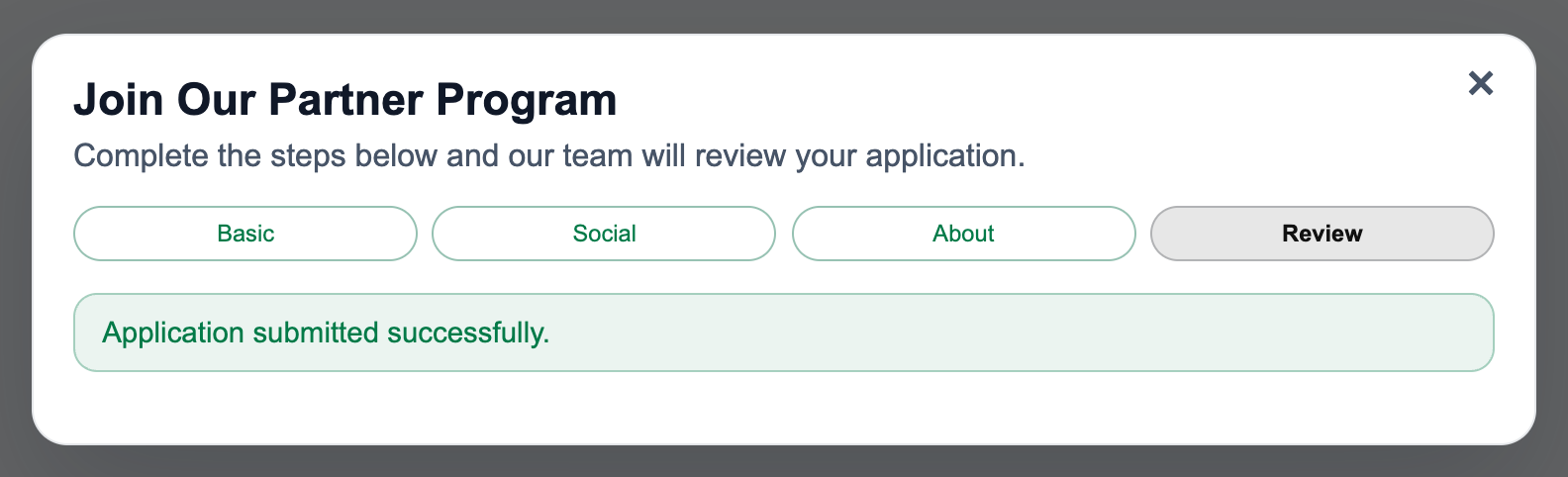
View full-size image: Recognize the received confirmation
What a public profile means
- A public profile is a visitor-facing page meant for discovery and trust.
- Public profile information can differ from what the partner sees privately inside the dashboard.
- Use Copy link or Share to share the public profile, rather than a private dashboard URL.
- If a profile or application flow is missing, the merchant may not have published or enabled that feature for the current storefront.
Screenshot
Local image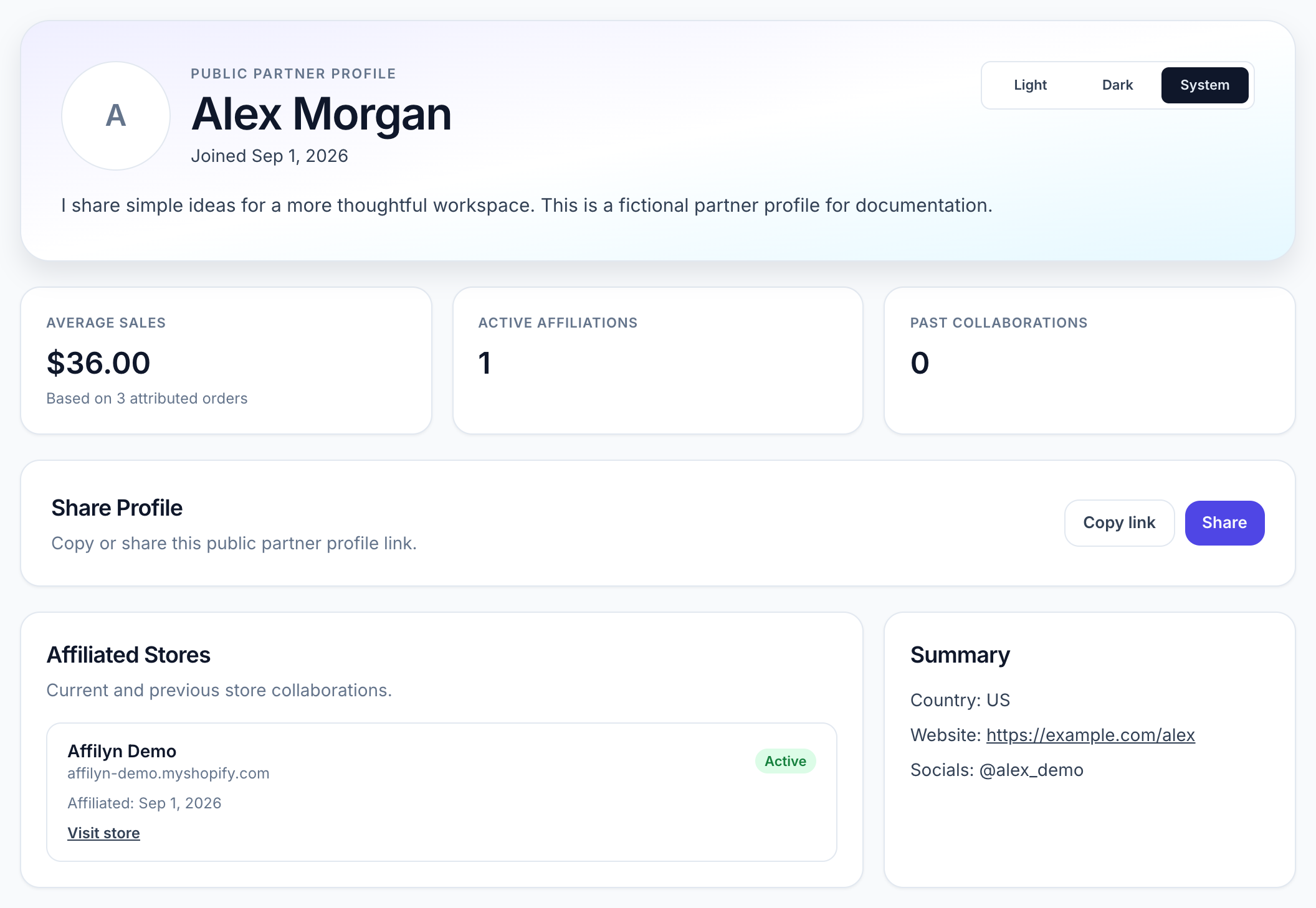
Current behavior
- The storefront application flow uses the published Partner Apply Button and Partner Application Modal from the live theme.
- Public partner profiles can expose curated profile information without exposing private dashboard data.
Limitations
- If the merchant disables applications or removes the theme block, the storefront application entry point will not be available.
- Submitting a public application does not create immediate dashboard access on its own.